Completed Session Edits
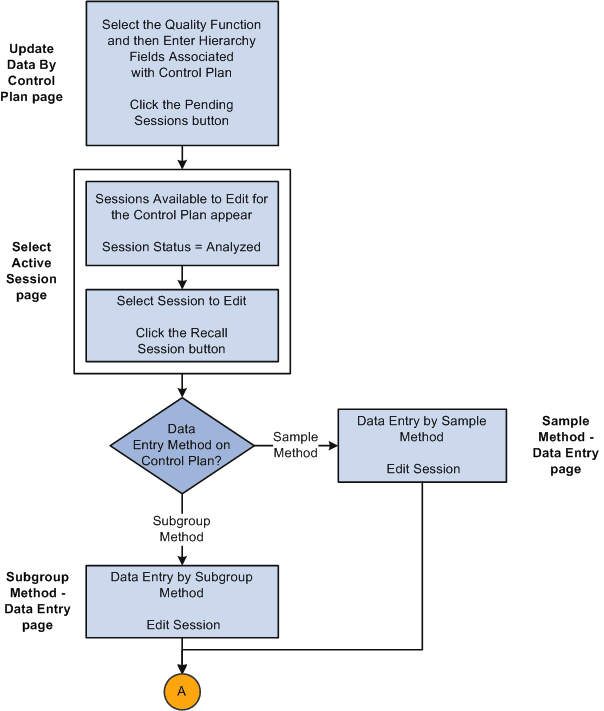
This graphic illustrates the process flow for editing a completed session. The steps are explained below the graphic:
This graphic illustrates the process flow.
This graphic illustrates the process flow.
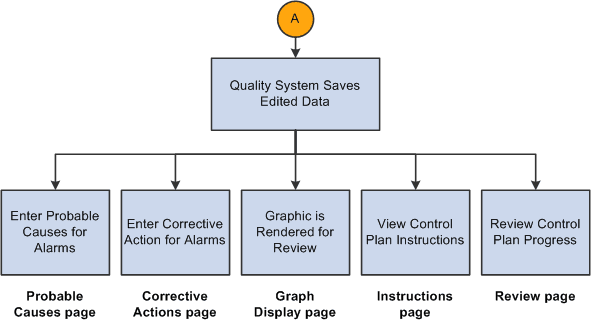
To edit data on a session that is completed:
-
Determine whether you have sessions that need to be edited, such as data that was entered incorrectly for the session.
-
Enter the hierarchy fields associated with the control plan on the Update Data By Control Plan page and click the Pending Sessions button.
-
Select the completed session that you want to edit, by clicking the Recall Session button on the Select Active Session page.
-
Edit data associated with the characteristics that are completed for the session by using the Subgroup Method - Data Entry page or the Sample Method - Data Entry page.
The system invokes the appropriate data-entry page depending on the data-entry method that you defined for the control plan. While editing data, you can:
-
Edit the data-entry readings for completed characteristics.
-
View the instructions for the complete control plan on the Instructions page.
-
View the results for a sampling on the Review page.
-
-
Save the edited readings.
After you edit and save readings, the system does not generate new or cancel existing alarms; however, it does check acceptance limits (if defined). Plus, the system selects and displays the Subgroup Was Edited check box for each edited characteristic subgroup.
-
View the results as a graphic.
The working chart appears on the Graph Display page.