Quality Data Entry
This diagram illustrates the process flow when creating a new data-entry session against a control plan. Choose to access the control plans using the access list mode or the hierarch fields mode. For the new session, enter data using the subgroup method or the sample method and then the session ID is created. Next, submit the readings for analysis. Review and diagnose any system-generated alarms and review the results in graphic form:
This diagram illustrates the process flow.
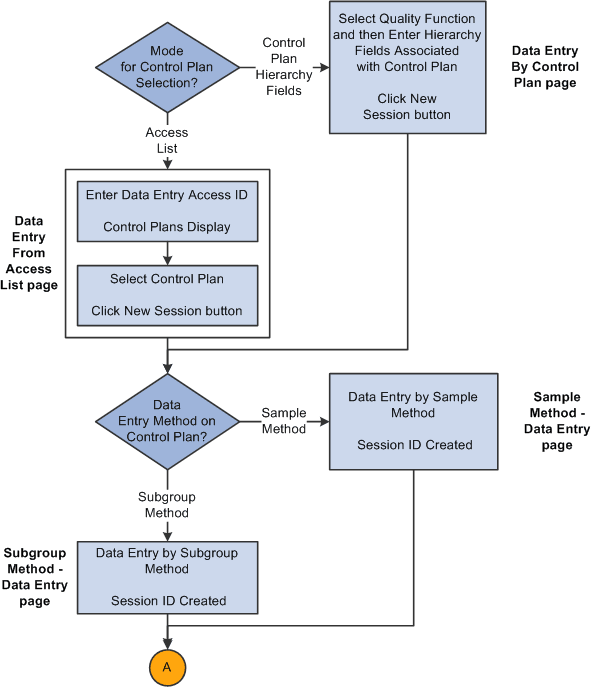
This diagram illustrates the process flow.
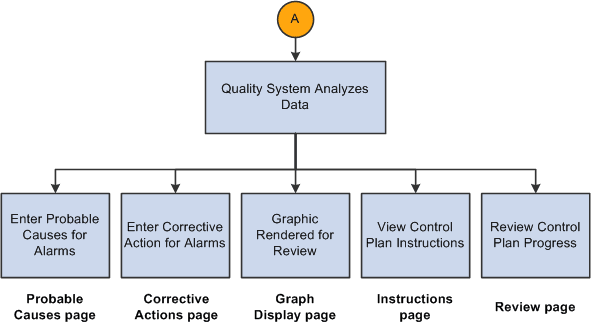
Use the following procedures to initiate a quality session and record sampling data.
To enter quality data:
-
Determine how you want to access the control plans.
-
If you choose the access list mode, perform the steps in the "To choose the access list mode" procedure.
-
If you choose the hierarchy field mode, perform the steps in "To choose the hierarchy field mode" procedure.
To choose the access list mode:
-
Create an access list by using the Define Operator Access List page and associate control plans with the access list using the Control Plan Selections page.
-
Enter the data entry access ID and then select the control plan on the Data Entry From Access List page with which you want to work.
-
Click the New Session button.
-
Enter data associated with the characteristics on the control plan on the Subgroup Method - Data Entry page or the Sample Method - Data Entry page.
The system invokes the appropriate page depending on the data-entry method defined for the control plan. While entering data you can view:
-
Instructions for the control plan on the Instructions page.
-
Current results for a sampling on the Review page.
-
-
Submit the readings for analysis.
-
Review and diagnose the alarms that the system generated.
If the system generates alarms, you can:
-
View the alarm notifications for each characteristic.
-
Enter the causes for the alarms on the Probable Causes page.
-
Enter the corrective actions taken to correct the alarm condition on the Corrective Actions page.
-
-
(Optional) Enter causes for potential problems and corrective actions on the Probable Causes and Corrective Actions pages even if the system does not generate alarms.
-
View the results as a graphic.
The working control chart that you assigned to the characteristic appears on the Graph Display page.
To choose the hierarchy field mode:
-
Select the quality function and then enter the hierarchy fields associated with the control plan using the Data Entry By Control Plan page.
-
Click the New Session button on the Data Entry By Control Plan page.
-
Enter data associated with the characteristics for the control plan on the Subgroup Method - Data Entry page or the Sample Method - Data Entry page.
The system invokes the appropriate data-entry page depending on the data-entry method that you defined for the control plan.
While entering data you can:
-
Complete the data-entry readings for one or more characteristics on the control plan.
-
View the instructions for the complete control plan on the Instructions page.
-
View the current results for a sampling on the Review page.
-
-
Submit the readings for analysis.
-
Review and diagnose the alarms that the system generated.
If the system generates alarms, you can:
-
View the alarm notifications for each characteristic.
-
Enter the causes for the alarms on the Probable Causes page.
-
Enter the corrective actions taken to correct the alarm condition on the Corrective Actions page.
-
-
(Optional) Enter causes for potential problems and corrective actions on the Probable Causes and Corrective Actions pages even if the system does not generate alarms.
-
View the results in a graphic.
The working control chart that you assigned to the characteristic appears on the Graph Display page.