Comprehensive Customer View Page (Comparison View)
Use the Comprehensive Customer View page - Comparison View (CAFNUI_DISPLAY_FL) to compare data for two or more customers.
Navigation:
This example illustrates the fields and controls on the Comprehensive Customer View page - Comparison View.
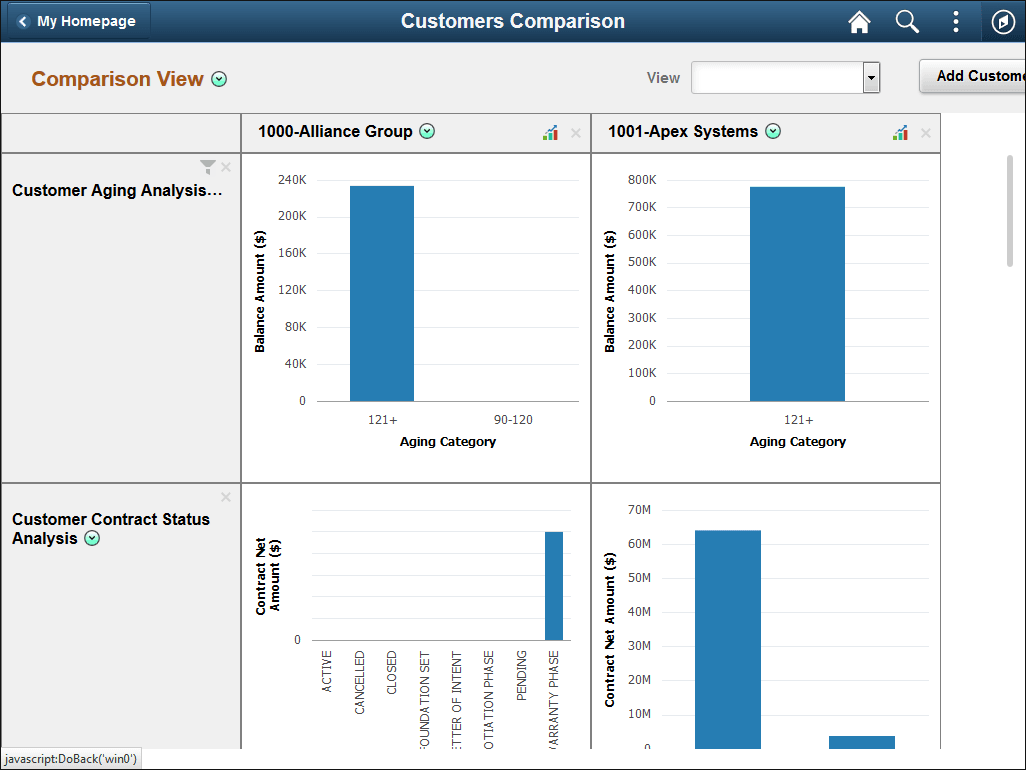
In Comparison view, customers and their related data appear in tabular format. Customers appear in the header row at the top of the table. Metric data appear as rows. Customer and metric data will vary depending on the customers selected and metrics specified for analysis. Customer Related Actions are available only in Comparison view.
Customer Related Actions
On the customer header row, click the Customer Related Actions button to perform the following actions:
-
Flag this Customer: used to indicate the customer is flagged.
-
Collection Workbench: used to access the Collections Workbench, where you can view detailed customer collection data for the customer, as well as related contracts.
-
Customer Attachments: used to access the Attachments page, where you can view attachments related to the customer.
-
Customer Hierarchy: used to access the Customer Hierarchy page, where you can review customer hierarchy information for the customer.
-
Customer Information: used to access the Customer Information - General Info page, where you can review the customer name, address, level information, and associated roles.
-
Customer Message: used to access the Messages page, where you can identify and manage messages for the customer.
Click the Analysis Mode icon to access the Comprehensive Customer View page - Comparison View for a customer and view detailed information for each metric.