Credit Card Payments to Post
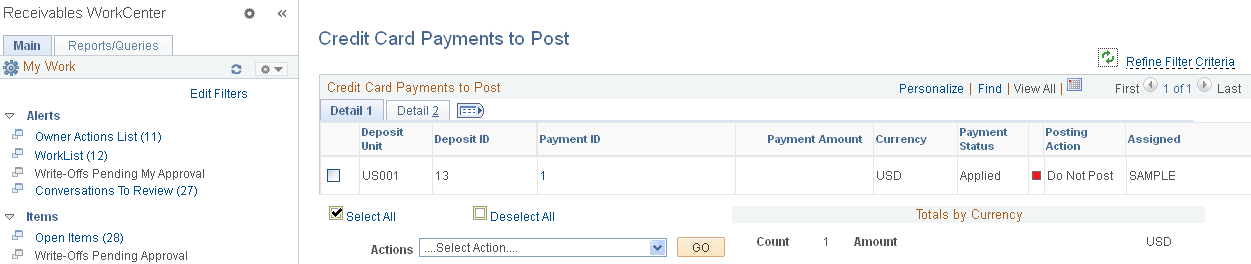
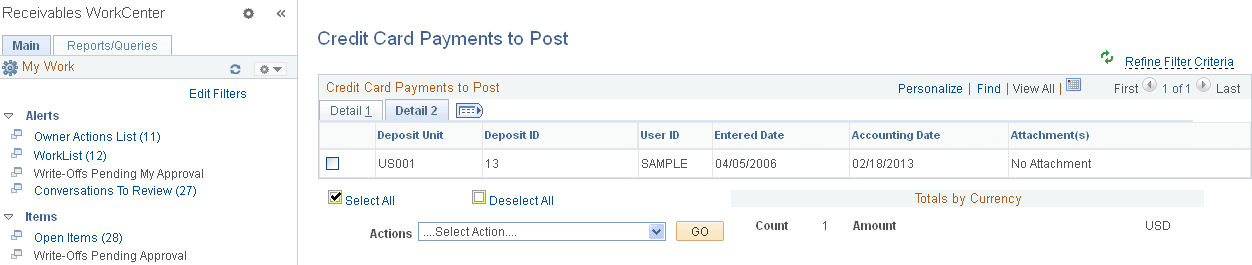
Use the Credit Card Payments to Post page (AR_WC_PYMNT_SEL) to review and select one or more credit card payment worksheets to post the next time you run Receivables Update processing.
Navigation:
Click the Payments: Credit Card Payments to Post link.
This example illustrates the fields and controls on the Credit Card Payments to Post Page - Detail 1 Tab.
This example illustrates the fields and controls on the Credit Card Payments to Post Page - Detail 2 Tab.
| Field or Control | Description |
|---|---|
|
Payment ID |
Click the link associated with a payment ID to access the All Payments page (Accounts Receivable, Payments, Review Payments, All Payments, All Payments or Accounts Receivable, Payments, Review Payments, Payment Status, All Payments), where you can review payment status details. |
|
|
Click the Credit Card Details icon to open the Credit Card Details page (Accounts Receivable, Credit Card, Credit Card Workbench, and click the Credit Card Details button, or click the Pay Balance by Credit Card link on the Account Overview - Balances page), where you can view or modify the customer's credit card details and settle a credit card transaction. |
|
Actions |
Perform an action on one or more payment groups that you select in the Credit Card Payments to Post grid, and click the GO button. Choose from these actions:
To perform actions on credit card payment groups one at a time, you can use the Credit Card Worksheet Application page (Accounts Receivable, Credit Cards, Update Worksheet, Worksheet Application). See Creating Credit Card Payments Using the Credit Card Worksheet. |
