Customizing the Fluid Comprehensive Customer View
You can customize the Fluid Comprehensive Customer View using these methods:
-
Fluid Configurable Analysis Framework.
PeopleSoft’s Fluid Configurable Analysis Framework (CAF) enables administrators to use a common framework to design end-user pages and determine what factors (data) to display for an entity.
For more information, see Enterprise Components: Using Configurable Analysis Framework
-
Actions list.
Use the Actions list to specify page characteristics, set date filters, and manage metric lists
-
My Personalization page.
Use the My Personalization page to define user-level display options.
-
Choose Metrics page.
Use the Choose Metrics page to specify the metrics to display in the analysis or comparison views.
-
Customers Selection page.
Use the Customers Selection page to search for and select customers to filter results.
Note:
These options are common to both the Comparison and Analysis views.
Actions List
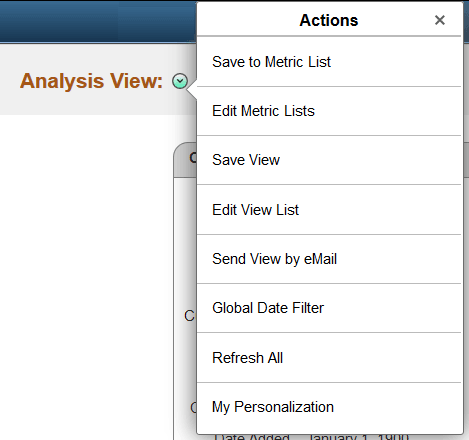
Use the Actions list to specify page characteristics, such as the number of top transactions to display, set date filters, and manage metric lists. You can also manage user access to lists and page views.
Actions list options
| Term | Definition |
|---|---|
|
Save to Metric List |
Use this option to save the current metric list to a custom list. This list will appear within the Metric List tab of the Choose Metrics page. |
|
Edit Metric Lists |
Use this option to add or remove metrics from a metric list, make a list public, active, or inactive, and delete lists. |
|
Save View |
Use this option to save the current view. A saved view contains:
|
|
Edit View List |
Use this option to delete or make public the views created by the current user. |
|
Send View by Email |
Use this option to send an email notification including a link to the current view as well as a description of the data shown in the view. A view includes:
|
|
Global Date Filter |
Use this option to enter From and To dates used to filter data displayed in the current view. When you change this parameter, the Fluid Comprehensive Customer View page immediately refreshes the data to reflect the change. The filter is applied to all metrics except top metrics (customer top contracts, top items, and so on). Note: To prevent slow loading of metric data, PeopleSoft recommends you do not exceed 3 months in your global date search. |
|
Refresh All |
Use this option to refresh the current view with current customer data. |
|
My Personalization |
Use this option to define user-level display options. |
My Personalization Page
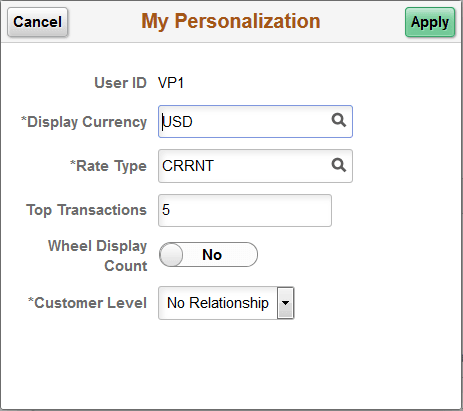
Use the My Personalization page (C360_PRFS_DFLT_FL) to define user-level display options.
Navigation:
This example illustrates the fields and controls on the My Personalization page.
| Term | Definition |
|---|---|
|
Display Currency |
Select the currency code you want to use for the metrics. |
|
Rate Type |
Select the currency rate you want to use for the metrics. |
|
Top Transactions |
Enter the number of transactions you would like displayed for each top metric in the current view. For example, if you enter ‘5,’ the Customer Top Contracts metric displays only five lines of contract information. Note: In Analysis view the top metric displays the individual transactions. In Comparison view the top metric only displays the total and the quantity of top transactions. |
|
Wheel Display Count |
Toggle this option to Yes to display the counts in parentheses for transactions on the Transaction Wheel. |
|
Customer Level |
Specify the customer hierarchy type by selecting one of these options:
When you select an option, data for all customers within the hierarchy displays. If you do not select an option, only the data for the selected customer displays. |
When you change any of these parameters, the Fluid Comprehensive Customer View page immediately refreshes the data to reflect the change.
Choose Metrics Page
Use the Choose Metrics page (CAFNUI_FCTCMP_SCF) to specify the customer analysis pagelets (metrics) to display in the Analysis or Comparison views.
Navigation:
This example illustrates the fields and controls on the Choose Metrics page.
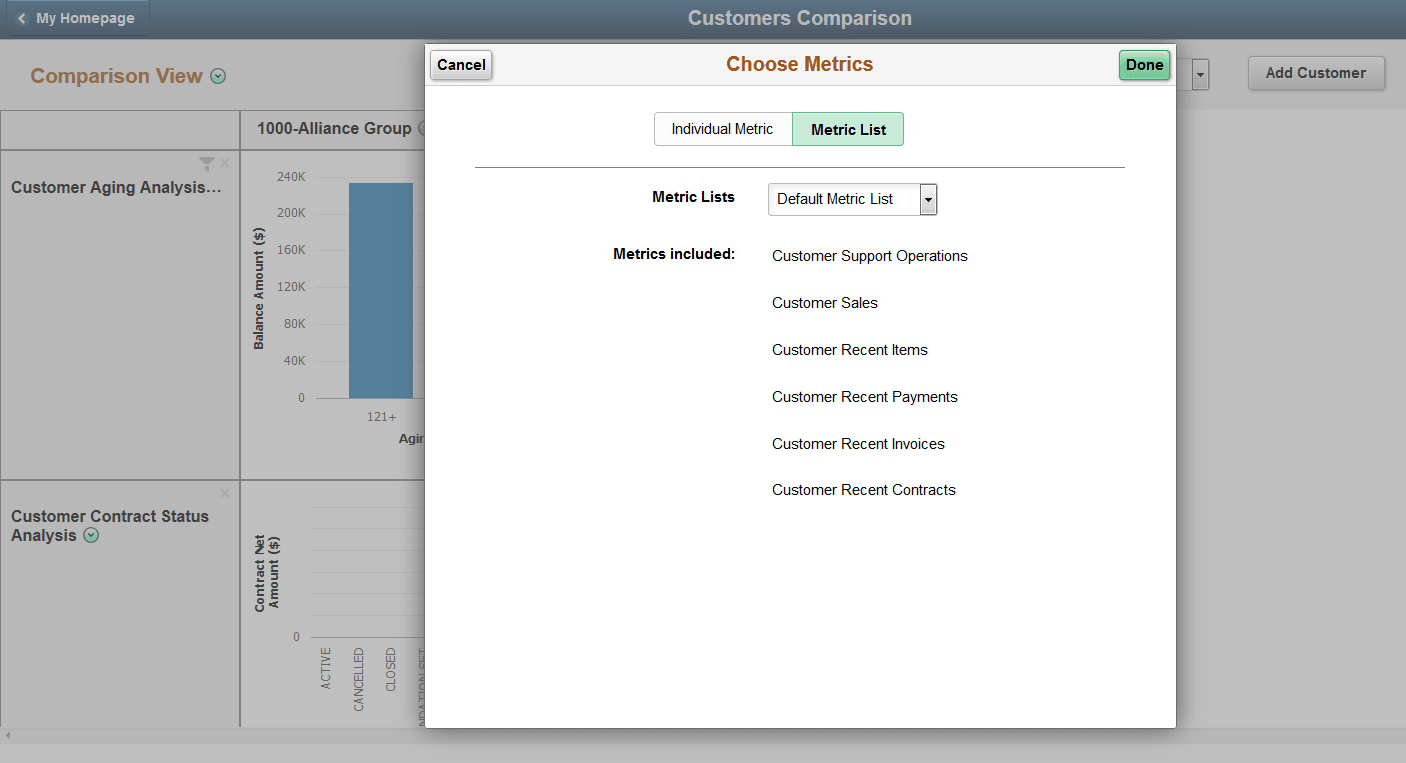
The Choose Metrics page provides two tabs, Individual Metric and Metric List.
Use the Individual Metric tab to select individual metrics from a list of total available metrics.
Use the Metric List tab to select predefined groups of metrics. Choose from these available options:
-
Customer Balances Metrics
-
Customer Information Metrics
-
Default Metric List
-
Information and Totals
-
Pivot Grid Metrics
-
Recent Metrics
-
Top Metrics
-
In addition, any metric list you created using the Save to Metric List option displays here.
For more information about the customer analysis pagelets accessed using the Choose Metrics page, see Working with Fluid Comprehensive Customer View Pagelets.
Customers Selection Page
Use the Customers Selection page (CAFNUI_SRCHPAGE_FL ) to search for and select customers to filter results.
Navigation:
Click the Add Customer button when in Comparison view.
Click the Change Customer button when in Analysis view.
This example illustrates the fields and controls on the Customers Selection page.
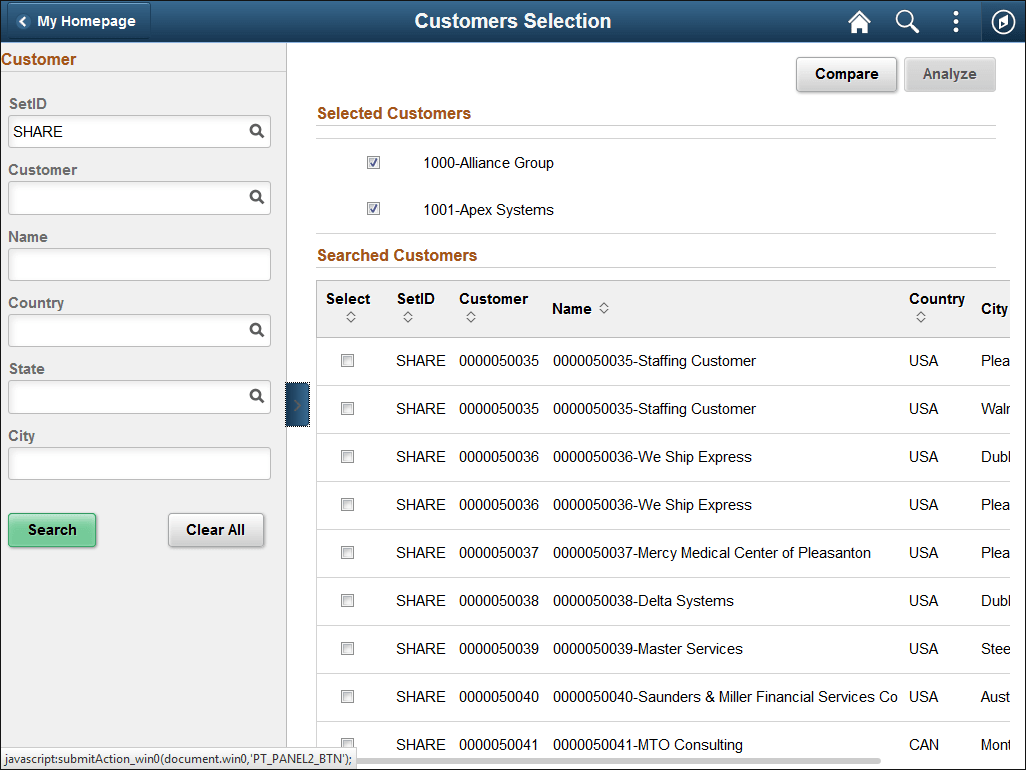
Use the Customer panel on the left side of the page to enter suitable filter criteria and search for relevant customers. Click Search.
In the Searched Customers grid, select the customer or customers you wish to use in Comparison or Analysis view. Customers you select appear in the Selected Customers grid.
Click Compare to access the Comparison view of the Comprehensive Customer View page. Click Analyze to access the Analyze view of the Comprehensive Customer View page. If you select two or more customers from the Searched Customers grid, the Analyze button is unavailable.