Populating the Customer Hierarchy Chart
Enter customer data in the Customer Hierarchy Search Criteria fields and click the Refresh button to populate the interactive chart with customer data.
This example illustrates the fields and controls on the Customer Hierarchy - Search Criteria section. You can find definitions for the fields and controls later on this page.
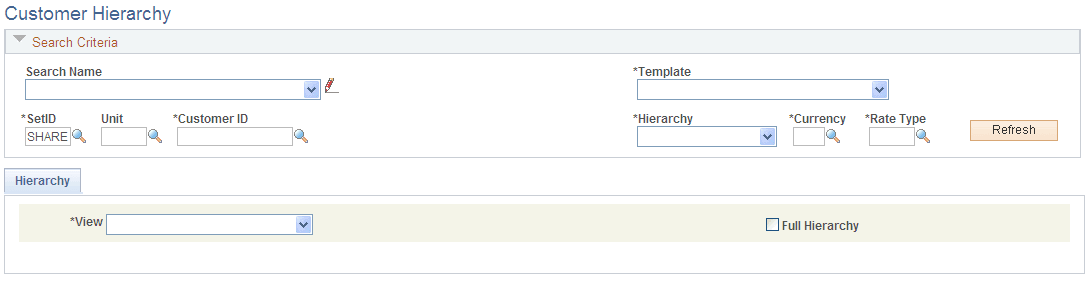
| Field or Control | Description |
|---|---|
|
Search Name and |
Click the drop down list to select and load saved search criteria. The search names in the list are searches that the user has saved. The system saves search names based on user ID. Click the Edit Saved Search icon to save entered search criteria for future use or to load, edit, or delete existing saved searches. New searches must be saved with a unique name at the user level. |
|
Template and |
Select a Node Template for displaying the customer data. Users can access only the Node Templates for which they have user-level or role-level permission, as defined on the template. Click the Edit Template icon to modify a user-level template. If the template is not a user-level template, the user can create a copy of the template for editing. Note: Functionality to edit templates is available only to users with appropriate permissions. The user must have security permission to update/display in the AR_CUST_VISUALIZATION_USER menu, ACV_NODE_TEMPLATE component, Node Template for the Edit Template icon to be available. See the product documentation for PeopleTools: Security Administration. See documentation for the Define Node Template Page. |
|
SetID, Unit, and Customer ID |
Enter a SetID and Customer ID. Both are required fields. The Unit field for a business unit is optional. However, when the business unit is a required key in the key field map for a customer data item, the data item value will be empty in the node on the chart if the Unit field is blank. |
|
Hierarchy |
Define the type of hierarchy to display. Choose from these types:
You can define a multilevel customer hierarchy on the Customers > Customer Information > General Information page by selecting appropriate check boxes for customer roles (Correspondence, Remit From, or Corporate). See documentation for the PeopleSoft Order to Cash Common Information: Customer Information - General Info Page. |
|
Currency |
Define the currency used in displaying the amounts in the chart. |
|
Rate Type |
Define the currency Rate Type in displaying the amounts in the chart. |
|
Refresh |
Click this button to load or refresh customer data based on the selected search criteria. |
 (Edit Saved Search icon)
 (Edit Template icon)