Using Interactive Features on the Customer Hierarchy Chart
| Field or Control | Description |
|---|---|
|
View |
Select a Node View name from the drop down list. Node views are defined on the Node Template page; the views available and the default view depend on your selection in the Template field. |
|
Full Hierarchy |
Select this check box to view all relationship levels in the customer hierarchy structure for the selected customer. By default, the chart displays three levels in the customer hierarchy: the selected customer’s parent, siblings, and children. |
|
|
Use the Position Dial to navigate left, right, up, or down on the chart. |
|
|
Use the Zoom Slider to adjust the zoom level, or level of detail in the nodes. Click + (plus) at the top or slide the control up to increase the detail, and click – (minus) or slide the control down to decrease the detail, depending on the zoom levels defined for a node view. Zoom levels are defined on the Node Template page. |
|
Clickable value link |
Click the link to display more information about the value. Clickable values are defined on Customer Data Field page, for any type of data field. |
|
Customer Related Actions |
Click to select from a system-defined list of related actions to open a secondary page:
Note: Related actions are delivered as system data with the Customer Hierarchy, however, they are configurable using PeopleTools Security. See the product documentation for developing and configuring related content in PeopleTools: Portal Technology. |
 (Position Dial icon)
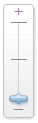 (Zoom Slider icon)