Revenue Estimate Correction Page
Use the Revenue Estimate Correction page (AR_CC_TRAN_ERROR) to correct source transactions for the commitment control ledger that have errors.
You can also flag the transactions to bypass budget checking before you process them or if they fail budget checking.
Navigation:
This example illustrates the fields and controls on the Revenue Estimate Correction page. You can find definitions for the fields and controls later on this page.
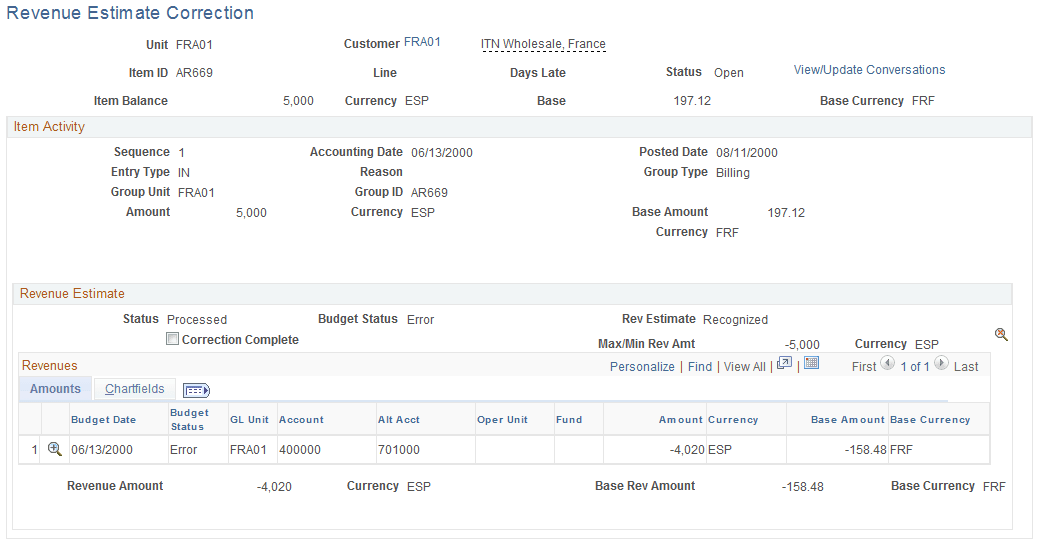
The page shows the source transactions for a single item activity. It shows only transactions with errors from the Revenue Estimate process or the Budget Processor.
Revenue Estimate
The Revenue Estimate group box displays information about the source transactions that the Revenue Estimate process generated.
| Field or Control | Description |
|---|---|
|
|
Click the Delete Revenue Estimates icon to delete all the source transactions for the item activity. This action resets the Revenue Estimate process so that it can process the activity again. This icon is not available if the Correction Complete check box is selected. Note: If you delete an individual line, it will not update the control budget. |
|
|
Click the Budget Check icon to run the Budget Processor, which checks the source transactions and creates entries in the revenue bucket for the budget. This icon is available only after you correct the errors and select Correction Complete. It is not available if you have already run the process. Note: The system displays a warning message if transactions passed budget checking but received a warning status. |
|
|
Click the Budget Check Options icon to open the Commitment Control page (KK_XCP_TRAN_SEC), where you can flag the source transactions in error to bypass budget checking. You must have authority to override budget checking. Click the Go to Transaction Exception link on the Commitment Control page to go to the budget exception page to view details about the budget checking error or warning. This icon appears only if the item activity has a budget checking error. |
|
Correction Complete |
Select after you correct the errors so that the Budget Processor will check the source transactions the next time you run the process. |
|
Max/Min Rev Amount (maximum or minimum revenue amount) |
Displays the minimum or maximum amount permitted for the activity. You receive an error message when you save the page if the total of the revenue estimate lines exceeds the maximum or minimum revenue amount. If the activity credits revenue, the amount cannot exceed the maximum amount. If the activity debits revenue, the amount cannot exceed the minimum amount. |


Revenues
The Revenues grid displays information for each source transaction. Change information in this grid as needed to correct the transaction.
The Revenue Estimate process may generate errors for several reasons. The following table lists the reasons and the corresponding resolutions:
| Error | Resolution |
|---|---|
|
You transferred the item from one business unit to another. Since different business units might use different revenue accounts, the process does not know which revenue accounts to use. |
Enter the revenue accounts manually. |
|
The system could not find revenue lines for the current item activity or in a previous activity for the item. |
Enter the revenue lines manually. |
|
The process could not find the From transfer information for a transferred item. |
Enter the revenue lines manually. |
|
You applied a payment to an item that was interfaced from PeopleSoft Billing and the item has an associated contract line in PeopleSoft Contracts. The process could not find any revenue lines for the contract in the PeopleSoft Contracts PS_CA_ACCTG_LINE table and the status is No Itm Rev (no item revenue lines). |
You must first post some revenue lines for the contract line in PeopleSoft Contracts. On the Revenue Estimate Correction page, use the Delete Revenue Estimates icon to delete revenue estimate transactions and run the Revenue Estimate process again. |