Reviewing Additional Customer Account Information
Pages Used to Review Additional Customer Account Information
| Page Name | Definition Name | Usage |
|---|---|---|
|
CUST_PENDING_ITEM |
View information about pending items for all maintenance, billing, overdue charge, or transfer items. |
|
|
CUSTOMER_BALS |
View the customer's balance. |
|
|
CUST_CREDIT_PROF |
View customer balances and aging information in the currency that is associated with the customer's credit limit. The system converts all open items for the customer from the base currency to the credit limit currency using the currency code and the rate type on the Credit Profile page. This information is useful when you need to manage a customer's credit and the transactions in multiple currencies. The page also displays the customer credit limit information. |
|
|
CUSTOMER_HISTORY |
View both user-defined history and system-defined history. The system stores customer history based on the fiscal years and periods that you define on the Detail Calendar page. |
|
|
CUSTOMER_HISTCHRT |
View a chart with customer history information. |
|
|
CUSTOMER_HIERARCHY |
Review a customer hierarchy in grid format. |
|
|
CUSTOMER_DRAFTS |
View customer draft balances and other draft information. |
|
|
CUSTOMER_AGING |
View or update aged accounts. You must run the Aging process to view information on this page. |
|
|
CUST_PROF_CORPTREE |
View customers in the corporate tree AR_CORPORATE_CUST, which you defined in PeopleSoft Tree Manager. You can also define a two-level customer relationship using the General Information page and the Corporate Customer page. See also PeopleSoft Order to Cash Common Information: Setting Up Tree-Based Corporate Customers. |
|
|
CUSTOMER_PAYMENTS |
View customer payments at a high or low level of detail. |
|
|
CUSTOMER_PROFILEB |
View payment history, balance, and sales information. |
|
|
CUST_PENDING_PAY |
View payments received, their identification, and their status in the processing cycle. View the number of outstanding payments and the total payment amount if the items are associated with multiple business units and have different currencies. |
|
|
ITEM_ACT_QRY |
View customer activity for a specific customer and date range. |
|
|
DIRECT_JRNL_QRY |
View all direct journal payments for a specific customer and date range. |
Understanding Reviewing Additional Customer Account Information
PeopleSoft Receivables provides several inquiry pages that enable you to review specific information for a customer, such as a list of outstanding items and their balance. These pages display amounts in the base currency for the business unit. If you selected the Use an AR Display Currency check box for the business unit on the Display Currency Options page, the pages also display the amounts in the display currency for the business unit. You can override the display currency. If the items that make up the amounts are in different currencies, the system displays the note **Multiple Currencies** instead of an amount.
Use Receivables inquiry pages to:
-
Review customer history.
-
Review customer history in a chart.
-
Review customer hierarchy.
-
Review draft information.
-
Review aged customer accounts.
-
View activities for customers.
-
View customers' direct journal payments.
Common Elements Used for Reviewing Additional Customer Account Information
| Field or Control | Description |
|---|---|
|
Balance |
Click to view a list of items that make up the balance on the Account Overview - Balances page. |
|
Hi Balance (high balance) |
Displays the highest balance for the customer since you last ran the Aging process. |
|
Hi Past Due (high past due) |
Displays the highest past due amount for the customer since you last ran the Aging process. |
|
Past Due |
Click to view past due items on the Item List page. |
Outstanding Customer Items Page
Use the Outstanding Customer Items page (CUST_PENDING_ITEM) to view information about pending items for all maintenance, billing, overdue charge, or transfer items.
Navigation:
Customer Balances Page
Use the Customer Balances page (CUSTOMER_BALS) to view the customer's balance.
Navigation:
Customer Credit Profile Page
Use the Customer Credit Profile page (CUST_CREDIT_PROF) to view customer balances and aging information in the currency that is associated with the customer's credit limit.
The system converts all open items for the customer from the base currency to the credit limit currency using the currency code and the rate type on the Credit Profile page. This information is useful when you need to manage a customer's credit and the transactions in multiple currencies. The page also displays the customer credit limit information.
Navigation:
History Page
Use the History page (CUSTOMER_HISTORY) to view both user-defined history and system-defined history.
The system stores customer history based on the fiscal years and periods that you define on the Detail Calendar page.
Navigation:
The Aging process and the Receivables Update Application Engine process (ARUPDATE) update the customer history elements. If you have not run these processes recently, the history figures that you see do not reflect up-to-date activity.
| Field or Control | Description |
|---|---|
|
History ID |
Select either a system-defined or user-defined history ID. Use the percent sign (%) to group the IDs that begin or end with the same characters. For example, enter DSO% to display both DSO30 and DSO90 history IDs. |
|
History |
Select the periods to display. Values are:
|
History Chart Page
Use the History Chart page (CUSTOMER_HISTCHRT) to view a chart with customer history information.
Navigation:
The default search parameters for the customer history information come from the History page. Override the values as needed.
| Field or Control | Description |
|---|---|
|
Fiscal Year |
Enter the year for which you want to see the customer history. You can view history for only one year at a time. |
|
Chart Type |
Select the type of chart to display. Values are 2D Bar, 2D Pie, 3D Bar, 3D Pie, Horiz Bar (horizontal bar) Line Chart, and Stacked Bar. |
Customer Hierarchy Page
Use the Customer Hierarchy page (CUSTOMER_HIERARCHY) to review a customer hierarchy in grid format.
Navigation:
This example illustrates the fields and controls on the Customer Hierarchy page.
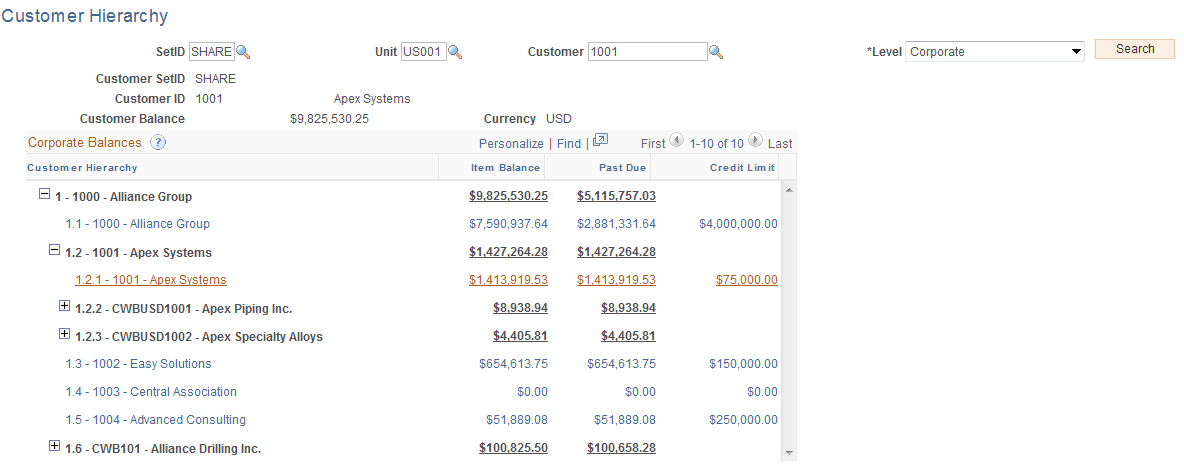
The Correspondence, Remit From, and Corporate Customer hierarchies are created from selections on the PeopleSoft Order to Cash Common Information: Customer Information - General Info Page.
Customer Drafts Page
Use the Customer Drafts page (CUSTOMER_DRAFTS) to view customer draft balances and other draft information.
Navigation:
Enter search criteria and sort criteria in the Draft Selection group box.
| Field or Control | Description |
|---|---|
|
Draft Amount |
Click to view the Draft Receivables page, which shows all of a customer's accepted drafts that have been posted but are not yet complete. |
|
Risk Amount |
Click to view the Draft Receivables page, which shows the customer balance total and the draft amount for the customer. |
Customer Information - Aging Page
Use the Customer Information - Aging page (CUSTOMER_AGING) to view or update aged accounts.
You must run the Aging process to view information on this page.
Navigation:
Search Criteria
Use the search fields at the top of the page to select the details about the customer.
Aging Information
The page displays New Balance if the customer's balance has changed since it was last aged. This indicates that you may want to rerun the Aging process.
| Field or Control | Description |
|---|---|
|
Aged Date |
Displays the system date from the beginning of the aging run. For example, if the Aging process starts at 11:58 p.m. on September 12 and ends at 12:01 a.m. on September 13, the aged date is September 12. |
|
Aging ID |
Displays the aging ID. Click the Aging ID link to display the aging definition on the Aging page (AGING_TABLE). |
|
|
Click the Update Aging button to age the customer's items during the next run of the Aging process. |

Customer Balances
The monetary amounts in the Customer Balances group box appear in either the base currency or the display currency for the business unit. To change from the base currency to the display currency, select the Use an AR Display Currency field for the business unit on the Display Currency Options page.
Customer Aging
The Customer Aging group box has one line for each aging category that is defined on the Aging page. Click the Aging Count link to access the item list for the selected aging category.
Related Topics
Profile by Corporate Tree Page
Use the Profile by Corporate Tree page (CUST_PROF_CORPTREE) to view customers in the corporate tree AR_CORPORATE_CUST, which you defined in PeopleSoft Tree Manager.
You can also define a two-level customer relationship using the General Information page and the Corporate Customer page.
Navigation:
Customer Payments Page
Use the Customer Payments page (CUSTOMER_PAYMENTS) to view customer payments at a high or low level of detail.
Navigation:
Customer Payment History Page
Use the Customer Payment History page (CUSTOMER_PROFILEB) to view payment history, balance, and sales information.
Navigation:
Outstanding Customer Payments Page
Use the Outstanding Customer Payments page (CUST_PENDING_PAY) to view payments received, their identification, and their status in the processing cycle.
View the number of outstanding payments and the total payment amount if the items are associated with multiple business units and have different currencies.
Navigation:
Item Activity Page
Use the Item Activity page (ITEM_ACT_QRY) to view customer activity for a specific customer and date range.
Navigation:
The system sorts the activities in the Item Activity grid by business unit, customer ID, accounting date, and entry type.
| Field or Control | Description |
|---|---|
|
Item ID |
Click an item ID link to access the View/Update Item Details component, where you can view details about the item, including accounting entries and all activity for the item. |
|
Entry Type |
Identifies the type of activity. |
Direct Journal Page
Use the Direct Journal page (DIRECT_JRNL_QRY) to view all direct journal payments for a specific customer and date range.
Navigation:
The system sorts the direct journal payments in the list by accounting date, deposit business unit, deposit ID, and payment ID.
| Field or Control | Description |
|---|---|
|
Payment ID |
Click a payment ID to access the Directly Journalled Payments page, where you view the details for the direct journal payment, including the distribution lines. |