Reviewing Draft Information
Use inquiry pages and reports to look up information about drafts. This topic discusses how to review all drafts.
Pages Used to Review Drafts
| Page Name | Definition Name | Usage |
|---|---|---|
|
DRAFT_CONTROL_DSP |
Review summary or detailed information for each item on a draft. |
|
|
Draft Details Page |
DRAFT_WS_DTL_SEC |
View information about the bank that will receive the draft payment, bank statement reconciliation information, and bank fees. See the Draft Control Page. |
|
DRAFT_ITEM_DSP |
Review details about each item on a draft. |
|
|
DR_INQUIRY_IC |
Search for a list of drafts based on search criteria, such as business unit, customer ID, due date, bank information, draft type, and draft status. Review draft details and drill down to the draft control information and draft items for each draft. |
|
|
ITEM_DRAFT |
View activity for draft items. |
|
|
Draft Reports Page |
DRAFT_REPORTS |
Define the run parameters for draft aging reports (AR32102). Your options are a draft aging report by bank or a draft aging report by customer. Use the report to list unpaid drafts by due date. See PeopleSoft Receivables Reports: A to Z for more information. |
|
Draft Statement Page |
RUN_AR32100 |
Define the run parameters for the Draft Statement report (AR32100). Use the report to list invoices and other documents in a draft. See PeopleSoft Receivables Reports: A to Z for more information. |
Draft Control Page
Use the Draft Control page (DRAFT_CONTROL_DSP) to review summary or detailed information for each item on a draft.
Navigation:
This example illustrates the fields and controls on the Draft Control page. You can find definitions for the fields and controls later on this page.
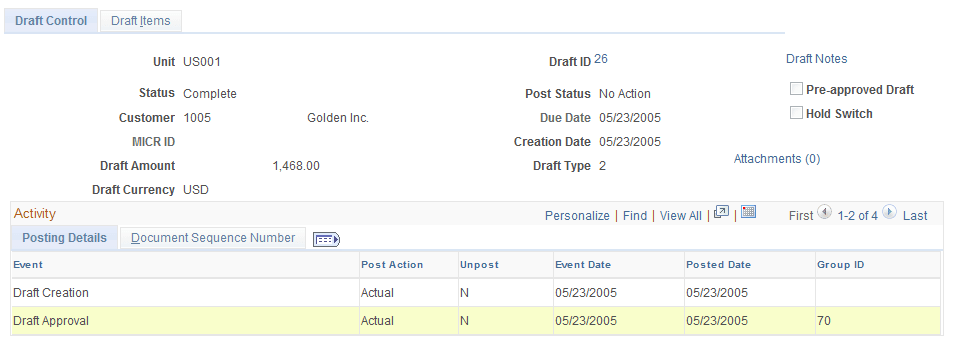
| Field or Control | Description |
|---|---|
|
Draft ID |
Click to access the Draft Details page (DR_APROV_ITEM_SEC), where you view details about the draft, such as information about the customer's bank, bank statement reconciliation, and bank fees. Depending on the status of the draft, you can use this link to change the due date and MICR ID. |
|
Draft Notes |
Click to access the Draft Notes page (DRAFT_NOTES_SEC), where you can view or enter comments about the draft. |
|
Pre-approved Draft |
If selected, the draft is preapproved for payment by a bill-to customer and you can submit it to the customer's bank without the customer's sign-off. If the check box is not selected, the draft must be reviewed and approved by the customer before you can submit it to the bank for payment. |
|
Hold Switch |
If selected, the draft is placed on hold on the draft worksheet. |
Draft Items Page
Use the Draft Items page (DRAFT_ITEM_DSP) to review details about each item on a draft.
Navigation:
Draft Inquiry Page
Use the Draft Inquiry page (DR_INQUIRY_IC) to search for a list of drafts based on search criteria, such as business unit, customer ID, due date, bank information, draft type, and draft status. Review draft details and drill down to the draft control information and draft items for each draft.
Navigation: