Transaction Wheel Pagelet
Use the Transaction Wheel pagelet (C360_TRANS_WHEEL) to access transaction status and document inquiry pages for the selected customer in analysis mode.
Navigation:
For information about adding the Transaction Wheel or other metrics and pagelets to the analysis mode view for a customer, see Using the PeopleSoft Classic Comprehensive Customer View.
This example illustrates the fields and controls on the Transaction Wheel pagelet. You can find definitions for the fields and controls later on this page.
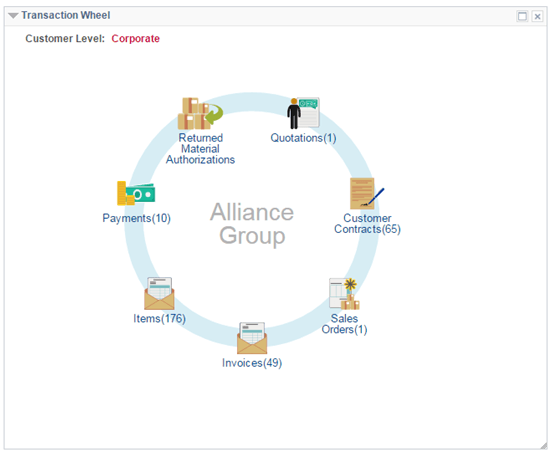
For systems using PeopleTools 8.43, the Transaction Wheel pagelet can best be viewed in the Mozilla Firefox browser.
To add the transaction count to the transaction link, select the Wheel Display Count check box on the My Personalization page. For more information about the My Personalization page, see Understanding Pagelets in the PeopleSoft Classic Comprehensive Customer View.
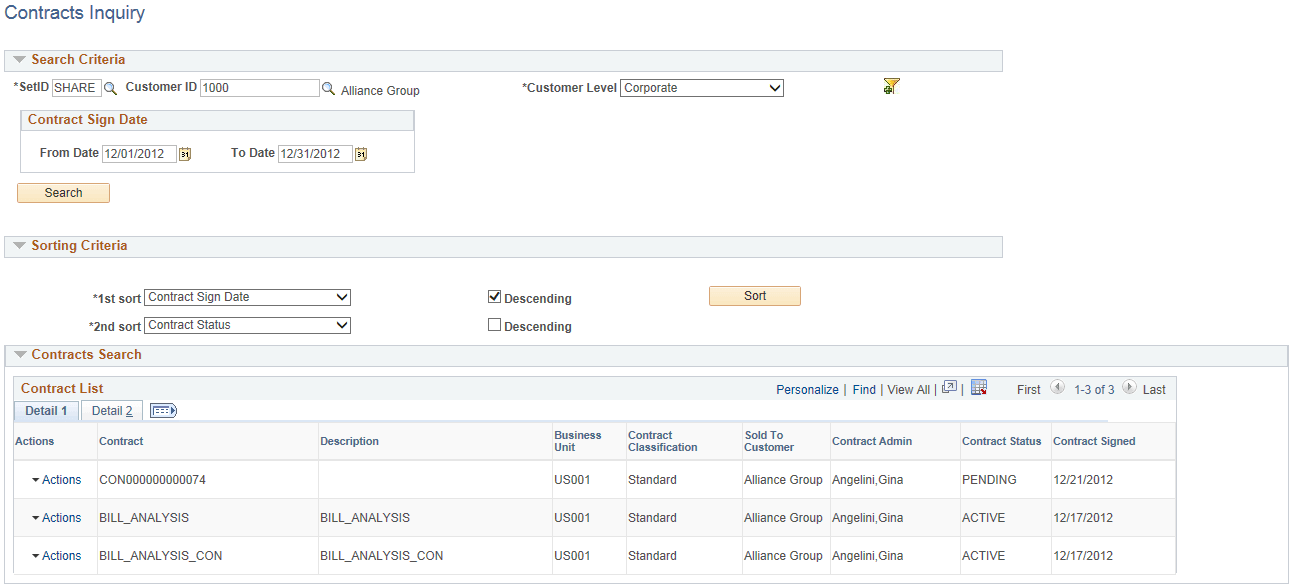
The following example shows the transaction inquiry page for contracts. Click the Customer Contract icon to access the Contracts Inquiry page.
This example illustrates the fields and controls on the Contracts Inquiry page. You can find definitions for the fields and controls later on this page.
| Field or Control | Description |
|---|---|
|
Actions |
Select an action from the available actions:
|
Click the Review Document Status link to open the Contracts Document Status Inquiry page. This page provides contract details and shows associated transaction documents.
This example illustrates the fields and controls on the Contracts Document Status Inquiry page.
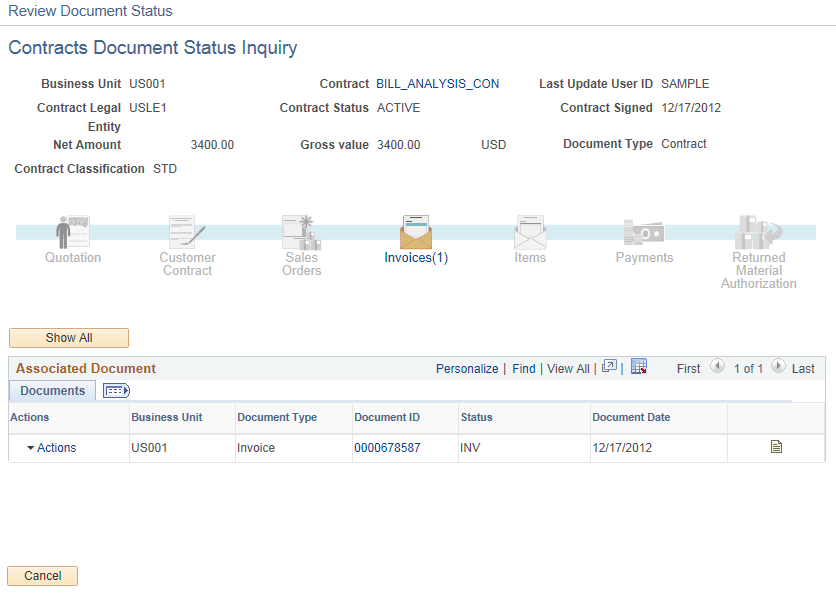
For systems using PeopleTools 8.43, the Document Status Inquiry page can best be viewed in the Mozilla Firefox browser.