Establishing Resource Groups
To establish resource groups, use the Resource Groups component (RS_RESOURCE_GROUPS).
This topic provides an overview of resource groups and discusses how to establish Resource Groups.
The tasks that are discussed in this section are required.
Pages Used to Establish Resource Groups
| Page Name | Definition Name | Usage |
|---|---|---|
|
RS_RESOURCE_GROUPS |
Add or modify resource groups and select active resource groups. |
|
|
RS_RSRCGRP_ADD |
Add or modify resource group details. |
Understanding Resource Groups
Resource groups are collections of resources that you define by organizational unit, supervisor ID, or resource pool. You use them to limit a search for resources on the Express Search page and the Staffing Workbench - Fulfill Orders page. In addition, a manager selects the resources to appear on the Staffing Workbench - Manage Utilization page by specifying a resource group.
Users can access only the resource groups that they create.
Related Topics
Resource Group Definition - Resource Groups Page
Use the Resource Group Definition - Resource Groups page (RS_RESOURCE_GROUPS) to add or modify resource groups and select active resource groups.
Navigation:
-
-
Click Add Resource Groups on the My Workbench Options - Workbench page.
-
Click Add Resource Groups on the Express Search page.
-
Click Add Resource Groups on the Staffing Workbench - Manage Utilization page.
-
Click Add Resource Groups on the Staffing Workbench - Fulfill Orders page.
This example illustrates the fields and controls on the Resource Group Definition - Resource Groups page. You can find definitions for the fields and controls later on this page.
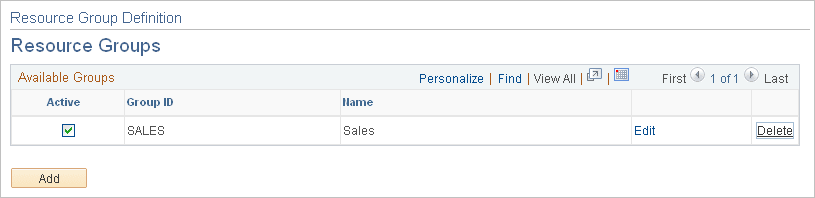
| Field or Control | Description |
|---|---|
|
Active |
Select the resource groups to appear as options in the Resource Group ID field (RS_RSRCGRP_NAME) on the Express Search page, the Staffing Workbench, and the My Workbench Options - Workbench page. The default value is Active (check box selected) for new resource groups. |
|
Group ID and Name |
Displays information about the resource group. |
|
Edit |
Click to access the Resource Group Definition - Resource Group Details page to view or edit the group. |
|
Delete |
Click to delete the group. |
|
Add |
Click to access the Resource Group Definition - Resource Group Details page to add a new resource group. |
Resource Group Definition - Resource Group Details Page
Use the Resource Group Definition - Resource Group Details page (RS_RSRCGRP_ADD) to add or modify resource group details.
Navigation:
-
Click the Add button on the Resource Group Definition - Resource Groups page.
-
Click the Edit link on the Resource Group Definition - Resource Groups page.
| Field or Control | Description |
|---|---|
|
Resource Group ID |
Enter a unique group identifier. This is a required field that is not editable after you save the page. |
|
Description |
Enter a name that describes the resource group. This is a required field. If you designate the resource group as active on the Resource Group Definition - Resource Groups page, the resource group name is available for selection on the Express Search page, the Staffing Workbench, and the My Workbench Options - Workbench page. |
|
Select Organization Structure |
Select to establish a resource group based on organization units. |
|
Select by Pool |
Select to establish a resource group based on resource pools. |
|
Select by Supervisor ID |
Select to establish a resource group based on supervisor IDs. Note: You must enter a supervisor on the Update Employee Data - Employee Job page for all resources before you can use resource groups that are based on a supervisor ID. |
|
Advanced Search or Basic Search |
Select either method by clicking the respective link to search for organizations to include in the resource group. The Advanced Search or Basic Search options appear only when you create a resource group based on organization structure. |
|
OK |
Click the OK button to return to the Resource Group Definition - Resource Groups page. The new resource group appears in the Available Groups group box. Click Save on the Resource Group Definition - Resource Groups page to save new or modified resource groups. |
|
Cancel |
Click to discard the changes and return to the Resource Group Definition - Resource Groups page. |
Finding Organizations by Using the Basic Search
Access the Resource Group Definition - Resource Group Details basic search page.
This example illustrates the fields and controls on the Resource Group Definition - Resource Group Details basic search page. You can find definitions for the fields and controls later on this page.
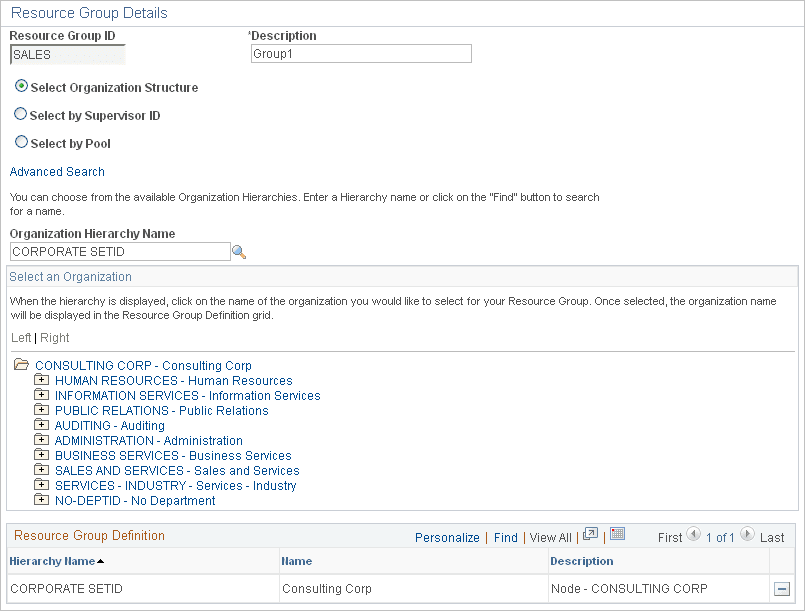
Use this page to select organizations from the organizational unit tree to associate with the resource group.
| Field or Control | Description |
|---|---|
|
Organization Hierarchy Name |
Enter the SetID that is associated with the organizational unit tree. Click the lookup button to search for the SetID by description. The search page contains a list of SetIDs that have an organizational unit tree associated with them. The tree enables you to navigate the organization's hierarchy and find the appropriate unit to associate with this group. You can select a tree node such as a group of departments, or a tree detail such as a specific department. When you select the SetID, the organizational unit tree appears in the Select an Organization group box. |
|
Select an Organization |
Expand the organizational unit tree to view all organizations. Select the desired organization to include in the resource group. You can select any level on the tree to include in the resource group You must select at least one organization for the resource group. |
|
Resource Group Definition |
Displays the SetID name, organization name, and organization description for each selection. Delete rows as needed. |
Finding Organizations Using the Advanced Search
Access the Resource Group Definition - Resource Group Details advanced search page.
This example illustrates the fields and controls on the Resource Group Definition - Resource Group Details advanced search page. You can find definitions for the fields and controls later on this page.
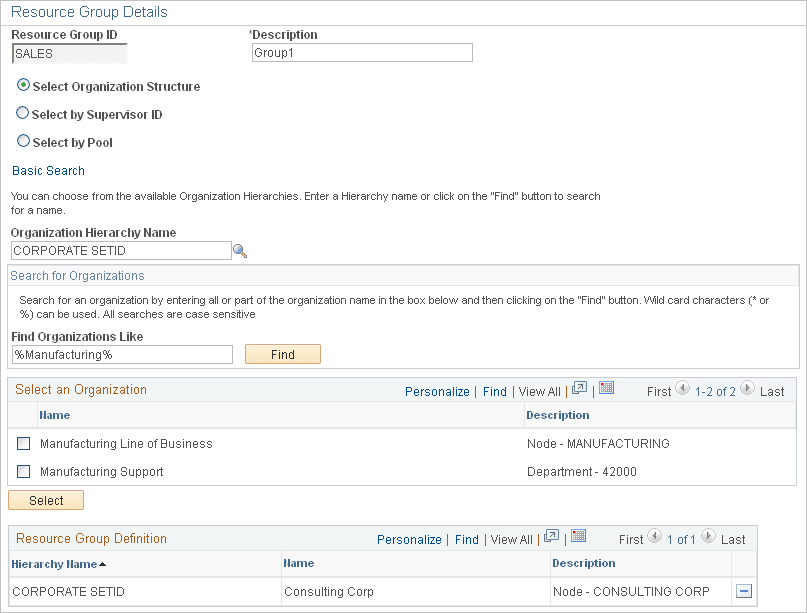
Use this page to search for organizations to associate with the resource group.
| Field or Control | Description |
|---|---|
|
Organization Hierarchy Name |
Enter the SetID that is associated with the organizational unit tree. |
|
Find Organizations Like |
Enter an organization name, or enter the first characters of the name followed by a wildcard (* or %). To search using characters within the name, enter a wildcard, enter any contiguous characters, and then enter another wildcard. Searches are case-sensitive. Note: To view all organizations in the tree, use the Resource Group Definition - Resource Group Details basic search page. |
|
Find |
Click this button to perform the search. The list of organizations that match the search criteria appears in the Select an Organization grid. |
|
Select |
Click this button to add selections to the Selected organization group box. |
|
Select an Organization |
Select the check box next to organizations to include in the resource group. You can select tree nodes or tree detail values. You must select at least one organization for the resource group. |
Creating Resource Groups by Supervisor ID
Access the Resource Group Definition - Resource Group Details page. Select the Select by Supervisor ID option.
This example illustrates the fields and controls on the Select by Supervisor ID view of the Resource Group Definition - Resource Group Details page. You can find definitions for the fields and controls later on this page.
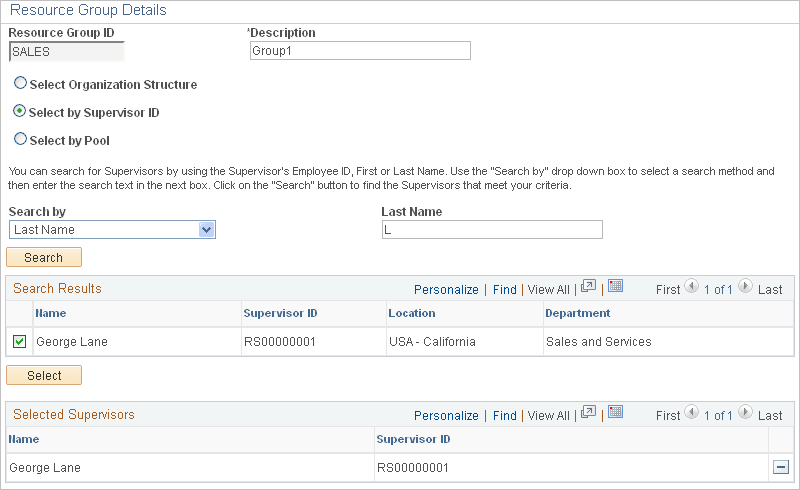
Use this page to create a resource group based on one or more supervisor IDs.
| Field or Control | Description |
|---|---|
|
Search by and Last Name |
Select the search type and enter the supervisor's last name, first name, or employee ID. You can search using the first characters of the name or employee ID. To search using characters within the name or employee ID, enter the wildcard (%), enter any contiguous characters, and then enter another wildcard. A supervisor is available for selection if the supervisor's employee ID appears in the Supervisor ID field (SUPERVISOR_ID) on the Employee Job - Update Employee Data page for at least one eligible resource. Searches are not case-sensitive. |
|
Search |
Click this button to execute the search. The list of supervisors that match that search criteria appears in the Search Results group box. |
|
Search Results |
Select the check box next to one or more supervisors. |
|
Select |
Click this button to add selections to the Selected Supervisors group box. You must select at least one supervisor to establish the resource group. |
|
Selected Supervisors |
Displays the supervisor name and ID for each selection. |
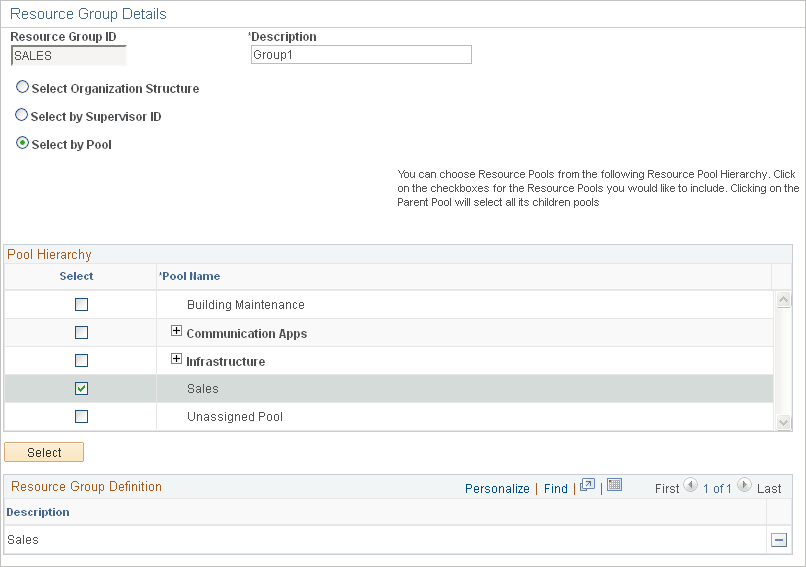
Creating Resource Groups by Resource Pool
Access the Resource Group Definition - Resource Group Details page. Select the Select by Pool option.
This example illustrates the fields and controls on the Select by Pool view of the Resource Group Definition - Resource Group Details page. You can find definitions for the fields and controls later on this page.
| Field or Control | Description |
|---|---|
|
Pool Name |
Select the pools to use to create the resource group from a pool hierarchy showing only active pools. You can select a parent pool or expand the hierarchy and select a specific pool. If you select a parent pool, the system automatically selects all of the pools that belong to the parent pool. |
|
Select |
Click this button to add the selected pools to the Resource Group Definition group box. |