Editing and Submitting Work Order Surveys
This topic discusses how to edit and submit work order surveys.
Page Used to Edit and Submit Work Order Surveys
| Page Name | Definition Name | Usage |
|---|---|---|
|
SPF_WO_SUR_USR |
Include survey details and send surveys to the appropriate recipients. |
Manage Work Orders - Surveys Page
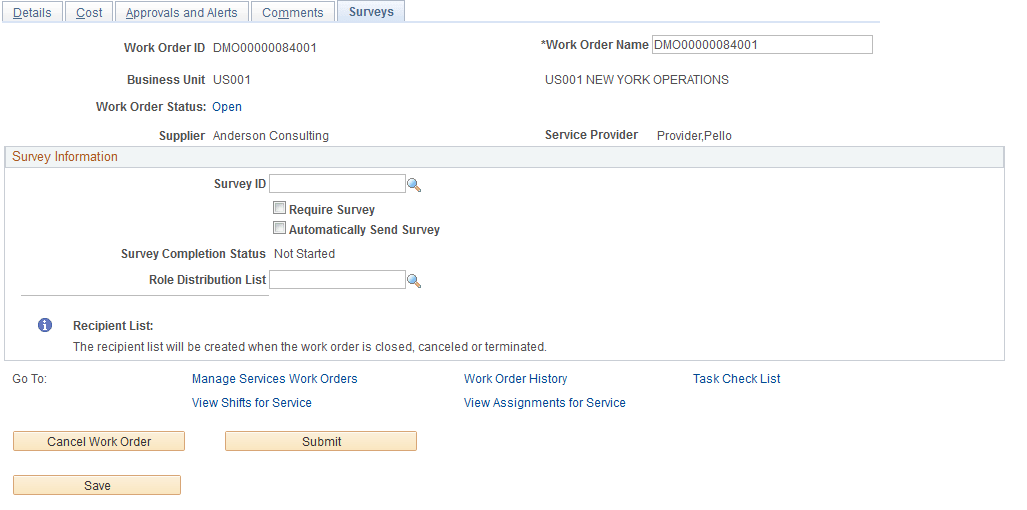
Use the Manage Work Orders - Surveys page (SPF_WO_SUR_USR) to include survey details and send surveys to the appropriate recipients.
Navigation:
Select the Survey tab.
This example illustrates the fields and controls on the Manage Work Order - Surveys page. You can find definitions for the fields and controls later on this page.
| Field or Control | Description |
|---|---|
|
Require Survey |
Indicates that a survey is mandatory for the work order that is associated with the specified service type. Note: This value defaults from the service type associated with the survey. You can modify this value before sending the survey. |
|
Automatically Send Survey |
Indicates that a survey will be automatically sent to a recipient at the time the work order is terminated, closed, or canceled. All recipients listed on the survey distribution list will receive notification. Note: This value defaults from the service type associated with the survey. You can modify this value before sending the survey. |
|
Distribution List Roles |
Work order-related role actions that are included in the distribution list that you select for the work order survey. |
Note:
After sending a survey, users may only cancel a survey. Use the + and - buttons to add a new survey recipient or remove a recipient if the survey has not yet been sent.
If a survey is mandatory, all recipients must complete and submit the survey before the work order can be finalized. The survey status changes to complete once the survey is submitted.
Related Topics