Contract Change Tracking and Version Control
This section discusses:
-
Contract change tracking.
-
Contract version control.
-
Contract change tracking use with version control.
Contract Change Tracking
Contract change tracking provides an optional audit trail of key contract transactional information that identifies who made what change and when the change was made. The PeopleSoft contract change tracking template enables you to configure contract fields that you want to track.
You can define a default value for the contract change template, and you can override the default value with a change template for use with different types of contract process options. For example, you can define a different contract change template for use with general contracts or one for use with purchase order contracts. Change templates are defined by SetID, so each contract SetID can have its own default template and a set of templates for use with different process options.
You can track changes made to a contract for the life of the contract. You can access the change history directly from the contract transaction using the View Changes link or by using the Contract Change History (CNTRCT_CHANGE) component.
See Viewing Contract Change History.
To track contract changes:
-
Use the Change Template page to define which contract records and fields will trigger change tracking.
-
Use the Contract and Vendor Rebate Controls page to select to track contract changes for a SetID and to define change templates.
To access the page, select
Contract Version Control
Contract versions enable contract administrators to create and maintain multiple versions of a contract in the procurement system. You can view older contract versions that provide a picture of what the contract looked like in previous versions. Contract versions support forward-looking versions of the contract, thus enabling you to change forward-looking versions of the contract while keeping the current version active and available for transactions in the system. This functionality is useful if the modifications do not affect existing contract information, such as when new line items are being negotiated to add to the contract.
Note:
Procurement contract versions refer to the revision of the procurement contract transaction and are not related to contract document versions maintained and tracked in PeopleSoft Supplier Contract Management.
Note:
Released amounts are not version controlled. The released amounts displayed reflect current released amounts to date on all contract versions.
Using contract versions, you can also create forward-looking versions of the contract for PeopleSoft Supplier Contract Management document refreshes, creation of amendments, collaboration with suppliers, and execution of the contract. You can perform these document tasks while the current version is active and available for transactions. When the system processes transactions against contracts with versions, it normally uses the version designated as the current version of the contract when it creates a transaction. The current version ensures that the correct contract pricing and terms are carried into the purchase order.
Note:
In some cases, you can use a historic version when an existing purchase order is being modified and has other lines referencing an older version of the contract.
To use contract versions, you must select the Use Version Control check box on the Contract and Vendor Rebate Controls page. After you select to use version control, if any contracts exist for the SetID that have a version number greater than 1, you cannot make further changes to the setting.
Using contract versions, you can access previous versions of a contract. The next example illustrates how the Search page results might appear for procurement contracts when contract versions are in use:
This example illustrates the fields and controls on the Version Control search example.
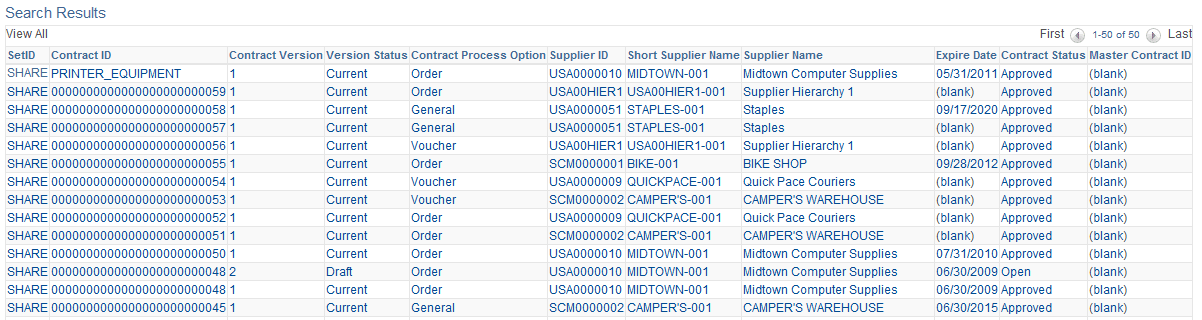
Contract 0048 has two contract versions. The Version Status column displays the version statuses: Current, Draft, and History. You can click any column to view the details for a specific version of the contract.
Contract Agreement Use With Version Control
The system synchronizes agreement updates between the contract Draft version and Current version. After you create a Draft version, you cannot make changes to the Current version of an agreement. However, both internal and external users can still make changes using the Update Agreement Statuses component. The system synchronizes the changes made on those components to the draft version while in those components.
Because you can make changes to the Current version of a contract using other components, the system restricts the type of changes that you can make to the Draft version so that it can synchronize the changes. To support the synchronization of agreement updates using contract versions, the system:
-
Low lights the agreement Sequence and Verification Step fields on the existing agreement rows, but enables you to change the fields for new rows.
-
Checks that there is a corresponding row using the Agreement Code, Verify Step, or workflow Sequence fields in the Current version when there are changes to the Agreement Code, Result Type, Metric ID, Verification Step, Verification Method, Notification Type, or Verify Step fields.
These fields should not be changed of there are corresponding rows. The system issues an error message because when you make changes to the Current version, the system need the capability to bring forward the changes to the Draft version. The changes aren't synchronized if these fields are different. If there is not a corresponding row in the Current version, then the row is new for the Draft version and the system allows the changes.
-
Issues a warning message if the Verification Description field changes and there is a corresponding row in current version.
Because this field is not as critical to contract version processing, the system issues a warning instead of error message.
-
Prevents the deletion of a row if there is a corresponding row in current version.
The system issues an error message. You cannot delete rows that exist on prior versions. After the row is deleted, it will no longer appears on the monitor and you cannot access the row.
Contract Change Tracking Use with Version Control
This topic provides examples of the differences between change tracking when version control is in use and when it is not in use and describes the records that are updated under different conditions when you are copying contracts while using version control.
The system generates sequence numbers for record changes. After the system creates a new zero sequence for a record, additional changes to the same record (with intervening saves) increase the maximum sequence number for that record. This is true regardless of whether version control is in use. If version control is in use, the only difference is that each time a new version is created, the system creates change records at the header level showing the new version. If version control is not in use, then all changes are reflected in version 1 of the contract.
Note:
If a draft version exists, the system locks the current version, preventing any changes. Any changes that you make must be changes to the draft version.
Assume that version control is not in use and you perform these changes:
-
On June 1, you open a contract and change the quantity on contract line 1 from 10 to 15.
The system:
-
Creates header change records for all changeable fields with a sequence of zero and displays the original values.
-
Creates header change records for the contract Status field with a sequence of 1 and displays an Open status in the field.
-
Creates line change records for all changeable fields on contract line 1 with a sequence of zero and displays the original values.
-
Creates line change records with a sequence of 1 for the new line quantity and for any related fields that change.
-
-
On June 2, you set the contract status to an Approved status.
The system creates header change records for the contract Status field with a sequence of 2 and displays an Approved status in the field.
-
On June 5, you reopen the contract and change the item description and the quantity for contract line 1.
The system:
-
Creates header change records for the contract Status field with a sequence of 3 and displays an Open status in the field.
-
Creates line change records for changeable fields on line 2 with a sequence of zero.
-
Creates a line change record for line 2 with a sequence of one for the new description.
-
Creates a line change record for the new line 1 quantity with a sequence of 2. The system also creates a record for any related fields that change.
-
-
On June 6, you set the contract Status field back to Approved.
The system creates header change records for the contract Status field with a sequence of 4 and displays an Approved status.
-
On June 15, you reopen line 1 and change the unit of measure EA to BOX.
The system:
-
Creates header change records for the contract Status field with a sequence of 5 and displays an Open status in the field.
-
Creates a line change record for line 1 with a sequence of 3 for the new unit of measure.
Note:
Even though the unit of measure has not been changed before, the sequence is 3 because it is the third change for the contract line.
-
In comparison, when version control is in use, sequence numbering is the same as on the purchase order, starting at zero for original values, and in increments of 1 each time you change a record. With version control, additional change data occurs at the header level.
This list provides an example of contract changes when version control is in use:
-
For all the updates listed in the previous set of steps for when version control is not in use, the system processes the updates the same, creating all change records under version 1 with sequential numbering.
-
When a draft is opened, the system:
-
Creates header change records using the new version number and displays the version number and status changes with the sequence of 6.
-
Creates lower-level changes with the new version number and uses the next sequence for the particular record being changed.
A record might possibly be changed for the first time, so the system would create the sequence zero records as well as the sequence 1 records under the draft version number.
In all cases, saving the contract causes the sequence number to increment in a record that is updated and then saved multiple times.
-
-
When a draft is approved:
The system creates header change records that display the Status changes under the next sequence number for the header record.
When you create a new contract version, the system inserts the records into the new version by copying them from the originating version and incrementing the version number by 1 for the records. These values on the new contract header are initialized:
-
Version date.
-
Contract version date.
-
Draft due date.
-
Version date – set to Draft status.
-
Contract status – set to Open status.
-
Modified by – set to the current user.
-
Last date and time updated – set to current date and time.
When you copy a contract, the system inserts the records by copying them from the originating version, replacing the contract ID with the new contract ID on the new records. These contract header fields are initialized:
-
Version status – set to Current status.
-
Contract status – set to Open status.
| Record Name | New Draft Version Created (Version 1) | Draft Version Deleted | Copying Existing Contract (Version 2) |
|---|---|---|---|
|
CNTRCT_HDR |
X |
X |
X |
|
CNTRCT_RELTN |
X |
X |
X |
|
CNTRCT_CATEGORY |
X |
X |
X |
|
CNTRCT_CAT_EXC |
X |
X |
X |
|
CNTRCT_LINE |
X |
X |
X |
|
CNTRCT_LINE_UOM |
X |
X |
X |
|
CNTRCT_LINE_VAT |
X |
X |
X |
|
CNTRCT_LN_MISC |
X |
X |
X |
|
CNTRCT_LN_SHIP |
X |
X |
X |
|
CNTRCT_MILESTN |
X |
X |
X |
|
CNTRCT_BU_DSTRB |
X |
X |
X |
|
CNTRCT_DSTRB |
X |
X |
X |
|
CNTRCT_DSTRB |
X |
X |
X |
|
CNTRCT_SCHEDULE |
X |
X |
X |
|
CNTRCT_HDR_MISC |
X |
X |
X |
|
CNTRCT_DEFAULTS |
X |
X |
X |
|
CNTRCT_ADJ_SET |
X |
X |
X |
|
CNTRCT_ADJ_RULE |
X |
X |
X |
|
CNTRCT_ADJ_DTL |
X |
X |
X |
|
CNTRCT_ALRT_WL |
X |
X |
X |
|
CNTRCT_NTFYUSER |
NA |
NA |
NA |
|
CNTRCT_MFG_DST |
X |
X |
X |
|
CNTRCT_DST_RLS |
X |
X |
X |
|
CNT_CTRL_TYPE |
X |
X |
X |
| Record Name | New Draft Version Created (Version 1) | Draft Version Deleted | Copying Existing Contract (Version 2) |
|---|---|---|---|
|
CS_CNT_AG |
X |
X |
X |
|
CS_CNT_AG_LTXT |
X |
X |
X |
|
CS_CNT_AG_VFY |
X |
X |
X |
|
CS_CNT_AG_VY_AT |
X |
X |
X |
|
CS_CNT_AG_WF |
X |
X |
X |
|
CS_CNT_AG_CLASE |
X |
X |
X |
|
CS_CNT_THOLD |
X |
X |
X |
| Record Name | New Draft Version Created (Version 1) | Draft Version Deleted | Copying Existing Contract (Version 2) |
|---|---|---|---|
|
CNTRCT_CHRSN |
NA |
X |
NA |
|
CNTRCT_CHNG |
X |
X |
NA |
|
CNTRCT_CHCAT |
NA |
X |
NA |
|
CNTRCT_CHCATEXC |
NA |
X |
NA |
|
CNTRCT_CHDFL |
NA |
X |
NA |
|
CNTRCT_CHDFL |
NA |
X |
NA |
|
CNTRCT_CHDST |
NA |
X |
NA |
|
CNTRCT_CHHDR |
X |
X |
NA |
|
CNTRCT_CHLIN |
NA |
X |
NA |
|
CNTRCT_CHLINUOM |
NA |
X |
NA |
|
CNTRCT_CHPRC |
NA |
X |
NA |
|
CNTRCT_CHRELTN |
X |
X |
NA |
|
CNTRCT_CHRSN |
NA |
X |
NA |
|
CNTRCT_ALRT_WL |
NA |
X |
NA |
|
CNTRCT_CHCTRL |
X |
X |
X |
|
CNTRCT_CHMFGDST |
X |
X |
X |
|
CNTRCT_CHMARKUP |
X |
X |
X |