Document page
Use the Document page to add or maintain Supplier Contract documents for the contract. The Document page is the same for Group contracts and Special Purpose contracts, but is available only if Supplier Contracts is installed on your system.
Click the Document tab (left panel) to access the Document page. If there is no existing document, the system displays an Add Document button.
This example illustrates the fields and controls on the Document page.
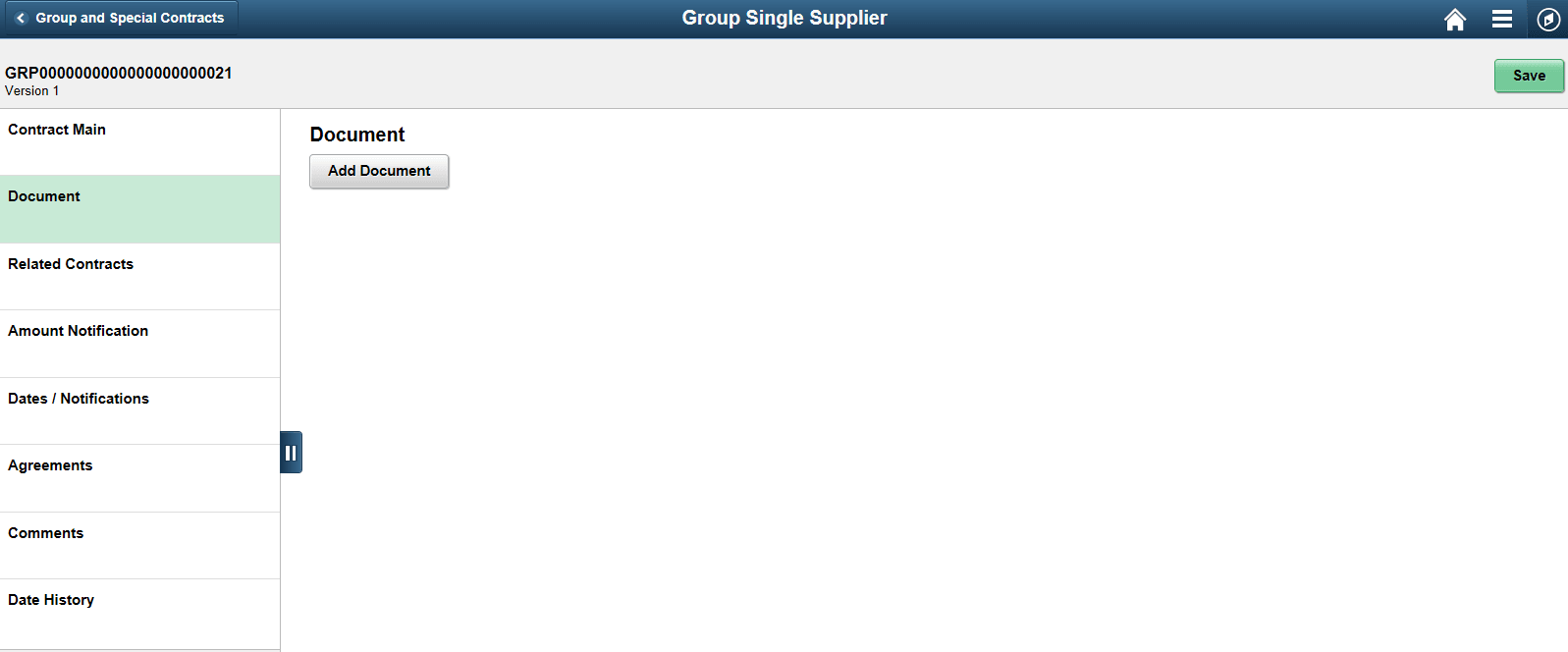
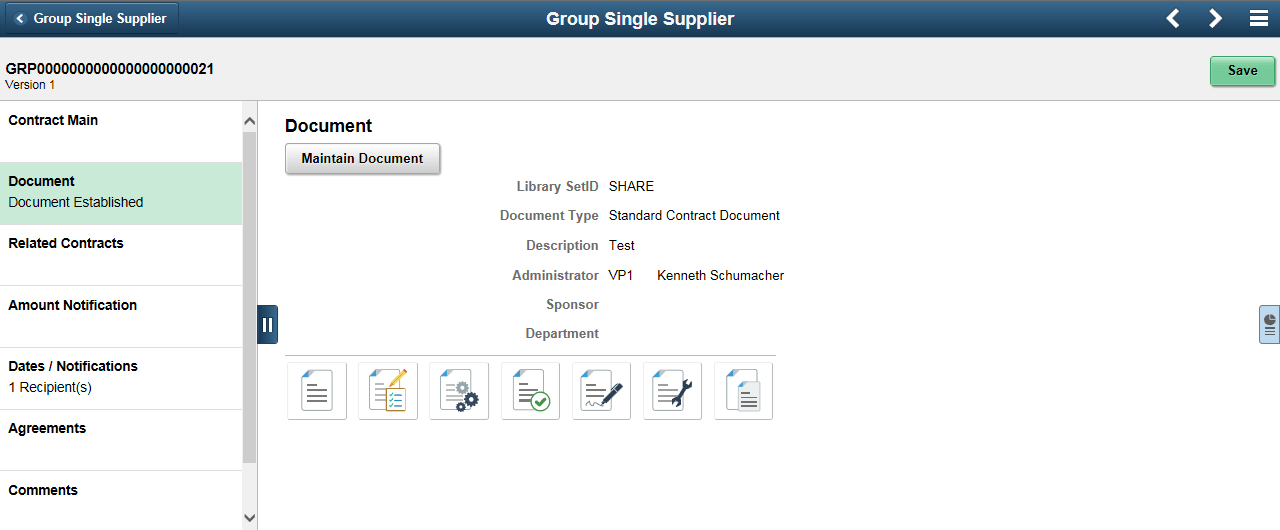
Clicking the Add document button takes you to the Supplier Contracts add page with the contract values defaulted. If you have already created a document, then Document Established is displayed in the left panel, and the Document page will show basic information for the document, as well as provide buttons to access more detailed information.
This example illustrates the fields and controls on the Document Established page. You can find definitions for the fields and controls later on this page.
| Field or Control | Description |
|---|---|
|
|
Click to open the created Contract Document associated with this contract. |
|
|
Click to open a modal page showing a history of modifications that have taken place with this document. |
|
|
Click to open a modal window showing collaboration history for this contract document. |
|
|
Click to open a modal window showing the approval history for this contract document |
|
|
Click to open a modal window showing any signature information that has been established for this contract document. |
|
|
Click to open the most recent amendment document for this contract document. |
|
|
Click to open a modal window showing any document attachments or related documents for this Supplier Contract document. |
 (View Document)
 (Document Modification Summary)
 (Collaboration)
 (Approve)
 (Sign Document)
 (Amendments)
 (Related documents)