Group and Special Purpose Contract Component
For any of the Group or Special Purpose Contract styles, the user can use the left panel navigation to access additional entry pages for the contract. The navigation options are similar to the tabs on Classic pages.
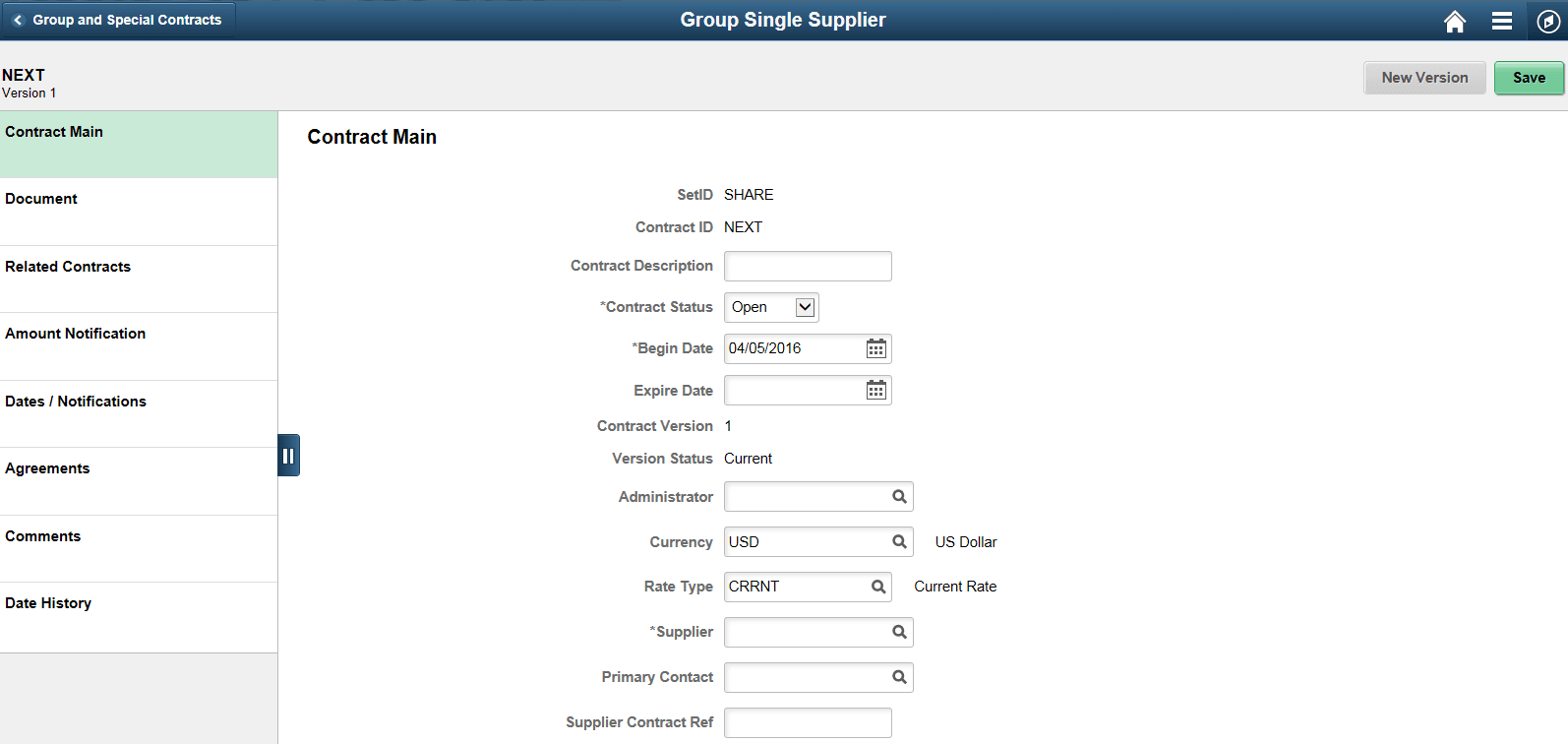
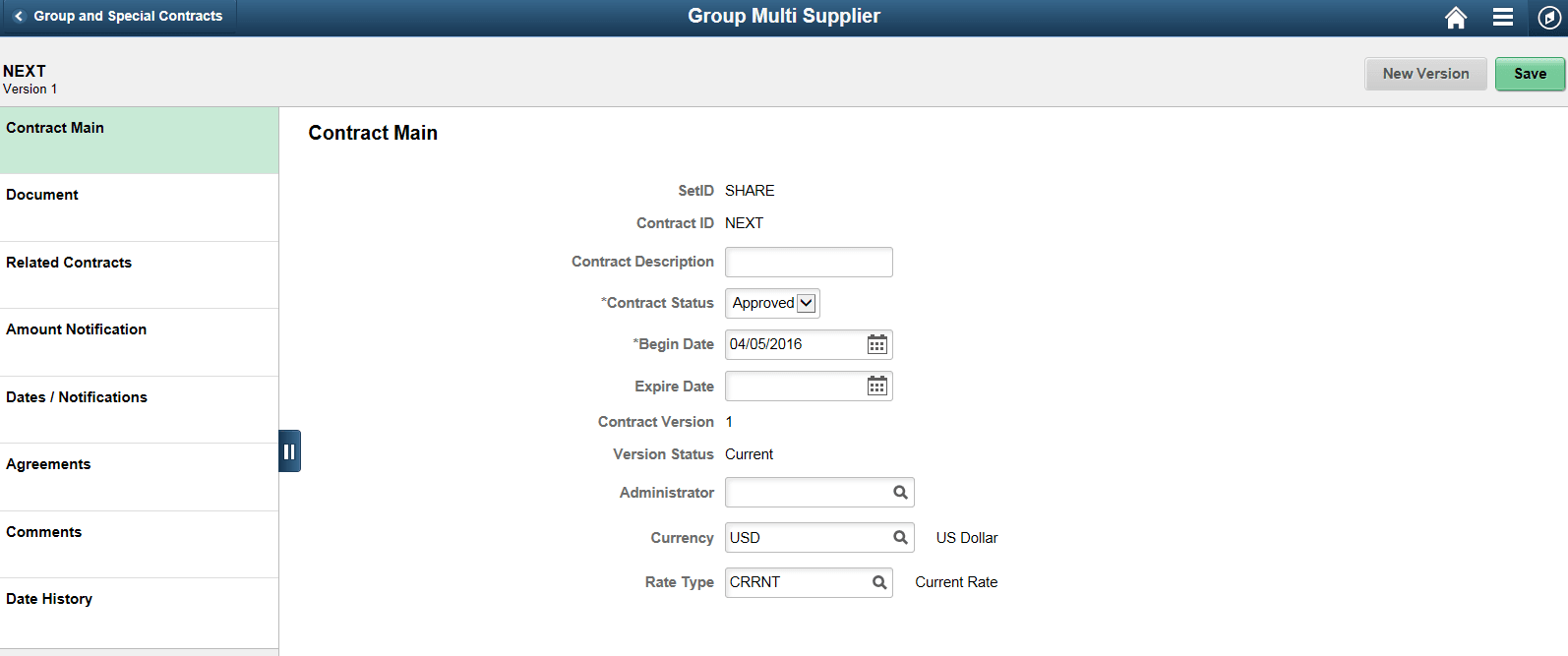
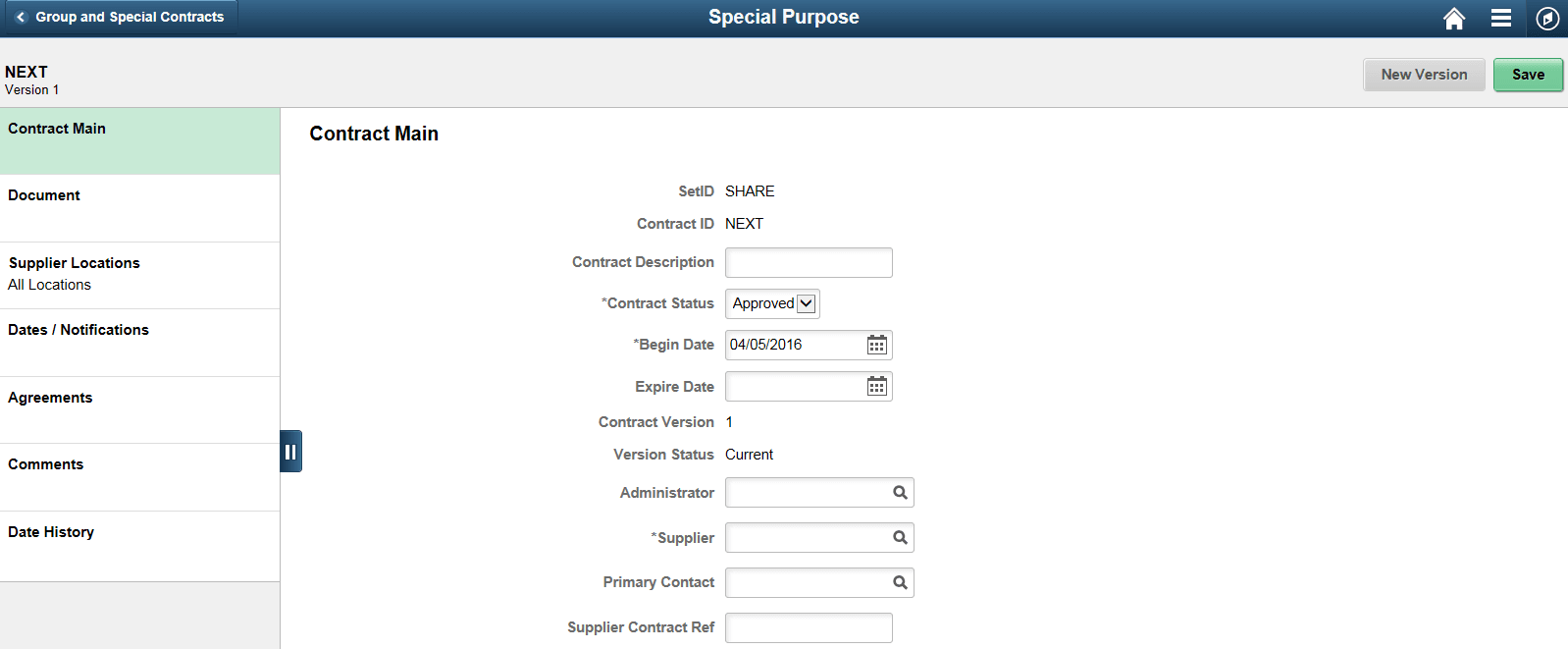
Click the Contract Main tab from the left panel to access the Contract Main page. You can enter basic header level information on Contract Main page. If you are adding or modifying a contract in Contract Main, the Contract Main page must be saved before proceeding to other pages.
This example illustrates the fields and controls on the Group Single Supplier page.
This example illustrates the fields and controls on the Group Multi Supplier page.
This example illustrates the fields and controls on the Special Purpose Contract page.
To accommodate each installations unique contract naming terminology, the Contract Style will be used as the title displayed in the banner at the top of the page.
Below the banner you will see contract identification on the left including the Description, SetID, Contract ID, and Contract Version. A Save button appears on each page to allow the user to save their work before proceeding to the next page. When viewing the Contract Main page only, a New Version or Delete Draft button will appear in the header.
The Pre Approved status in the Contract Style is only available on a draft version of the contract. Based on the settings for the user on the User Preferences - Contracts page.
The New Version/Delete Draft buttons are available only if version control is enabled. When you click the New Version button, a draft version of the contract is created and upon approval the draft version is made the current version and the current version is made the history version. These functionality remain the same as in classic. Similarly, if change tracking is enabled then the changes are tracked with the change reason based on classic pages set up options.
The left panel allows access to the various pages within the component. This left panel varies based on the Contract Style. As information is captured for the contract, indicators will appear on the left panel showing the existence of that data. For example, the Agreements tab will show the number of agreements that have been established.
| Contract Process | Group Single Supplier | Group Multi Supplier | Special Purpose |
|---|---|---|---|
|
Contract Main |
X |
X |
X |
|
Document |
X |
X |
X |
|
Related Contracts |
X |
X |
|
|
Supplier Locations |
X |
||
|
Amount Notification |
X |
X |
|
|
Dates / Notifications |
X |
X |
X |
|
Agreements |
X |
X |
X |
|
Comments |
X |
X |
X |
|
Date History |
X |
X |
X |
The right panel displays information for the selected contract and can vary as well. For example on the Contract Main page, the Group Multi Supplier contracts will not show a Supplier.
Note:
You can only make modifications to the contract when the contract status is Open.
All information available to this component can be viewed and maintained using the classic pages.