Tiles Used to Analyze Billing Operations
Each tile represents one metric. Preferences are specified at the tile level for each user. The user can define the criteria used to select the transactions used in each tile.
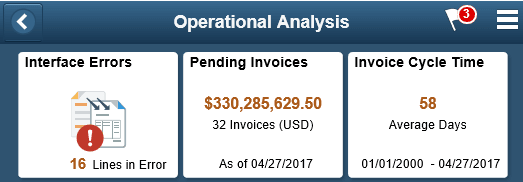
This example illustrates the fields and controls on the Operational Analysis Tiles as seen on a smartphone.
Interface Errors
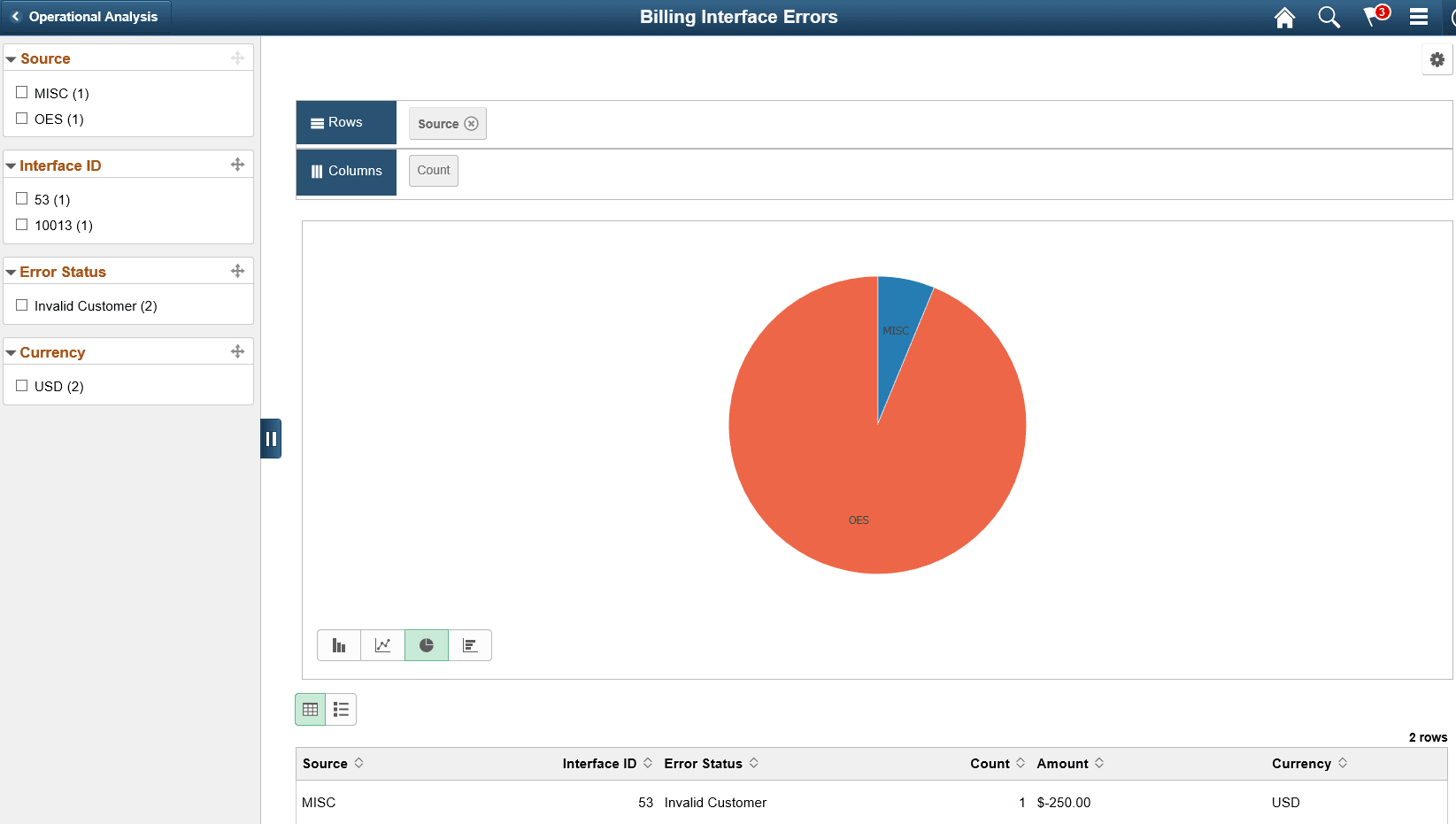
The Interface Errors tile displays the count of Billing Interface line transactions that resulted in an error. The tile allows a billing manager to view what percentage of processed bill lines are in error currently. Click this tile to view the Interface Errors pivot grid which displays the summary count of lines in error by bill source, error type and currency. Currency formatting is not available on this pivot grid because currency is not a required field. The pivot grid displays the following data:
-
Source
-
Interface ID
-
Error Status
-
Count
-
Amount
-
Currency
Select the following facets to filter data displayed on the pivot grid:
-
Source
-
Interface ID
-
Error Status
-
Currency
This example illustrates the fields and controls on the Billing Interface Errors as seen on a desktop.
| Field or Control | Description |
|---|---|
|
|
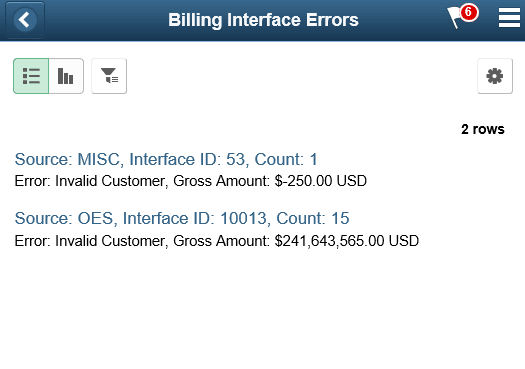
Click the View Results as List link to view the grid information as a list. |

This example illustrates the fields and controls on the Billing Interface Errors Pivot Grid List view as seen on a smartphone
Pending Invoices
The Pending Invoices tile displays the total amount and number of invoice yet to be processed. Invoices in bill status of New, Pending, Hold, Ready, Temp and Temp Ready are displayed. The total amount is displayed in the currency set in the tile preferences.
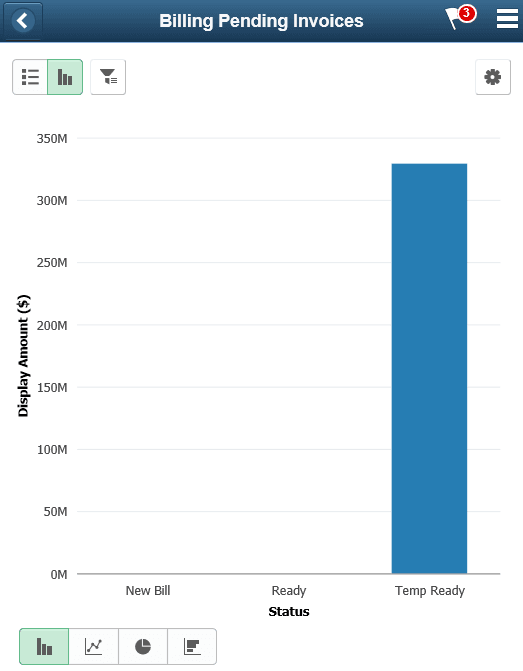
Click this tile to view the Pending Invoices pivot grid which displays the total invoice amount in each status. User can view the count of invoices or amounts of invoices in each status. The pivot grid displays the following data:
-
Business Unit
-
Invoice ID
-
Customer
-
Invoice Amount
-
Currency
-
Status
-
Date Added
-
Approval
-
Approver
-
Billing Specialist
-
Bill Source
-
Bill Type
-
Invoice Type
-
Contract
-
Project
-
Display Amount
-
Display Currency
Select the following facets to filter data displayed on the pivot grid:
-
Business Unit
-
Customer
-
Status
-
Approver
-
Bill Source
-
Contract
-
Project
-
Invoice Type
-
Bill Type
-
Billing Specialist
This example illustrates the fields and controls on the Billing Pending Invoices as seen on a smartphone.
Invoices by Specialist
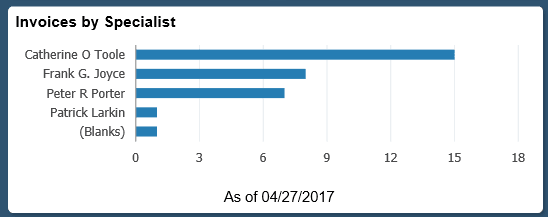
The Invoices by Specialist tile displays the count of pending invoices by the billing specialist to give the metric of the workload distribution. The tile displays only 5 specialists but the pivot grid displays all the Billing specialists based on the tile preferences set.
This example illustrates the fields and controls on the Invoices by Specialist Tile.
Click this tile to view the Invoices by Specialist pivot grid. User can view the count or amount of the invoices assigned to each specialist. The pivot grid displays the following data:
-
Business Unit
-
Invoice
-
Customer
-
Invoice Amount
-
Currency
-
Bill Status
-
Name
-
Billing Specialist
-
Date Added
-
Bill Source
-
Invoice Type
-
Bill Type
-
Display Amount
-
Display Currency
Select the following facets to filter data displayed on the pivot grid:
-
Name
-
Business Unit
-
Customer
-
Status
-
Bill Source
-
Bill Type
-
Billing Specialist
Invoice Cycle Time
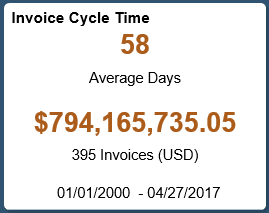
The Invoice Cycle Time tile displays the average days from invoice entry/ creation to the date invoice finalization is run.
This example illustrates the fields and controls on the Invoice Cycle Time Tile as seen on a desktop.
Note:
Information displayed on a tile varies based on the form factor. Less information is available on a small form factor tile due to space constraint.
The actual days between date added and date invoiced is used to get the average. The time period is set in the tile preferences for the date invoiced.
Note:
The finalization date can be different from the invoice date entered on the invoice.
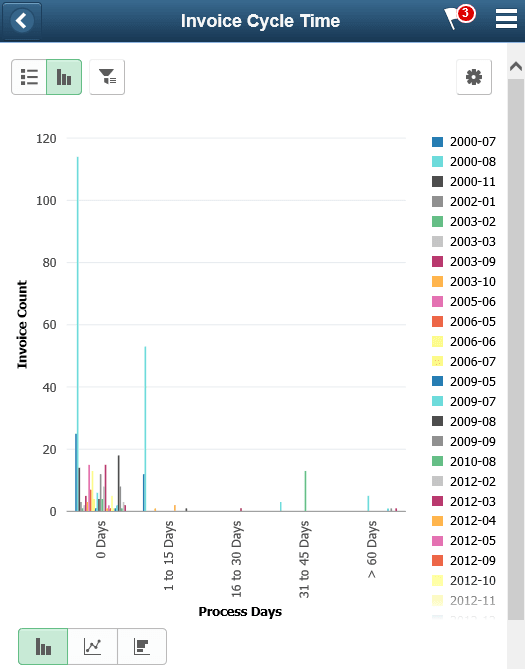
Click the tile to view the Invoice Cycle Time pivot grid. User can view the count of invoices finalized in a pre-set day’s period. User can also view the count or amount of the invoices. The pivot gird uses a system data table to define the process periods. Billing process days are 0 days, 1-15 days, 16–30 days, 31-45 days, 46–60 days, >60days. Also, each process period is split by the year/month the bill was invoiced (finalized). The pivot grid displays the following data:
-
Business Unit
-
Invoice
-
Customer
-
Date Added
-
Date Invoiced
-
Days to Invoice
-
Process Days
-
Invoice Amount
-
Currency
-
Billing Specialist
-
Bill Source
-
Contract
-
Project
-
Invoice Type
-
Bill Type
-
Invoiced
-
Display Amount
-
Display Currency
Select the following facets to filter data displayed on the pivot grid:
-
Business Unit
-
Customer
-
Bill Source
-
Bill Type
-
Billing Specialist
-
Invoiced
-
Invoice Type
-
Process Days
-
Contract
-
Project
This example illustrates the fields and controls on the Invoice Cycle Time pivot grid as seen on a smartphone.
For additional information on pivot grids, see the product documentation for PeopleTools: Pivot Grid.