Adding a Custom Button
Using custom buttons enables you to streamline the tagging process for large documents. Adding buttons that insert a rich text Content Control and set properties for the selected control can be performed on a two-step process:
-
Record the macro.
-
Add the recorded macro to the Quick Access Toolbar
Note:
This information is suggested based on Microsoft Word functionality and is not controlled by Oracle functionality.
Recording the Macro
To record the macro:
-
Open Word and click on the Developer tab.
-
In the Code group box, click the Record Macro button.
-
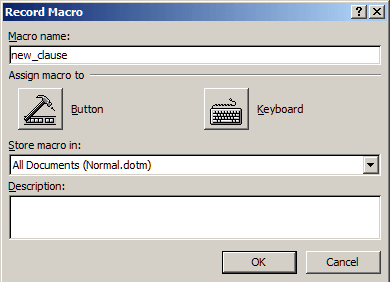
In the Record Macro window, enter new_clause in the Macro name field.
-
In the Store macro in field, select All Documents (Normal.dotm).
This example illustrates the fields and controls on the Record Macro window. You can find definitions for the fields and controls later on this page.
-
Click the OK button to begin recording.
-
In the Controls group box, click the Rich Text (Aa) icon
-
In the Controls group box, click the Properties icon.
-
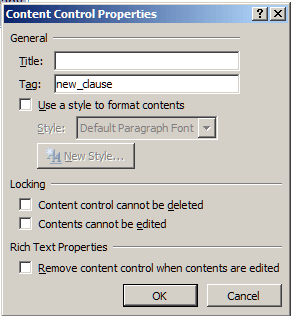
In the Content Control Properties window, enter new_clause in the Tag field.
This example illustrates the fields and controls on the Content Control Properties window when recording a macro. You can find definitions for the fields and controls later on this page.
-
On the Content Control Properties window, click the OK button.
-
In the Code group box, click on the Stop Recording button.
Adding a Recorded Macro to the Quick Access Toolbar
The Quick Access Toolbar is located in the upper-left portion of the Word window. It is a customizable toolbar where you can place buttons for frequently used commands or macros.
To add a recorded macro to the Quick Access Toolbar:
-
Right-click on the Quick Access toolbar and select Customize Quick Access Toolbar.
This example illustrates the fields and controls on the Quick Access Toolbar - right click. You can find definitions for the fields and controls later on this page.
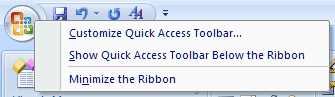
This opens the Word Options window.
-
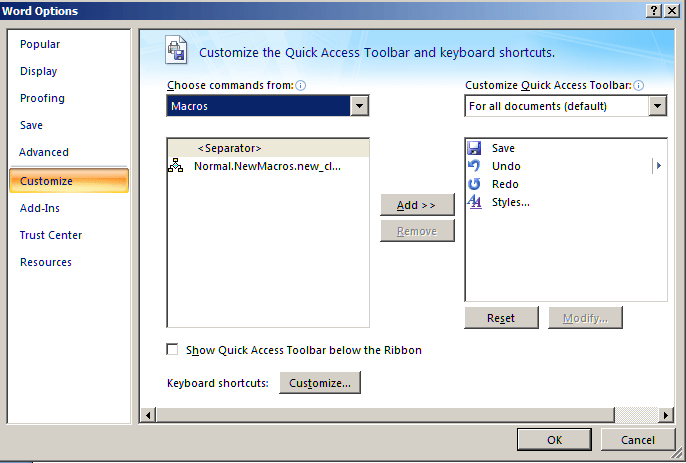
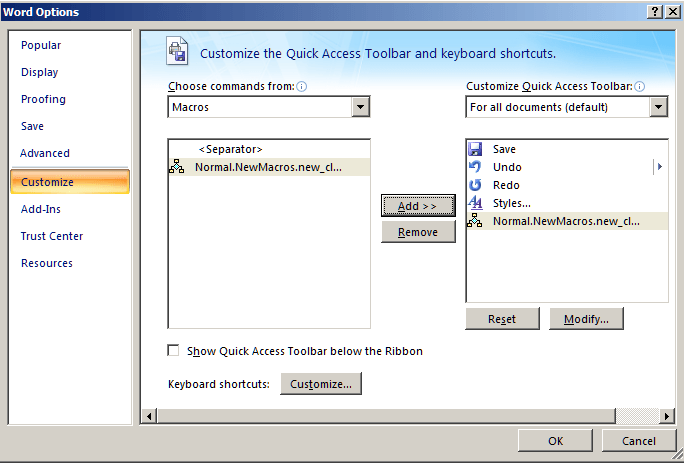
From the left pane, click the Choose commands from drop-down and select Macros.
This example illustrates the fields and controls on the Word Options window - Macros. You can find definitions for the fields and controls later on this page.
-
From the left pane, click one time on the macro name Normal.NewMacros.new_clause.
-
In the center of the two panes, click the Add >> button.
This moves the Normal.NewMacros.new_clause to the right pane.
This example illustrates the fields and controls on the Word Options window - Add. You can find definitions for the fields and controls later on this page.
-
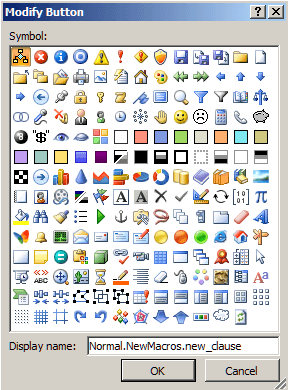
Below the right pane, click the Modify button to apply an icon of your choice to this button.
This example illustrates the fields and controls on the Modify Button window. You can find definitions for the fields and controls later on this page.
-
From the Modify Button window, select a button and enter new_clause in the Display name field.
This enables this name to appear when you hover your mouse pointer over the icon from the Quick Access Toolbar.
-
Click the OK button.
The macro button for the new_clause macro is now located in the Quick Access Toolbar. When you want to tag a section of a clause as a new_clause, highlight the text and click the button. The clause section will be tagged with the content control tags showing a new_clause.
Repeat these steps to create macro buttons for these remaining content control tags: id, title, full_text, and by_reference.
Example of a Clause Tagged with Multiple Content Controls
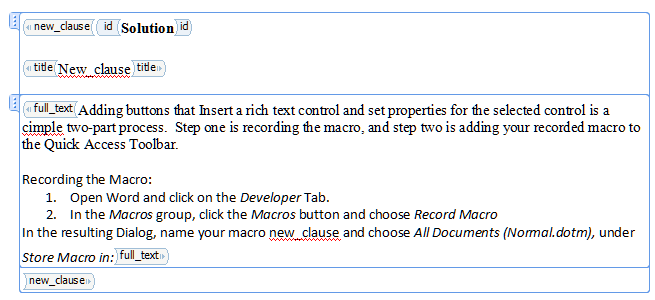
This is an example of a clause that is tagged with multiple content controls for clause title and full text. This is how your clauses should appear in your Word document:
This example illustrates the fields and controls on the Tagged Clause. You can find definitions for the fields and controls later on this page.
Note:
To view the tab on the left side, you must click on the text. To view the tags, such as new_clause and title, you must be in Design Mode (Developer, Design Mode).