Tagging Content with Content Controls
To tag content using content controls within a new Microsoft Word document:
-
Highlight the clause text.
-
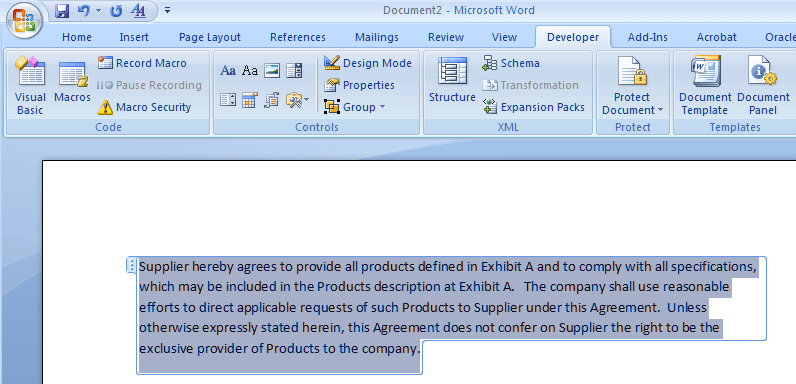
Select the Developer tab and click on the Rich Text content control 'Aa' icon.
The highlighted text is wrapped in a box:
This example illustrates the fields and controls on the Rich Text Content. You can find definitions for the fields and controls later on this page.
-
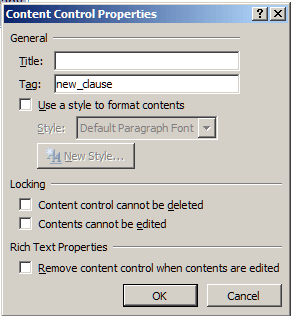
From the Developer tab, click on the Properties option.
-
In the Tag field, enter new_clause.
This example illustrates the fields and controls on the Content Control Properties window from the Developer tab. You can find definitions for the fields and controls later on this page.
-
Continue step three and four for id, title, full_text, and by_reference.
If you only add a content control using the new_clause tag to a clause with no other content controls within the new_clause tag, then all text in the content control will be imported as full text.
If you have many clauses to import, you can streamline this process by adding custom buttons to the Quick Access Tool bar in Word. This enables you to highlight various sections of a clause and use these buttons to tag clauses with a single click for each property: new_clause, id, title, full_text, and by_reference.