Amendment Processing
Accessing and processing amendment documents is slightly different than using standard documents. Typically, you have a single document that you access, edit, and process through its life cycle. Amendment processing and document management vary from organization to organization. Differences can exist in the number of documents that you use to capture the changes and what happens to the documents during amendment processing. For example, document authors might make changes only to the original contract document and amendment processing then approves, dispatches, and executes a new version of the original document. Conversely, authors might create a separate amendment document as an appendix or an addendum in which they summarize changes but do not permit changes to the original contract document. In this case, amendment processing applies to a new and separate amendment document.
To address different organizational needs, Supplier Contract Management provides flexibility in amendment processing.
Amend Contract Only
Use the Amend Contract Only amendment process option when the business process is to always change (amend) the actual contract document with any changes for each amendment cycle. The system makes a copy of the original executed document before the amendment and automatically assigns a sequential amendment number based on the amendment cycle. You have the option to control the version number of the amended document. You can select a major or minor version change or select not to change the version in the original document during amendment processing. You can optionally reset the version number back to 0.0 as each amendment cycle starts so that internal users can understand the version of the amendment as it changes over time. The behavior for this type of amendment is the same as the original life-cycle processing.
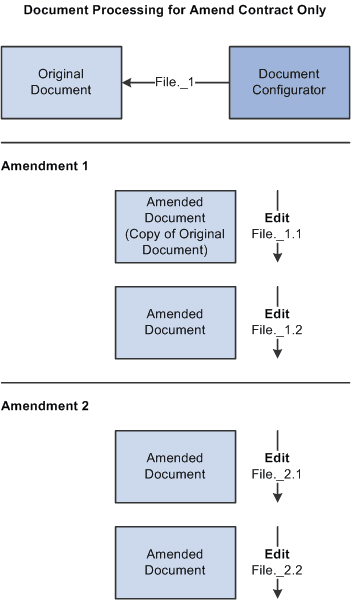
This diagram illustrates the process flow when you use the Amend Contract Only process option:
Note:
Version and file numbers vary depending on your specifications as you create and modify amendments.
In the example, the system created the original document using a document configurator, and it has processed the document through its life cycle to an Executed status. When Amendment 1 was created, the current executed document was at version 1.0, and the user selected to use minor version numbering that resulted in the amended document version number starting with 1.1. Later, the user used minor version numbering again as the document was checked in after editing. With a minor version, the system updates the version using a decimal place, such as 1.1 or 2.2, as shown in the example. For Amendment 2, the user selected to increment to a major version 2.0 and edited the document as 2.1 and 2.2, respectively.
Amend Contract with Amendments
Use the Amend Contract with Amendments process option when you want the business process to amend the main contract with all changes, and additionally maintain a separate amendment file that contains a summary of the changes that have been made since the last executed contract. This option is useful if you want to highlight changes that have been made to a large contract in the amended contract.
Using this process option, you can optionally setup an amendment configurator to automatically update the amendment file with updates that you made to the original main document. When you check in changes made to the main document, the system provides an option to update the separate amendment summary file automatically based on a server process that does a Microsoft Word compare of the last executed document to the latest changes made. After the file is automatically updated, you can edit the amendment summary to review and make additional changes to it.
Note:
The amendment file must use an amendment configurator that contains a single amendment placeholder type section in it. The system uses the placeholder section to record added, updated, and deleted text in the main amended document, and then includes section in the document.
By enabling you to maintain both a fully amended document and a separate amendment file, the system helps you update the actual contract document as you go through amendment cycles. At the same time, the system maintains another summary amendment file that coexists with the amended contract. The summary amendment file highlights and summarizes the changes made to the contract.
You have the option to control the version number of the document. In this case, the version numbers apply to both files as a unit. You can select a major or minor version change or select not to change the versions for both the original document and the amendment file as a set. The system creates new amendment files using an amendment configurator for each amendment it creates.
With this option, when dispatching or sending amendments to contacts, you can send any combination of the following:
-
Original executed contract.
-
Current document.
This document is the current amended document with which you are working.
-
Most recent amendment file or all amendment files.
For example, if you have had four amendment cycles, you have the choice of sending amendment files for amendments one, two, three, or four, or just the amendment file for amendment four.
The diagram illustrates an example of document processing for the Amend Contract with Amendments process option:
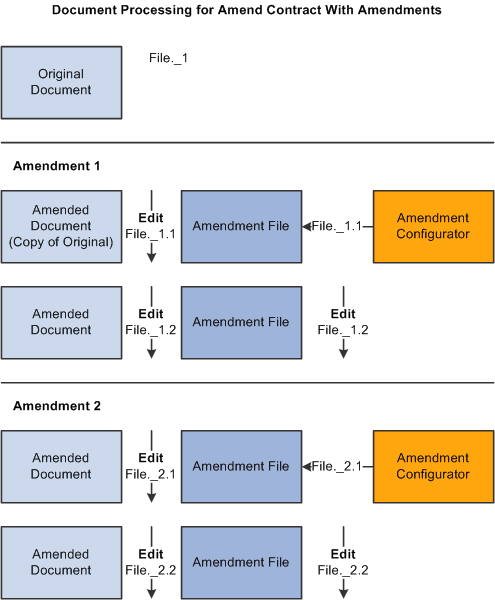
In the example, the amendment file is created using a configurator with the Use for Amendments only check box selected on the Document Configurator Definition page. The system generates two files that you can select to view or edit individually using the Document Management page. The first file is the amended document, which is a copy of the last executed contract and serves as a revised contract. The second file is the amendment file, a separate document based on an amendment configurator. This file contains summary information about the changes made to the actual amended contract. The system always treats these two files as a set for any action such as editing the amendment.
Amendment Files Only
Use the Amendment Files Only process option when the business process is to only maintain an amendment file that contains the summary of changes, leaving the actual contract document in its original Executed status. With this option, you view, edit, and check in documents for the amendment file. The original contract document is a view-only file.
You have the option to control the version number of the amendment file. You can select a major or minor version change or select not to change the amendment file version during amendment processing. The system creates a new amendment file using an amendment configurator for each amendment that you create.
With this option, you can dispatch or send documents to contacts using any combination of these options:
-
Original executed contract.
This document is the current amended document with which you are working.
-
Most recent amendment file or all amendment files.
For example, if you have had four amendment cycles, you have the choice of sending amendment files for amendments one, two, three, or four, or just the amendment file for amendment four.
This diagram illustrates and example of document processing for the Amendment Files Only process option:
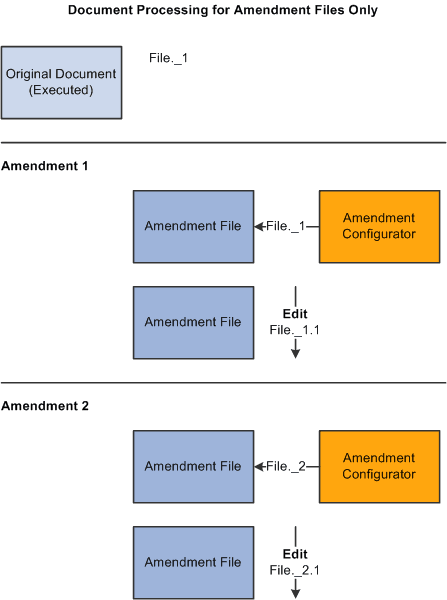
With this process option, you can view the original executed document using the Document Management page. Since all the other actions on the page, such as view and edit, relate to just the amendment file, this provides an easy way to view the actual executed contract.
To view the original document, click the View Original Document button on the Document Management page. Click the View Amendment File button or the Edit Amendment File button to view or edit the amendment file.
Amendment Comparisons
You can create as many amendments as you need throughout the life cycle of a contract document. You can also generate Microsoft Word comparisons of the original document. The purpose of the comparisons is to facilitate the creation of amendments based on transactional data changes and to highlight the effect of any changes to bind variables, such as an item change on the transactional contract.
You can base comparisons on:
-
The current version of the contract and a newly generated contract version.
-
The current version of the contract and a refreshed version of the current version of the contract.
-
The current version of the contract and the last-executed contract.