Methods Used to Create Signature Fields
You can add digital signature fields to a clause using these methods:
-
Generic signature fields for Adobe and Word signature methods.
You use a generic signature field for a given signature role, such as contract specialist, director, or vice president.
When a contract document is ready for digital signature, it is converted to a PDF and Adobe Acrobat automatically creates signature fields when it finds the word signature followed by underscores using Adobe’s Form Field Recognition feature.
When, for example, a director actually signs the signature field in a PDF, the signature information for the director can contain the visible details about him such as his name, title, and an image of his signature. This is the digital ID used in Adobe Acrobat. Using generic signatures are recommended because they reduce the maintenance of clauses and configuration of the system.
Note:
The PeopleSoft Financials sample database contains some sample Microsoft Word clauses named CL_SAMPLE_PDF_SIGN1 (2, 3) for reference and use. These are sample clauses where signature fields have been inserted into Microsoft Word.
-
Specific user-signature fields for Adobe and Word signature methods.
This method for creating signature clauses provides each individual signer a unique signature field. You use rules to include the correct signature based on who the signer is for that document. This setup is not generally recommended because of long-term maintenance issues, but may work well if an organization typically has only a few specific signers for documents.
Note:
In Adobe Acrobat, an advantage of using specific user- signature fields for each signer instead of generic fields is that the signer's name appears within the PDF list of signers so they can click on their name to obtain the signature field. This is instead of checking for a generic field such as director. However, with generic signature fields, you can also have the specialist manually change the PDF to replace the title with the signer's name as part of the document signature preparation.
-
Signature list on the document header versus signature fields in the document.
Within Document Management a list of signers is specified for each contract document. The list can be defaulted for each contract administrator. This list controls if a user is to have access to the Sign Document button on the Document Management page for signing, as well as routing a document internally before or after approvals for signatures depending on configuration. Depending on the variability of digital signatures required for your various documents the setup for this may be simple or more complex rules driven. For example, a simple approach is to always include a single signature clause with the number of signatures in the file, because it will always match n number of signers within the document header list.
A slightly more complex way to include a signature could be to provide a wizard question specifying the number of signers to drive a rule including the write signature clauses. And, using a more sophisticated solution is to use or create your own rule that includes the correct signature clauses based on the number of signers specified for a given document.
If you are using Adobe Acrobat digital signatures, a signature field is created by typing the text signature followed by underscores. If you are using Microsoft Word digital signatures, a signature field in a clause is created by inserting a Microsoft Word signature line where you specify the signer's name, title, and email address.
-
Signature fields for the Adobe Sign signature method.
Add signature fields to the document by entering Adobe Sign ‘text tags.’ Adobe uses the text tags to create signature fields in the PDF. These are some common text tags you can add to your document:
Text Tag Type Required Text Tag Structure Example Signature field
{{_es_signerN_signature}}
where N is variable, representing the placement order within the document.
{{_es_signer1_signature}}
{{_es_signer2_signature}}
Signature field with email address for a signer
{{_es_signerN_signatureblock}}
where N is variable, representing the placement order within the document.
{{_es_signer1_signatureblock}}
{{_es_signer2_signatureblock}}
Initials field
{{_es_signerN_initials}}
where N is variable, representing the placement order within the document.
{{_es_ signer1_initials}}
{{_es_ signer2_initials}}
You must add a numerical value to each signature field when there is more than one field in a document; this creates unique signature fields.
If you do not add signature fields to the document, Adobe Sign automatically adds a signature block for each signer on a new page.
-
Signature fields for the DocuSign signature method.
DocuSign ‘anchor tags’ can be added to documents as placeholders for signatures and names. When you send the document for signing, the appropriate tags are associated with signers and placed in the specified locations in the PDF document. These are the anchor tags you can add to your document:
Anchor Tag Type Required Anchor Tag Structure Example Signature
\sN\
where N is variable, representing the placement order within the document.
\s1\
\s2\
Name
\nN\
where N is variable, representing the placement order within the document.
\n1\
\n2\
Title
\tN\
where N is variable, representing the placement order within the document.
\t1\
\t2\
Date Signed
\dN\
where N is variable, representing the placement order within the document.
\d1\
\d2\
Initial
\iN\
where N is variable, representing the placement order within the document.
\i1\
\i2\
Optional Initial
\oiN\
where N is variable, representing the placement order within the document.
\oi1\
\oi2\
Company
\coN\
where N is variable, representing the placement order within the document.
\co1\
\co2\
The position of the signature field for each signer is determined by the anchor tags within the document. DocuSign automatically guides signers to the location of the signature field.
If the document contains more anchor tags than signers, DocuSign will not create signature fields for the superfluous tags.
If there are more signers than anchor tags, signers without a designated signature field can sign anywhere in the document.
Adobe Digital Signature Fields
Previous releases of PeopleSoft Supplier Contract Management required the use of postscript files for Adobe digital signatures. This method has been changed an is no longer needed to use postscript files.
To create a signature field for Adobe Acrobat documents, you enter the word signature followed by underscores when editing a clause, section, or contract document in Microsoft Word. When a contract document is prepared for signature, the system converts the document to a PDF and the contract administrator uses the auto-detect form field recognition feature in Adobe Acrobat to create the signature fields. These Adobe Acrobat digital signature fields can then be signed by signers using Adobe Digital IDs.
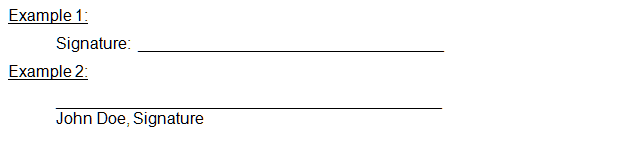
To create a signature field, type the word signature followed by underscores into a Microsoft Word document. When a contract document is ready for digital signature, it is converted to a PDF and Adobe Acrobat automatically creates signature fields when it finds the word signature followed by underscores using Adobe’s Form Field Recognition feature.
Examples of signature fields in word documents:
This example illustrates Examples of Adobe Digital Signatures.
Note:
The contract administrators who prepare the contract documents for Adobe digital signatures need to have Adobe Acrobat installed on the client machines.
Microsoft Word Digital Signatures
You create a signature field in the Microsoft Word document using the Microsoft Word - Signature Line feature. So, if you were to create a signature clause, edit the clause content in Microsoft Word, and insert the signature line object. When the entire contract document is prepared for signature, it will be converted to .docx file format where signers will be able to sign the document. The .docx file format is intended for signatures only and the .xml file remains as the editable document. After the signature process begins, the .xml contract document is in a read-only state and cannot be modified. The system will not display the Edit Document button.
The setup for Microsoft Word signatures requires that you edit the Microsoft Word versions of the signature clauses using Microsoft Word 2007, or later version, but in the .xml format, adding the appropriate signature fields within the clause. Generic signatures are recommended when possible. When using Microsoft Word to capture signatures you use generic signatures instead of using postscript files that were previously described for Adobe/PDF signature method.
Note:
The requirement for using the .docx format is that all signers, both internal users and external suppliers, must use Microsoft Word 2007, or later version. Unlike the PDF format the .docx format is still a Microsoft Word document and in certain statuses can be edited. After the first signature, for example, the contract specialist, is placed on the document and the .docx file can no longer be modified itself unless all signatures are cleared. Therefore, you should take care when using a .docx format to ensure that the contract specialist signs the document as part of the prepare process, and as a follow-up ensure that the document signatures have not been cleared by other users.
Additionally, you must set the installation option Signature Method field value to Word and setup for installing Microsoft Word 2007, or later version, on the server.
See Setting Up PeopleSoft Integration Broker for Microsoft Word.