Style Examples
These topics provide several examples of how you can format documents and displays sample formatting in Microsoft Word.
Unnumbered Clauses
To remove numbering from clause, ensure that the Numbered Clause check box on the Clause Definition page is clear. This example illustrates unnumbered clauses that have been included in a section that is going through approval:
This screen shot illustrates an example of unnumbered clauses
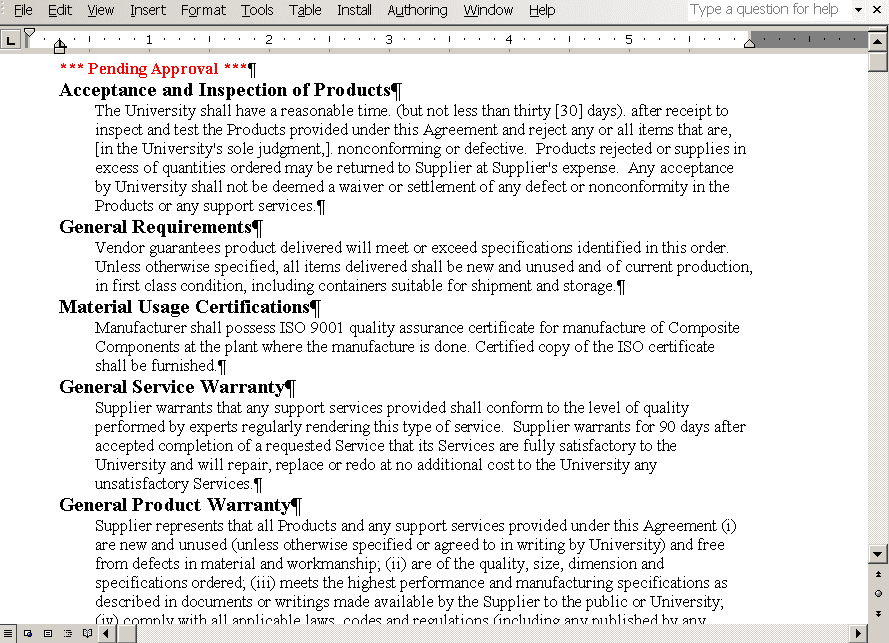
The default Microsoft Word style used for the preview document function is controlled by the information entered in the Document Text Styles grid on the Document Format and Options page. In this example, the content includes five clauses incorporated into a section. Each of the clauses has a unnumbered title and a body under the unnumbered title for an unnumbered clause.
The default value for the Microsoft Word style is the value you enter in the Unnumbered Title Style field. You enter the paragraph style for the body in the Microsoft Word style for the Body Style under Unnumbered Title field. Supplier Contract Management provides sample Microsoft Word styles for the PSUnnumHeading and PSBody2 values.
Numbered Clauses
This screen shot illustrates a example of a numbered clause document:
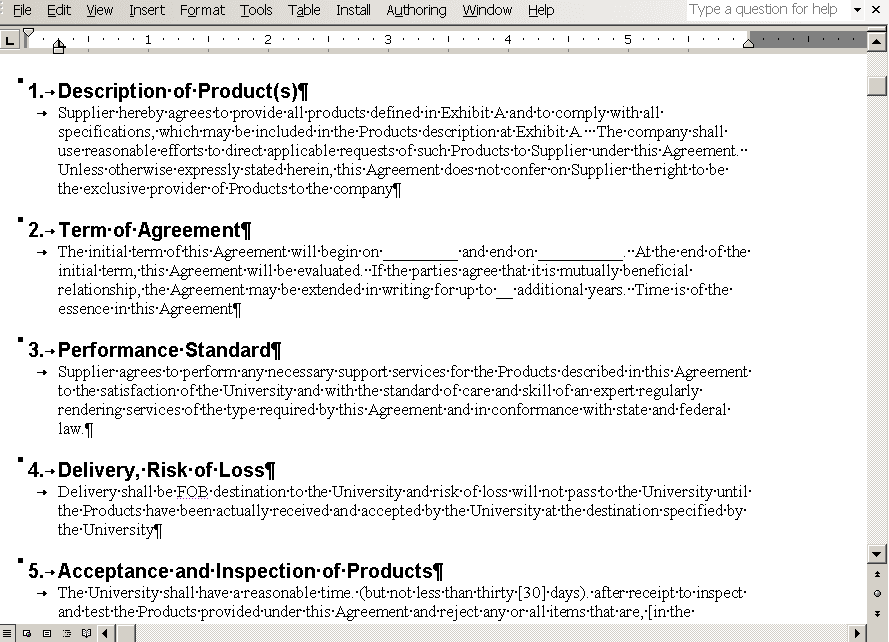
The default value the system uses for the Microsoft Word style to preview documents is controlled by the information entered in the Document Text Styles grid on the Document Format and Options page. In this example, the content includes five clauses. Each clause has a numbered title and a body under the numbered title for a numbered clause. The default value for the Microsoft Word style is the value you enter in theNumbered Title Style field. You enter the paragraph style for the body in the Microsoft Word style for the Body Style under Numbered Title field. Supplier Contract Management provides sample Microsoft Word styles for the PSNumHeading and PSBody1 values.
Indented Numbered Content
This screen shot illustrates an example of indented numbered content in a generated document:
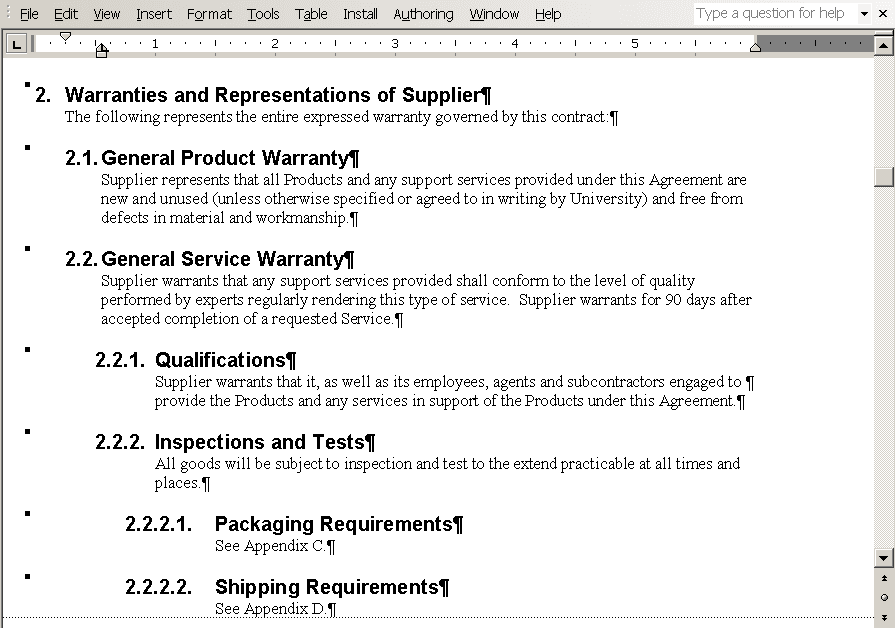
The document configurator controls the numbering and how the content is arranged with respect to the left margin for the generated document. In this example, the Outline Position column in the Content Elements grid sets the numbering for each of the content. The section Warranties and Representations of Supplier, has an outline position value of 2 and the section contains a clause, General Product Warranty, and another section, General Service Warranty. The numbering of content within the first section has an outline position value starting with 2.1. The indentation of each content element follows the outline position value as well.
The Microsoft Word style controls the numbering format. The Numbered Section or the Numbered Clausecheck boxes in each of the content elements controls the numbering in the document.
If the check box for the parent content element is selected, the system also numbers any content element within the parent. In this example, the section, General Service Warranty, would have the numbering checked, the clause, Qualification, would be numbered even if the Numbered Clause check box was not selected.