Delivery Management Workbench- Workbench Navigation Menu Page
Use the Delivery Management Workbench- Workbench Navigation Menu page (IN_DLV_WKBNCH_MENU) to use this page to access the three main pages of the Delivery Management Workbench; Deliveries page, Demand / Container Activities page, and the Manage Deliveries page.
Navigation:
-
-
Click the Return to Menu link at the top of any page in the Delivery Management Workbench.
-
Select the Delivery Workbench link before a Ship ID has been assigned.
This example illustrates the fields and controls on the The Delivery Management Workbench- Workbench Navigation Menu page. You can find definitions for the fields and controls later on this page.
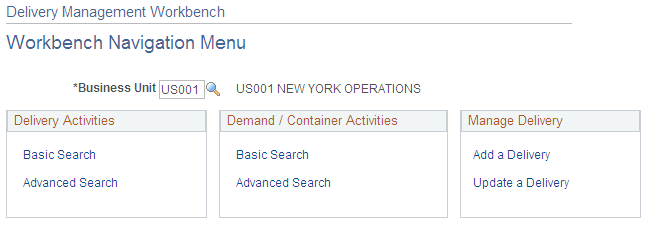
The navigation menu page is the first page displayed in the Delivery Management Workbench. From this page in the workbench, the user can go to the three main pages of the workbench:
-
Delivery Management Workbench-Deliveries page
-
Delivery Management Workbench-Demand / Container Activities page
-
Delivery Management Workbench-Manage Delivery page
| Field or Control | Description |
|---|---|
|
Business Unit |
Enter the PeopleSoft Inventory business unit. |
Delivery Activities group box
Use the Delivery Activities group box to access the Delivery Management Workbench-Deliveries page. Choose to access the basic search criteria fields or the advanced search criteria fields of the Delivery Management Workbench-Deliveries page by clicking the Basic Search link or the Advanced Search link. Use the Delivery Management Workbench-Deliveries page to search for multiple deliveries and view all deliveries selected at a summary level. You can perform delivery and freight actions on one or more deliveries at once. You can consolidate deliveries or calculate freight for multiple selected deliveries, or you can choose a single delivery to perform freight calculation.
Demand / Container Activities group box
Use the Demand / Container Activities group box to access the Delivery Management Workbench-Demand / Container Activities page. Choose to access the basic search criteria fields or the advanced search criteria fields of the Delivery Management Workbench-Demand / Container Activities page by clicking the Basic Search link or the Advanced Search link. The Demand / Container Activities page enables you to assign demand lines or shipping containers to an existing delivery or create a new delivery to hold them. You can also remove demand lines and shipping containers from a delivery and consolidate deliveries.
Manage Delivery group box
Use the Manage Delivery group box to access the Delivery Management Workbench-Manage Delivery page where you can add or update one individual delivery. Select Update Delivery to enter this page in update mode and maintain an existing delivery ID. Select the Add Delivery to enter this page in add mode where you can create new delivery. You can modify the delivery fields, view the demand lines and shipping containers that are currently assigned to the delivery, add or remove demand lines and shipping containers, consolidate deliveries, and do freight processing.