Delivery Management Workbench-Deliveries Page
Use the Delivery Management Workbench-Deliveries page (IN_DLV_DELIVERIES) to select one or more deliveries based on various search criteria.
You can perform delivery and freight actions on one or more deliveries at once. You can consolidate deliveries or calculate freight for multiple selected deliveries, or you can choose a single delivery to perform freight calculation.
Navigation:
-
-
-
Click the Deliveries link at the top of any page in the Delivery Management Workbench.
-
If multiple deliveries are on the shipped lines, select the Delivery Workbench link.
This example illustrates the fields and controls on the The Delivery Management Workbench-Deliveries page. You can find definitions for the fields and controls later on this page.
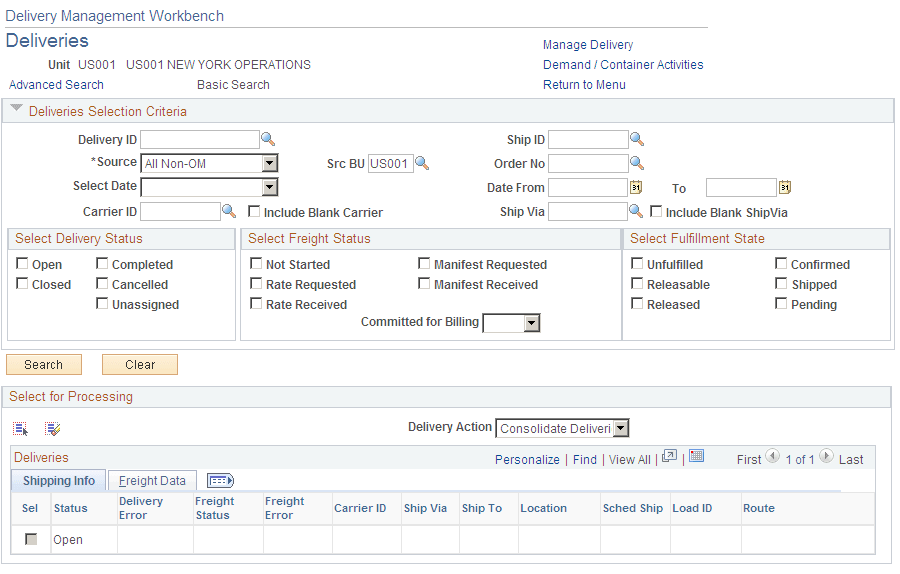
The Deliveries page of the Delivery Management Workbench is where you can select one or more deliveries based on various search criteria. Use this page to:
-
View the list of deliveries based on the results of the search. You can view delivery level information, including freight information, in a grid format.
-
Perform delivery and freight actions on one or more deliveries at once.
-
Consolidate deliveries.
-
Calculate freight for multiple deliveries at one time.
-
Choose a single delivery to perform freight calculations.
| Field or Control | Description |
|---|---|
|
Manage Delivery |
Select this link to access the Delivery Management Workbench-Manage Delivery page where you can work with one individual delivery or create a new delivery. |
|
Demand / Container Activities |
Select this link to access the Delivery Management Workbench-Demand / Container Activities page where you can view unassigned demand lines and unassigned shipping containers. |
|
Return to Menu |
Select this link to access the Delivery Management Workbench- Workbench Navigation Menu page where you can change the PeopleSoft Inventory business unit field for the workbench and access the three main pages of the workbench. |
|
Advanced Search |
Click this link to display the extended list of search criteria fields in the Deliveries Selection Criteria group box. These search criteria help you find the deliveries to be displayed in the Select for Processing group box. For a complete list of the search criteria field definitions, see the Common Elements Used in This Section within the Using the Delivery Management Workbench section. |
|
Basic Search |
Click this link to display the basic search criteria fields in the Deliveries Selection Criteria group box. These search criteria help you find the deliveries to be displayed in the Select for Processing group box. For a complete list of the search criteria field definitions, see the Common Elements Used in This Section within the Using the Delivery Management Workbench section. |
|
Search |
Click this button to initiate a search for deliveries. The system retrieves the deliveries that are associated to demand lines that match your search criteria. To re-display the search dialog after your initial search, expand the Deliveries Search Criteria group box. |
|
Clear |
Click this button to erase all values in the search criteria fields so that you can create enter new criteria. |
Select for Processing group box
The Select for Processing group box displays the delivery IDs that meet your selection criteria based on either the basic search or the advanced search. Use this group box to view the available deliveries and select one or more deliveries for a delivery action or freight calculation. One delivery is displayed per line in the grid. This group box contains two tabs; Shipping Info and Freight Data. On the Shipping Info tab, the system displays general shipping information for the delivery such as carrier ID and scheduled ship date. On the Freight Data tab, the system displays any existing freight charge and other freight information for each delivery.
| Field or Control | Description |
|---|---|
|
Calculate Freight |
Select one or more deliveries and click the Calculate Freight link to calculate freight for those deliveries. If the freight calculation method for the delivery is internal, the system performs the PeopleSoft internal freight calculation and assigns the freight amount to the delivery. If the freight calculation method for the delivery is external, the system transfers you to the Freight Management page where you can select freight processing options and initiate a transaction request to the external third-party freight system. |
|
Auto-Freight |
Click this button to have the system perform best-way freight calculation for externally-freighted deliveries and perform the internal freight calculation for internally-freighted deliveries. The freight is assigned to the delivery depending on the freight calculation performed. If there is a freight error, you are taken to the Freight Results page. |
|
Delivery Action |
Perform a delivery action by selecting one or more deliveries, entering a value in this field, and clicking the Save button. The delivery actions are:
|
|
Message Log |
Click to access the Delivery Management Workbench- Message / Error Log page where you can view errors from delivery creation routines generated when this page is saved. This link displays only if there are errors to be viewed. |
|
|
Select the Clear icon to erase any errors on the Delivery Management Workbench- Message / Error Log page. |
|
Delivery ID |
Click the Delivery ID link to access the Delivery Management Workbench-Manage Delivery page where you can view and update the detail of this single delivery. |
