Pegging Workbench Page
Use the Details - Pegging Workbench page (IN_PEG_DETAIL) to for an order, view the possible sources of supply or demand.
Apply, change, or remove pegs to the order.
Navigation:
This example illustrates the fields and controls on the Details - Pegging Workbench page.
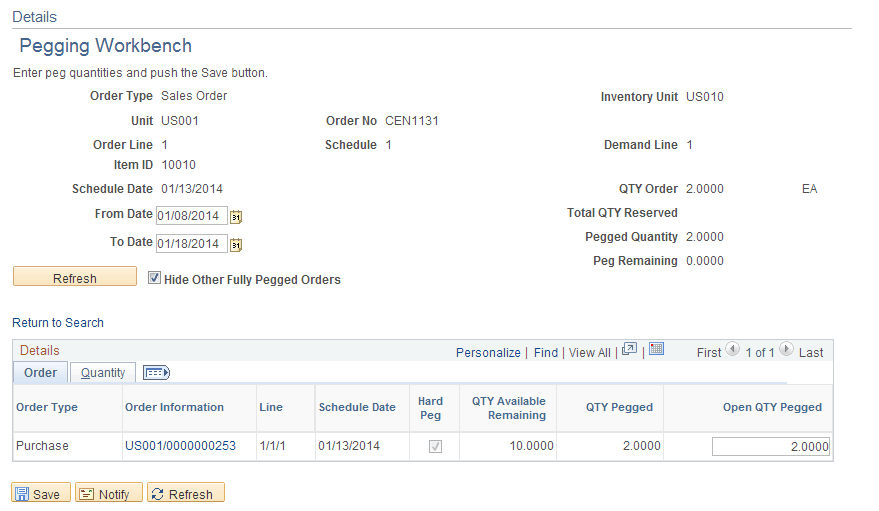
This example illustrates the fields and controls on the Quantity tab of the Details - Pegging Workbench page. You can find definitions for the fields and controls later on this page.

The top part of this page displays information about the line (demand or supply) that you selected for pegging on the Search - Pegging Workbench page.
| Field or Control | Description |
|---|---|
|
Unit and Item ID |
Displays the inventory business unit and item ID of the line that you selected for pegging. The available orders to peg to that are displayed in the Details group box are filtered based on the inventory business unit and the item ID. For example, if a sales order with the item ID 10001 and inventory business unit US010 is displayed, then the Details group box will only display requisitions, purchase orders, production IDs, or incoming interunit stock requests (transfer supply) with the item ID 10001 and the destination inventory business unit US010. The same is true when pegging supply to demand. For example, if a purchase order with the item ID 10001 and inventory business unit US010 is displayed, then the Details group box will only display sales orders, stock requests, work orders, and transfer demand with the item ID 10001 and the destination inventory business unit US010. |
|
Kit ID |
If the line you have selected for pegging is part of a product kit, then this field displays the product kit ID. Select the product kit link to access the Kit Display page where you can view more information about the kit and all of the components. |
|
From Date and To Date |
Displays the date range for the lines displayed in the Details group box. The initial date range is based on the Workbench Detail Date Range entered on the Pegging Item Setup page or the Pegging Setup page. You can change the dates to refine the displayed lines for pegging. |
|
Hide Other Fully Pegged Orders |
Select to remove fully pegged supply or demand from the displayed lines in the Details group box. The page will only list orders that have some unpegged quantity available; enabling you to focus on available quantities. For example, if a purchase order is fully pegged to one stock request, then it does not appear in the Details group box for any other stock requests if this box is checked. If you deselect the check box, then orders that are fully pegged to orders other than the header order appear in the Details group box, but they cannot be pegged. By viewing fully pegged orders with the item ID needed, you can identify orders that you might want to un-peg in order to get quantities for the current peg. |
|
QTY Order |
Displays the total quantity on the order. This includes quantities that were not pegged as well as pegged quantities. |
|
Pegged Quantity |
Displays the pegged quantity for the supply transaction or the demand transaction. |
|
Peg Remaining |
Displays the current quantity that can be pegged. The quantity is calculated as follows: QTY Order less Qty Reserved less Pegged Quantity plus Peg Completed Quantity. |
|
Add Work Order Material |
Use this link to access the Work Order Material page where you can add business unit, Work Order ID, and Task Number to add a work order part to an existing work order and create an automatic peg. This link only displays if you are pegging a requisition or purchase order. |
Details
The Details group box displays the available orders that can be pegged to. If the top part of this page displays information about a demand line, then the Details section displays the supply (requisitions, purchase orders, production IDs, and transfer supply) available for pegging. If the top part of this page displays information about a supply-side line, then the Details section displays the demand (sales orders, stock requests, work orders, and transfer demand) available for pegging. Keep in mind that the demand and supply that can be viewed and pegged using the Pegging Workbench are limited by user ID on the User Security page.
If there was already quantity pegged to the demand or supply displayed on the top part of this page, then the system displays these pegged lines first and enables you to change the pegged quantity against that line or zero the quantity out to break the peg chain.
| Field or Control | Description |
|---|---|
|
Order Information |
Displays the source business unit and order number. Select the line link to access an inquiry page with additional information about this order. |
|
Line |
Displays the order line, schedule line, and distribution (or demand) line. |
|
Hard Peg |
Indicates if the row has hard-pegged demand or supply. Hard pegs indicate that the existing peg has a one to one relationship between a demand line and a supply-side line. If you attempt to peg additional demand or supply quantities to this row, the system display a warning message that this action will change the peg to a soft peg. If you continue with the change, then the peg chain will be changed to a soft peg. |
|
QTY Available Remaining |
Displays the item quantity that is available to be pegged. |
|
QTY Pegged |
Displays the total pegged quantity of this line. Completions are not subtracted from this quantity. |
|
Open Qty Pegged |
Displays the total peg quantity less any completions. To create a peg, enter a quantity in this field to be pegged against the line that is displayed at the top of this page and then click the Save button. This creates the peg chains for the demand and supply. To break (remove) a peg, enter zero in this field and then click the Save button. |
|
Pegged QTY Received |
Displays the pegged quantity that has already been received or completed. Note: This displayed quantity is not decrease for returned materials on RTV transactions. |
|
Pegged QTY Putaway/Sourced |
Displays the pegged quantity that has already been putaway into a PeopleSoft Inventory business unit. If this is a requisition, then this field displays the quantity that has already been sourced to a purchase order or material stock request. This field is changeable if you have selected the Allow Change check box on the pegging User Security page. The ability to change this field helps you correct input errors or reverse completed pegs. For example, you would want to reduce this quantity if the receipt was entered in error or the incorrect quantity was received. Reducing this field automatically increases the Open QTY Pegged field by the same amount, thus reestablishing the peg between the purchase order (or production ID) and the demand-side transaction. If the Deny Below Order Complete check box is selected on the pegging User Security page, then you cannot reduce the amount in this field below the quantity that has been putaway in the PeopleSoft Inventory business unit. Since the pegging records are tied to the supply and demand transactions, you must first update these transactions. For more information about correcting pegs, see "Changing Peg Chains" section of this topic. Note: The Pegged QTY Putaway/Sourced field is never changeable for a requisition. See Changing Peg Chains. |
|
Total QTY Putaway/Sourced |
(supply-side only) Displays the total quantity of this line that has already been putaway into a PeopleSoft Inventory business unit. If this is a requisition, then this field displays the total quantity that has already been sourced to a purchase order or material stock request. |
Note:
All quantity fields use the standard unit of measure for the item ID.