Search - Pegging Workbench Page
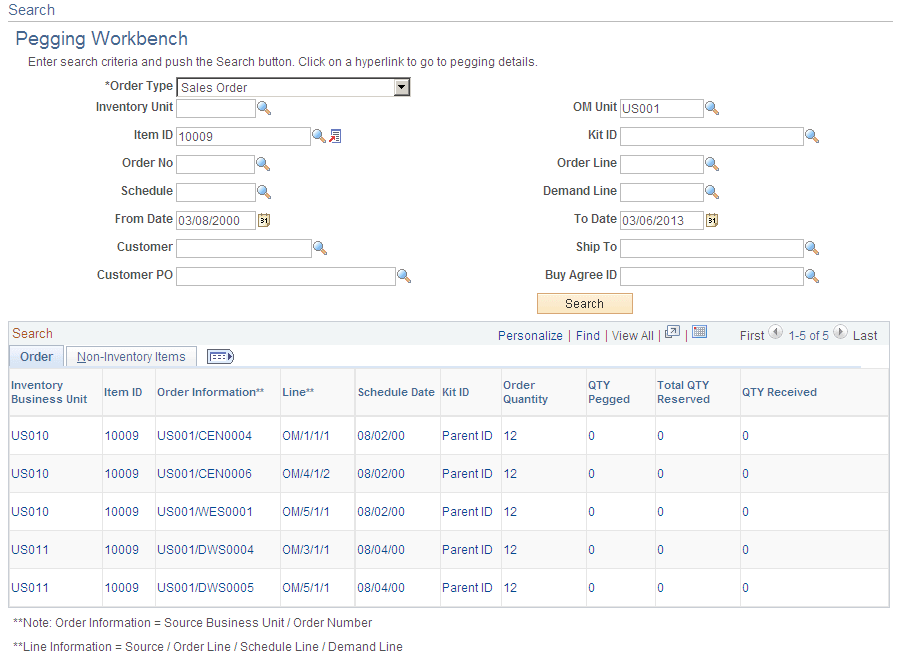
Use the Search - Pegging Workbench page (IN_PEG_SEARCH) to enter the search criteria for demand or supply to use on the Pegging Workbench.
Navigation:
This example illustrates the fields and controls on the Search - Pegging Workbench page. You can find definitions for the fields and controls later on this page.
| Field or Control | Description |
|---|---|
|
Order Type |
Select an order type to determine the demand or supply for pegging. The order type selected determines the search criteria fields displayed. Order types are:
|
|
Include Closed Orders |
Select this check box to access pegs that have been completed. This check box only displays for users that have been granted the ability to change the Peg QTY Putaway/Sourced field using the pegging User Security page. For more information about correcting pegs, see the "Changing Peg Chains" section of this topic. See Changing Peg Chains. |
|
Inventory Unit |
Select the inventory business unit for pegging. |
|
Item ID |
Select an item ID for pegging. |
|
Kit ID |
Select a product kit ID to search for lines containing kit components. You cannot select configured product kits. This field displays for the following order types:
|
| Field or Control | Description |
|---|---|
|
From Date and To Date |
Enter the date range for the scheduled shipment, arrival, or due dates. |
|
Search |
Select to activate the search based on your search criteria. Search results are displays at the bottom of the page in the Search group box. |
Search
This group box displays a list of the lines (supply- or demand-side) that meet the search criteria entered above. Use this group box to select the line to peg. If the search results only return one row, the system takes you directly to the Details Pegging Workbench page.