Importing Data From Supply Chain Business Modeler
This section discusses how to import data from Supply Chain Business Modeler.
Page Used to Import Data From Supply Chain Business Modeler
| Page Name | Definition Name | Usage |
|---|---|---|
|
APS_IN_RUN |
Initiate the Import data from SCBM - Single Application Engine process (APS_I_MAIN) or initiate the Import data from SCBM - Multi Application Engine process (APS_IN). Both of these processes import the XML documents from the Supply Chain Business Modeler to PeopleSoft Supply Chain Management. The Import data from SCBM - Single process runs the XML documents serially where as the Import data from SCBM - Multi process allows for the XML documents to be generated in parallel and can take advantage of multiple CPU environments. |
Import data from SCBM Page
Use the Import data from SCBM page (APS_IN_RUN) to initiate the Import data from SCBM - Single Application Engine process (APS_I_MAIN) or initiate the Import data from SCBM - Multi Application Engine process (APS_IN).
Both of these processes import the XML documents from the Supply Chain Business Modeler to PeopleSoft Supply Chain Management. The Import data from SCBM - Single process runs the XML documents serially where as the Import data from SCBM - Multi process allows for the XML documents to be generated in parallel and can take advantage of multiple CPU environments.
Navigation:
This example illustrates the fields and controls on the Import data from SCBM page. You can find definitions for the fields and controls later on this page.
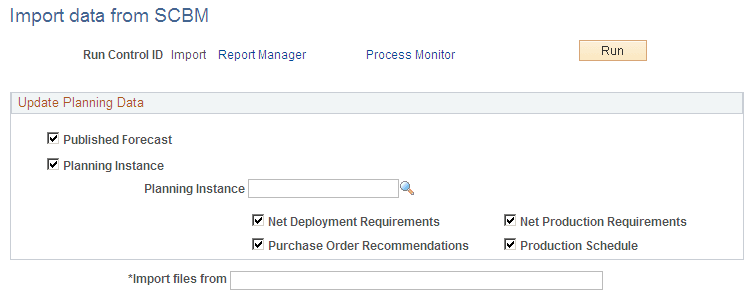
| Field or Control | Description |
|---|---|
|
Published Forecast |
Select this check box if you want to want to update published forecast planning data to PeopleSoft Supply Chain Management. |
|
Planning Instance, Planning Instance |
Select this check box if you want to update a particular planning instance of planning data to PeopleSoft Supply Chain Management. Then enter the planning instance in the Planning Instance field. |
|
Net Deployment Requirements |
If you select to update by planning instance, then select this check box if you want to import net deployment requirements. |
|
Net Production Requirements |
If you select to update by planning instance, then select this check box if you want to import net production requirements. |
|
Purchase Order Recommendations |
If you select to update by planning instance, then select this check box if you want to import purchase order recommendations. |
|
Production Schedule |
If you select to update by planning instance, then select this check box if you want to import the production schedule. |
|
Import Files From |
Enter the location of the XML documents that you want to import. |