15.3 Activating Service Operations
To activate service operations:
-
Select PeopleTools, Integration Broker, Integration Setup, Service Operation Definitions.
-
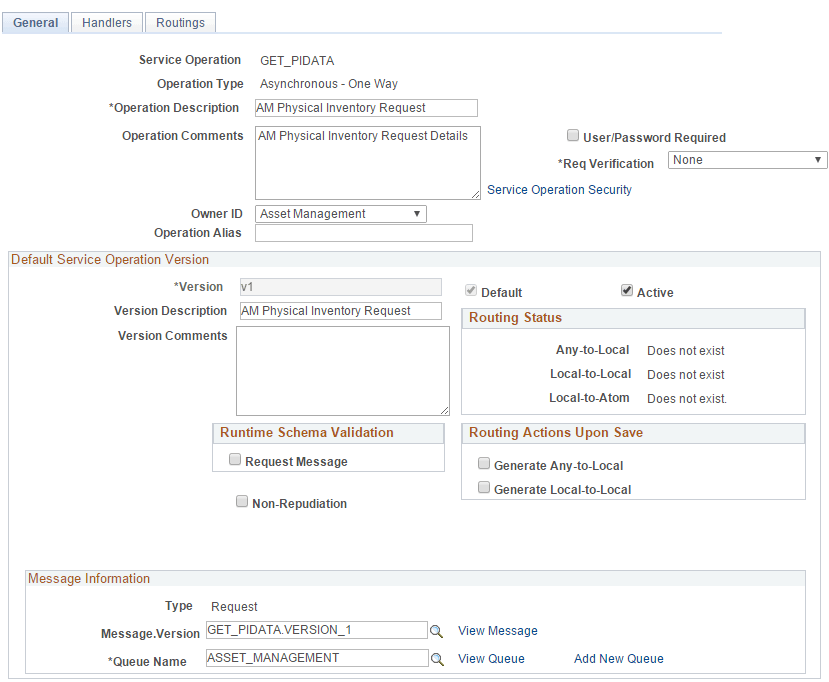
On the Service Operations search page, search for and select the service operation GET_PIDATA.
The Service Operations - General page appears, as shown in the following example:
Figure 15-3 Service Operations - General page
-
On the General page, select the Active check box, and then click Save.
-
On the Save Message dialog box, click OK.
-
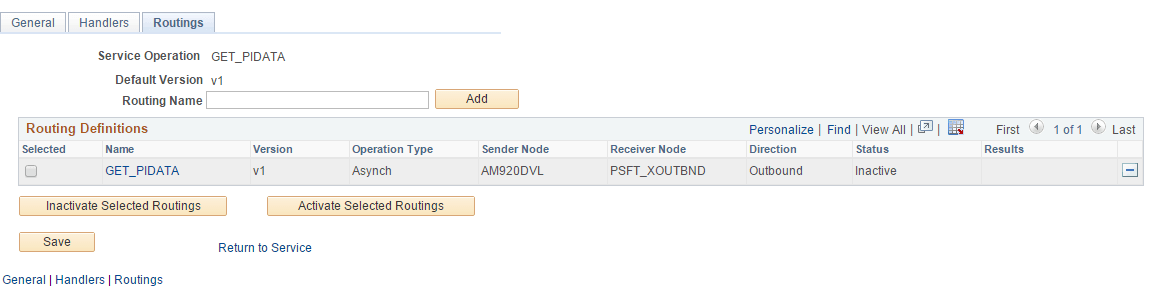
Select the Routings tab to access the Routings page, as shown in the following example:
Figure 15-4 Service Operations - Routings page
-
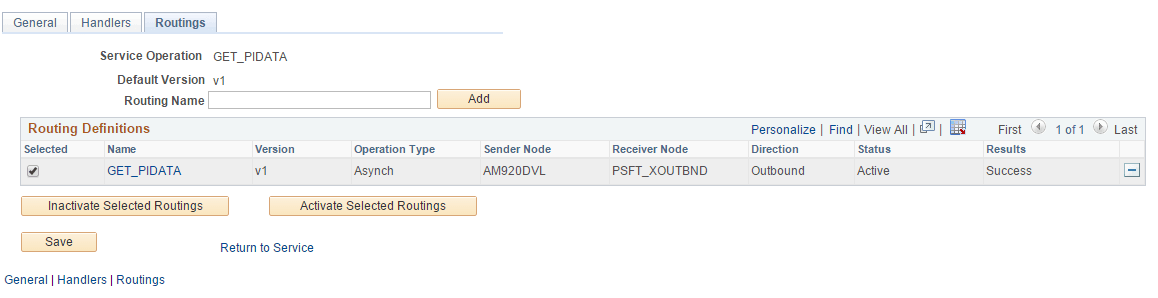
On the Routings page, select the check box for the routing GET_PIDATA, as shown in the following example:
Figure 15-5 Service Operations - Routings page with the routing definition selected
-
Click the Activate Selected Routings button.
-
Click Save to save Routing Definition.
-
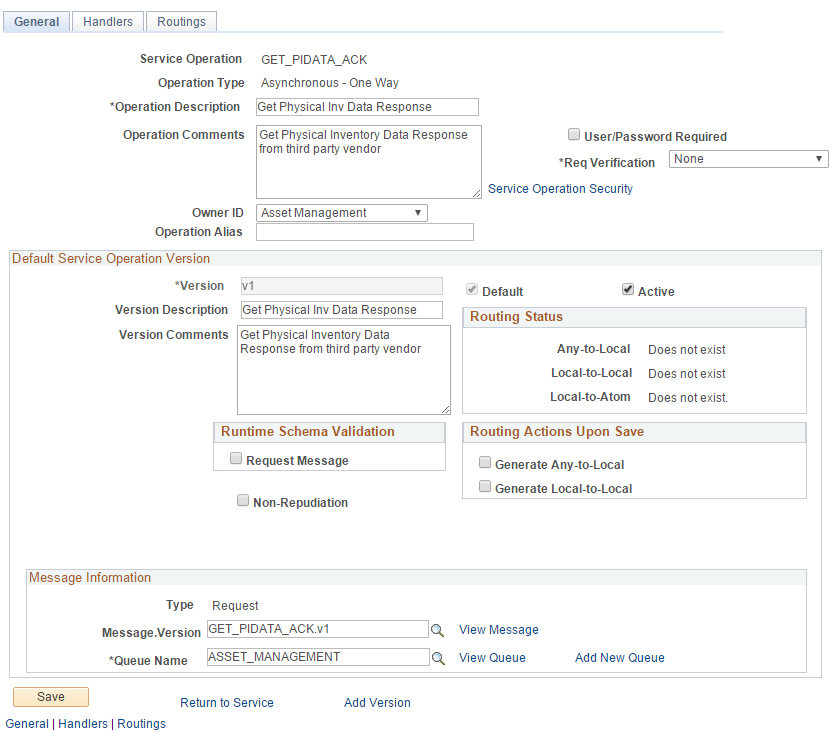
On the Service Operations search page, search for and select the service operation GET_PIDATA_ACK.
The Service Operations - General page for GET_PIDATA_ACK appears, as shown in the following example:
Figure 15-6 Service Operations - General page
-
On the General page, select the Active check box and then click Save.
-
On the Save Message dialog box, click OK.
-
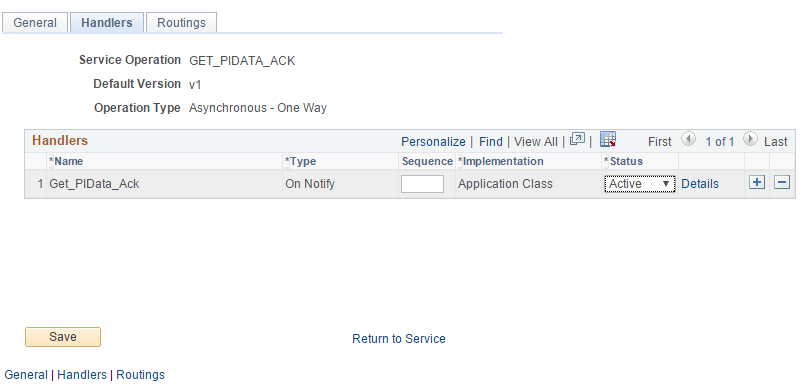
Select the Handlers tab to access the Handlers page, as shown in the following example:
Figure 15-7 Service Operations - Handlers page
-
Click Save.
-
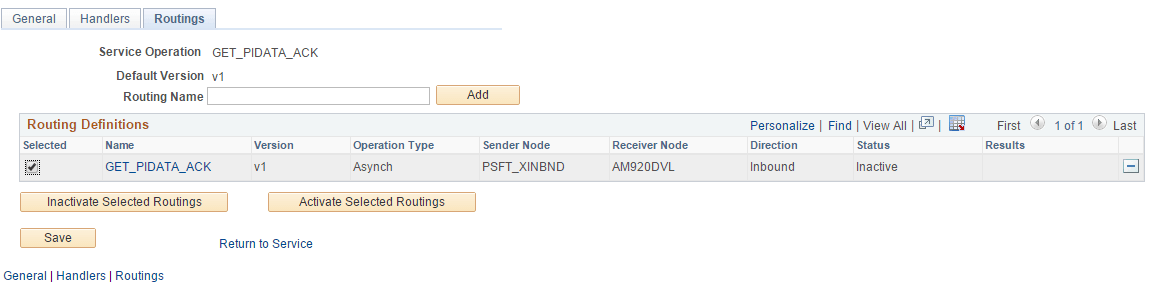
Select the Routings tab to access the Routings page, as shown in the following example:
Figure 15-8 Service Operations - Routings page
-
On the Routings page, select the check box for the routing GET_PIDATA_ACK.
-
Click the Activate Selected Routings button.
-
Click Save.