18.3.2 Indexing and Deploying Search Definitions
Fluid Requisition uses the following three Search Definitions:
-
EP_PV_MASTERITEM_SD
-
EP_PV_MASTERITEMVENDOR_SD
-
EP_PV_EXPRESSITEMS_SD
All search definitions for eProcurement must be deployed.
For instructions to deploy the eProcurement search definitions,
See PeopleTools: Search Technology, "Administering PeopleSoft Search Framework," Working with Search Indexes.
In addition to the preceding search definitions, you must deploy the search category EP_PV_MASTERITEMVENDOR_CAT from the Search Categories tab.
Before indexing the search definitions, verify that the user has been assigned to the Permission List EPPV9500.
This permission list is delivered with the role Search Query Administrator.
To verify:
-
Select PeopleTools, Security, Permissions and Roles, Permission Lists.
-
Search for and select the Permission List EPPV9500.
-
Select the Query tab.
-
Select the Access Group Permissions link.
-
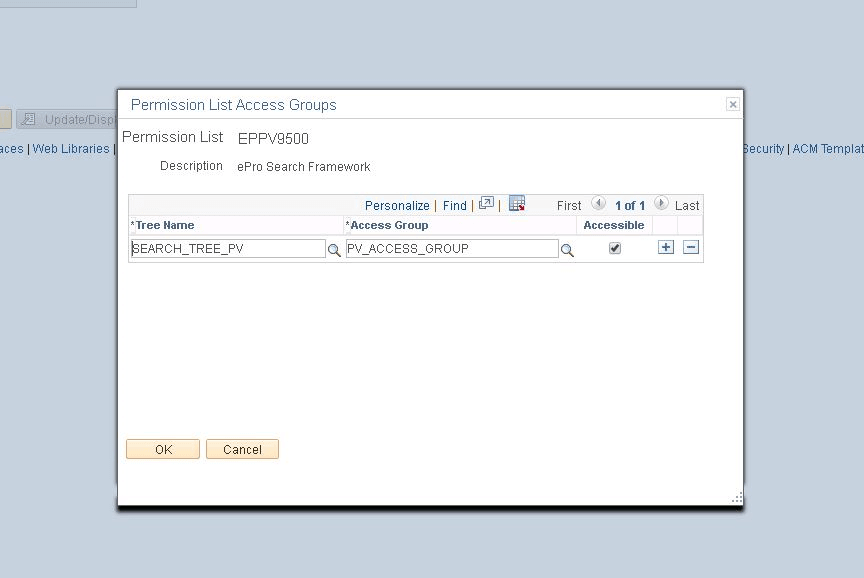
The Permission List is connected to the access group PV_ACCESS_GROUP, which is a part of Query Access Tree SEARCH_TREE_PV, as shown in the following example:
Figure 18-13 Permission List Access Groups page for EPPV9500
Note:
PV_ACCESS_GROUP contains all the views that are used by PeopleSoft Query in order to extract data in PeopleSoft’s Search Framework indexing.
To index the eProcurement search definitions,
See PeopleTools: Search Technology, "Administering PeopleSoft Search Framework," Working with Search Indexes, for each eProcurement search definition.
See PeopleSoft FSCM: Applications Fundamentals, "PeopleSoft Search for Financials and Supply Chain Management," Understanding the Build Index Process.
Note:
Classic Create Requisitions, Casual Receiving and Manage Requisition were desupported at the end of 2021. From now, use the Fluid versions. The Fluid version automatically uses Search Framework. For best performance, upgrade to a minimum of PeopleSoft Image 45 or take the Fluid enhancement bugs for these functions.
To verify that the search engine is working:
-
On Employee Self Service Home page, select eProcurement tile, next select Create Requisition tile.
-
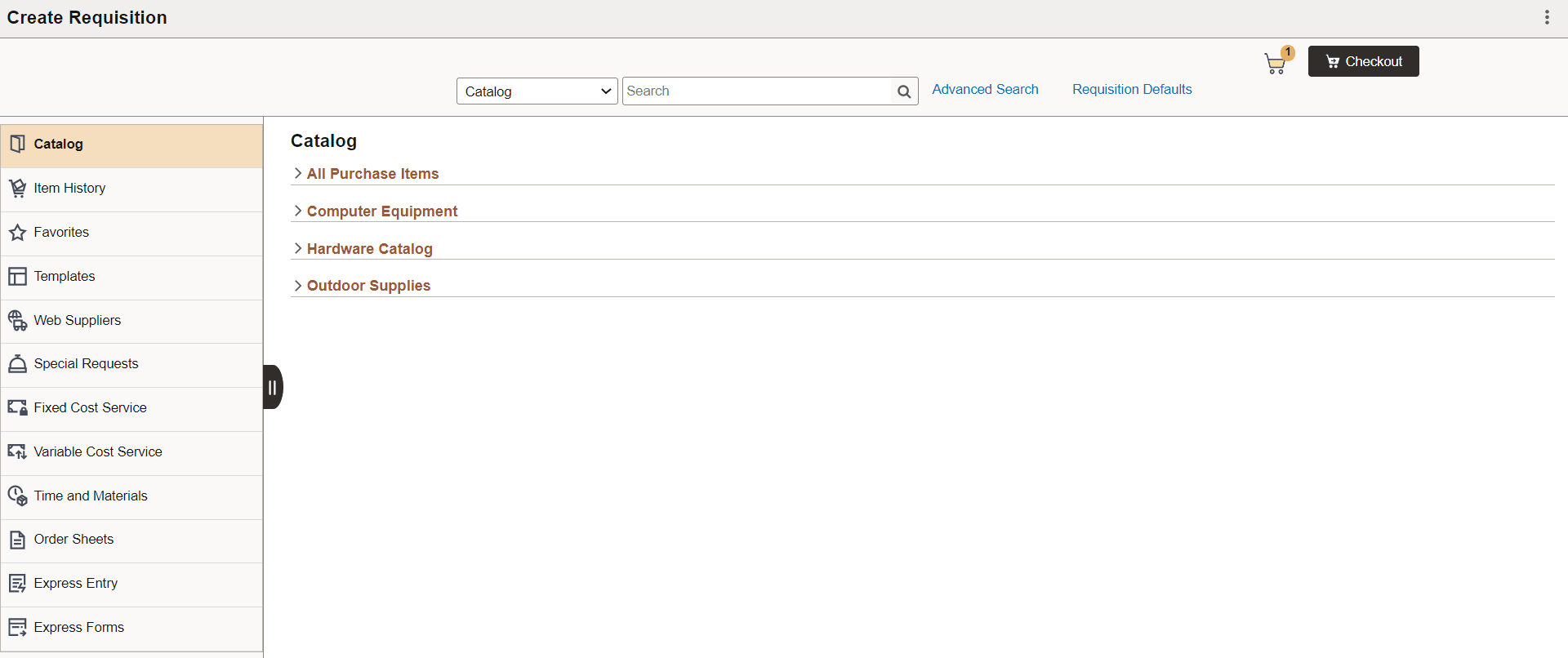
In the search bar, select the search type as Catalog, and enter a suitable text to search, for example, Printer, as shown in the following example:
Figure 18-14 Requisition Page: Verify Search Type
-
Click Search. The Catalog Search Results page opens with the search results.
In this page, the search results are displayed on the right panel, and the details pertaining to each search result are displayed on the left panel.