10.3.4 Setting Up Single Signon
Setting Up Single Signon in PeopleSoft FSCM
To verify Single Signon in the PeopleSoft FSCM environment:
-
In your PeopleSoft FSCM 9.2 environment, select PeopleTools, Security, Security Objects, PeopleSoft Single Signon.
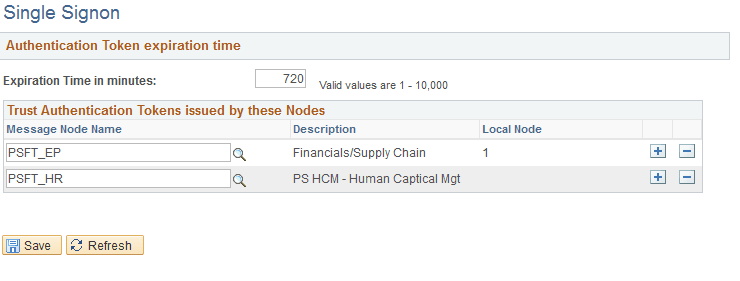
The Single Signon page appears, as shown in the following example:
Figure 10-1 Single Signon page
-
On the Single Signon page, in the Trust Authentication Tokens issued by these Nodes group box, specify the message nodes PSFT_EP and PSFT_HR, as shown in the preceding example.
-
Click Save.
Setting Up Single Signon in PeopleSoft HCM
To verify Single Signon in the PeopleSoft HCM environment:
-
In your PeopleSoft HCM 9.2 environment, select PeopleTools, Security, Security Objects, PeopleSoft Single Signon.
-
On the Single Signon page, in the Trust Authentication Tokens issued by these Nodes group box, specify the message nodes PSFT_EP and PSFT_HR, as shown in the preceding example.
-
Click Save.
Next, set up the Integration Gateways.
See the “Appendix: Applying Common Installation Instructions,” Setting Up Integration Gateways for instructions.
Next, activate the local domain.
See the “Appendix: Applying Common Installation Instructions,” Activating the Domain for instructions.