Defining Online Registration Options
Prepare to implement online registration by setting up or defining the following registration infrastructure:
-
Define master profile questions.
-
Establish the terms and conditions.
Pages Used to Set Up Online Supplier Registration
| Page Name | Definition Name | Usage |
|---|---|---|
|
SUP_PROFILE_QST |
Create a master list of profile questions to gather supplemental supplier data. |
|
|
SUP_PROFQS_LST_SEC |
Set up the values from which the user selects a response from the provided choices. |
|
|
SUP_PROFQS_ATH_SEC |
Provide user access to view or add attachments. |
|
|
AUC_TERMS_PG |
Add official legal verbiage for registration terms and conditions. |
Defining Master Profile Questions
PeopleSoft Supplier Onboarding provides a Profile Questions component for users to define a master set of the profile questions used to collect additional supplier attributes. The system supports one master set of profile questions that can flow easily from the onboarding process to the supplier master record for all suppliers.
When defining a registration template, you can configure a subset of the questions from the master set for use during the online registration process. You can remove profile questions from the registration templates at any time; however, you cannot delete profile questions from the master set if they are currently referenced by any registration templates, registration requests, or supplier master records. There are no restrictions on adding new system profile questions, and the system can accommodate up to 9,999 questions.
The Profile Questions component provides the framework for supporting additional supplier attributes both during and after the Supplier Onboarding process, including supplier maintenance. For example, when adding a new supplier record, internal users can answer the profile questions selected in registration template. When updating a supplier record, internal users can include any new questions in the master set that were not answered during the original supplier registration. You can track suppliers with missing or existing responses to required profile questions using the Profile Questions Report Page.
Profile Questions Page
Use the Profile Questions page (EP_SUP_PROFILE_QST) to set up a master list of profile questions from which you can choose when creating templates for online registration of new suppliers or new bidders.
Navigation:
This example illustrates the fields and controls on the Profile Questions page. You can find definitions for the fields and controls later on this page.
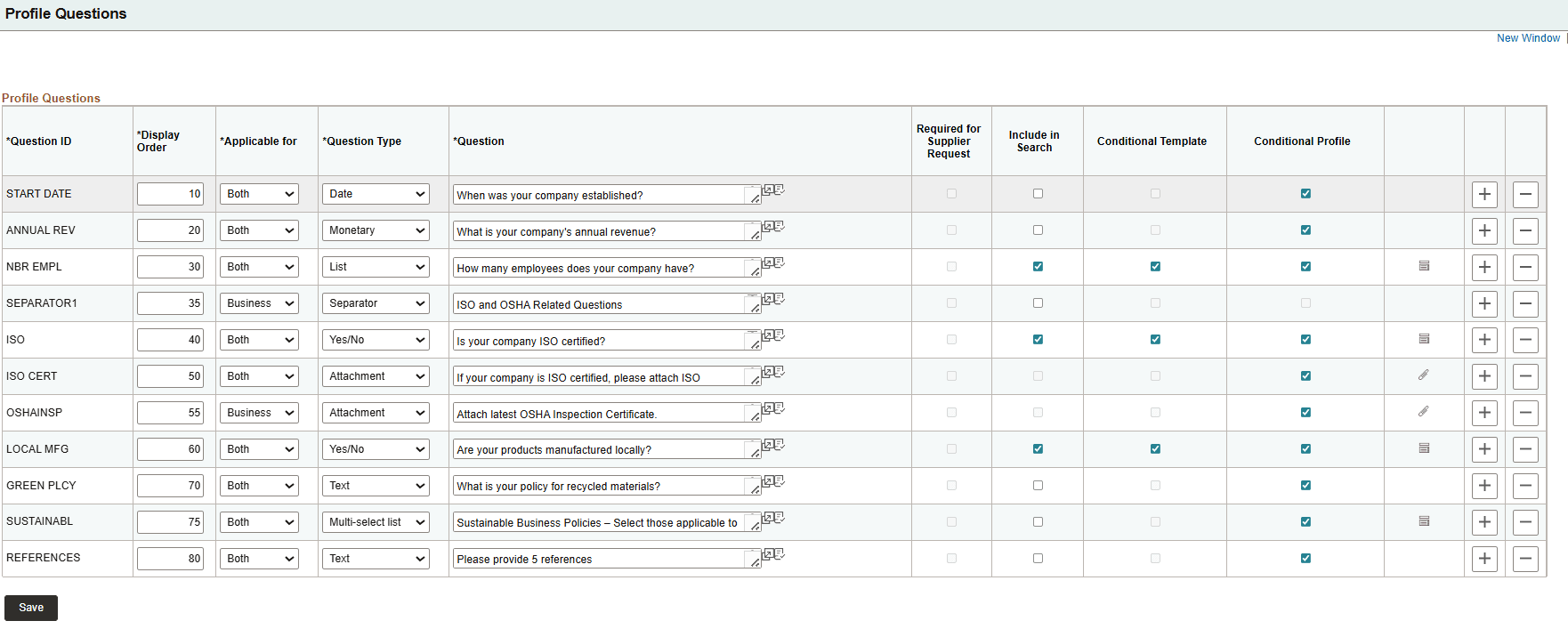
| Field or Control | Description |
|---|---|
|
Question ID |
Enter an intuitive ID for each profile question. |
|
Display Order |
Define the display order of the profile questions. |
|
Applicable for |
Select Both, Business, or Individual. Determines whether a profile question is applicable to an individual entity, a Business Entity, or both individual and business entities during the registration process. |
|
Question Type |
Select from the following question types for each question ID:
|
|
Question |
Enter the profile question or request for information, depending on the question type. Click the spell check icon to help identify any misspellings. |
|
Include in Search |
Select to include a profile question on the Bidder Search page. For more information, see PeopleSoft Strategic Sourcing: Bidder Search Page |
|
Required for Supplier Request |
Select this check box to designate the profile question as required or deselect to indicate optional entry during the registration process. That is, when you select this option for a profile question that is subsequently included in the registration template, registrants must provide an answer. |
|
Conditional Template |
Select this check box to mark the profile question for use in conditional template processing. When selected, the question is available for use in defining Conditional Template Trees and can be used to determine the registration template based on user responses. This option is available only for supported question types such as Yes/No and List. |
|
Conditional Profile |
Select this check box to mark the profile question for use in conditional profile processing. When selected, the question is available for use in defining Conditional Profile Trees and can be used in branching profile questions during registration. This option is available for all question types. |
|
|
Click this icon, which appears only when you set up a List question type, to access the Profile Question List Items page, where you set up the values from which the user selects a response. |
|
|
Click this icon, which appears only when you set up an Attachment question type, to access the Profile Questions Attachments page, where you can set up security options for the attachment. |
 (List Item icon)
 (Attachment User Access icon)
Note:
You can track suppliers with missing or existing responses to required profile questions using the Profile Questions Report Page.
Profile Question List Items Page
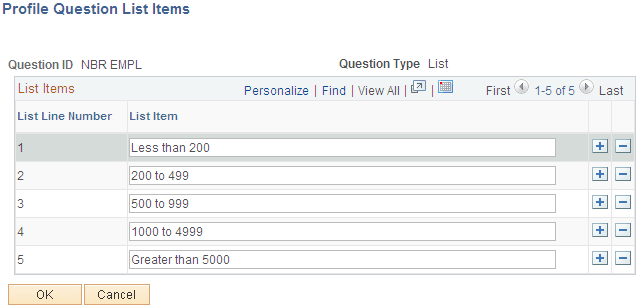
Use the Profile Question List Items page (SUP_PROFQS_LST_SEC) to set up the values from which the user selects a response from the provided choices.
Navigation:
Click the List Item icon associated with a Question ID on the Profile Questions page.
This example illustrates the fields and controls on the Profile Question List Items page.
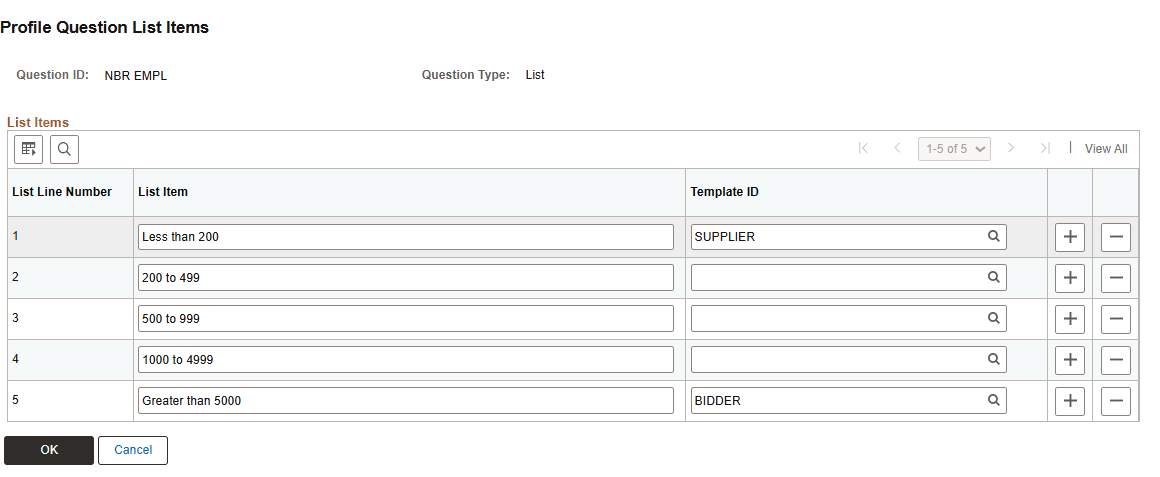
This example illustrates the fields and controls on the Profile Question List Items page when Conditional Template check box is selected on the Profile Questions page.
| Field or Control | Description |
|---|---|
|
List Item |
Enter the response values for the list-type profile question. The system displays these values as selectable options to the user during registration or profile update. |
|
Template ID |
Select the template to associate with each list item response. The system uses this template when the corresponding response is selected to determine the registration template. This field appears only when the Conditional Template check box is selected on the Profile Questions page. |
Profile Questions Attachments Page
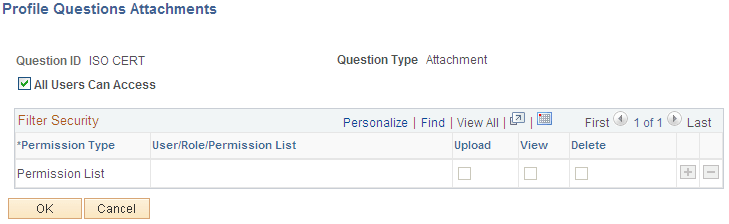
Use the Profile Questions Attachments page (SUP_PROFQS_ATH_SEC) to provide user access to view or add attachments.
Navigation:
Click the Attachment User Access icon associated with a Question ID on the Profile Questions page.
This example illustrates the fields and controls on the Profile Questions Attachments page. You can find definitions for the fields and controls later on this page.
| Field or Control | Description |
|---|---|
|
All Users Can Access |
Select this check box to grant access to all users. If you would like to restrict access to profile question attachments by permission lists, roles, or user IDs, deselect this check box and add permission attributes in the Filter Security grid. |
|
Permission Type and User/Role/Permission List |
Indicates the type of security for profile question attachments. |
|
Upload, View, and Delete |
Select the type of controlled access available for the permission type. Note: A user’s controlled access rights to the attachment are the sum of all the access rights of the matching user/permissions/roles for which the user is eligible. |
Defining Terms and Conditions for Supplier Registration
The terms and conditions that appear during supplier registration default from the terms and conditions defined for the supplier SetID, unless overridden by the registration template. That is, the terms and conditions of the supplier SetID with an Active status and current effective date will be displayed. Registrants must accept the terms fully before they can submit their new account request.
Define Terms & Conditions Page
Use the Define Terms & Conditions page (AUC_TERMS_PG) to add official legal verbiage for registration terms and conditions to appear on online registration pages using this template.
Navigation:
This example illustrates the fields and controls on the Define Terms & Conditions page. You can find definitions for the fields and controls later on this page.
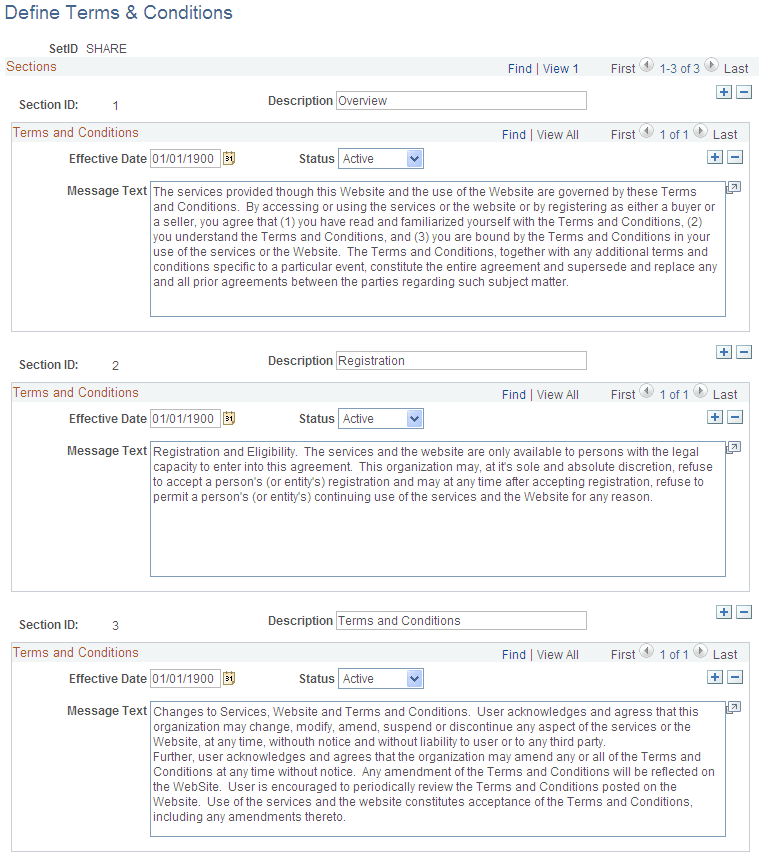
| Field or Control | Description |
|---|---|
|
Section ID and Description |
Add sections as needed, and enter a description that will appear online as a subheading in the published Terms and Conditions, on the registration request submission page. |
|
Effective Date |
Enter an effective date for each section. |
|
Status |
Choose Active or Inactive. |
|
Message Text |
Enter the specific terms and conditions that pertain to this supplier SetID. |
Maintain Conditional Template/Profile Questions Tree Page
Use the Maintain Conditional Template/Profile Questions Tree page (SUP_CP_TREE_SRCH) to create and manage branching questions for conditional template and conditional profile questions.
Configure the hierarchy of questions and responses to control template determination and the flow of profile questions during supplier or bidder registration. Use this page to create, edit, and view conditional trees.
Navigation:
This example illustrates the fields and controls on the Maintain Conditional Template/Profile Questions Tree. You can find definitions for the fields and controls later on this page.
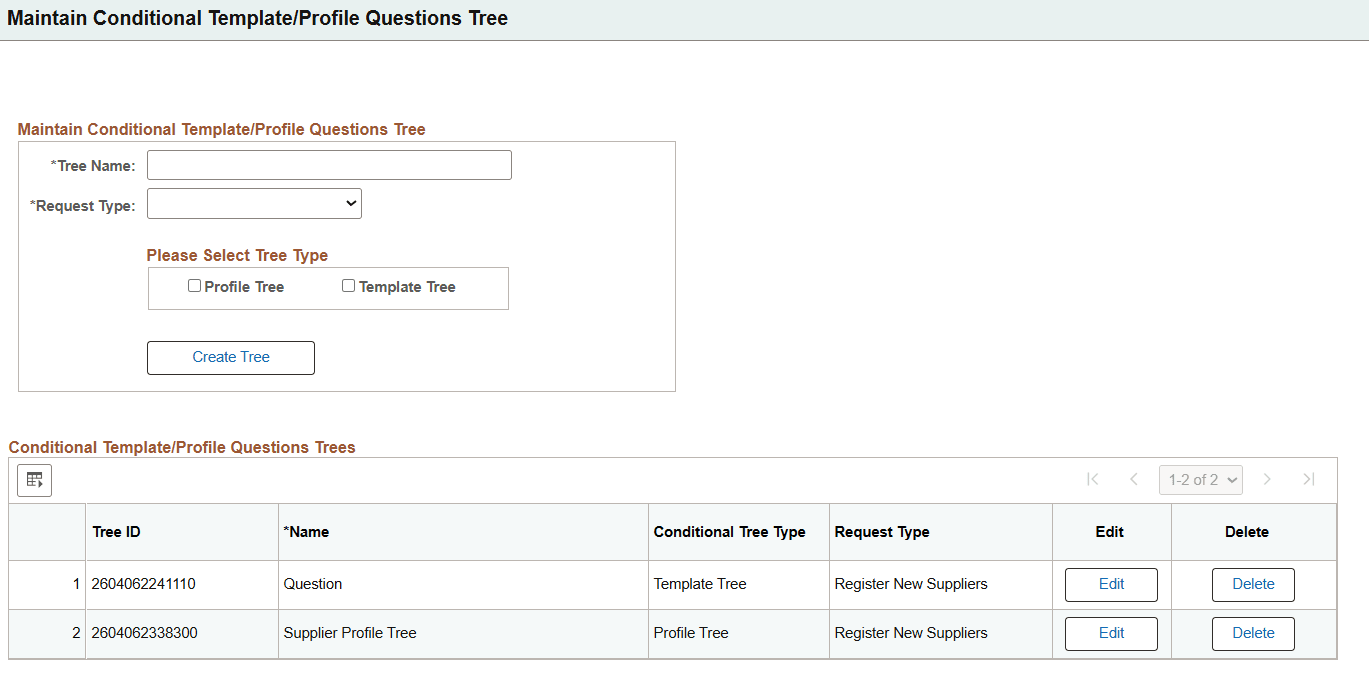
| Field or Control | Description |
|---|---|
|
Tree Name |
Enter a name to identify the conditional tree. The system uses this name to reference the tree during configuration and registration. |
|
Request Type |
Select the request type for which the conditional tree is applicable. The system uses this value to associate the tree with specific registration or change request processes. |
|
Profile Tree |
Select this option to create a conditional profile tree. The system uses this tree to display branching profile questions during the Identification step. |
|
Template Tree |
Select this option to create a conditional template tree. The system uses this tree to determine the registration template based on user responses at the start of registration. |
Click Create Tree button to create the conditional tree based on the entered Tree Name, Request Type, and selected tree type. The system creates the tree structure and enables you to define the branching questions and responses.
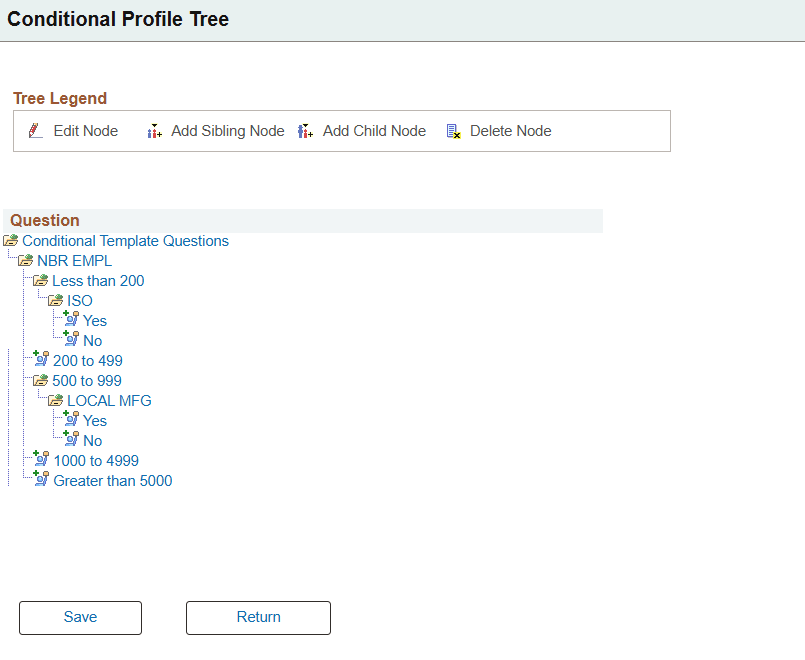
This example illustrates the fields and controls on the Conditional Profile Tree. You can find definitions for the fields and controls later on this page.
-
Use this page to create the conditional tree structure with questions organized in a parent-child hierarchy.
Note:
Only Yes/No and List question types support branching and can be used as parent nodes in a conditional tree. All other question types can be used only as leaf nodes and cannot have child questions associated with them.
-
Users can add, edit, or delete nodes to define branching logic using profile questions enabled for conditional processing.
For more details about creating and managing tree structures, refer PeopleTools documentation (PeopleTools, Reporting and Analysis Tools, Tree Manager).