Employee Self Service Homepage
Use the Employee Self Service homepage to access a variety of employee self-service transactions. The cref for this homepage is HC_HR_SELF_SERVICE_GBL.
Navigation:
When you first sign in, the default homepage title appears at the top of the homepage. If the Employee Self Service homepage is not your default homepage, tap the title of the default homepage and select Employee Self Service from the list that appears.
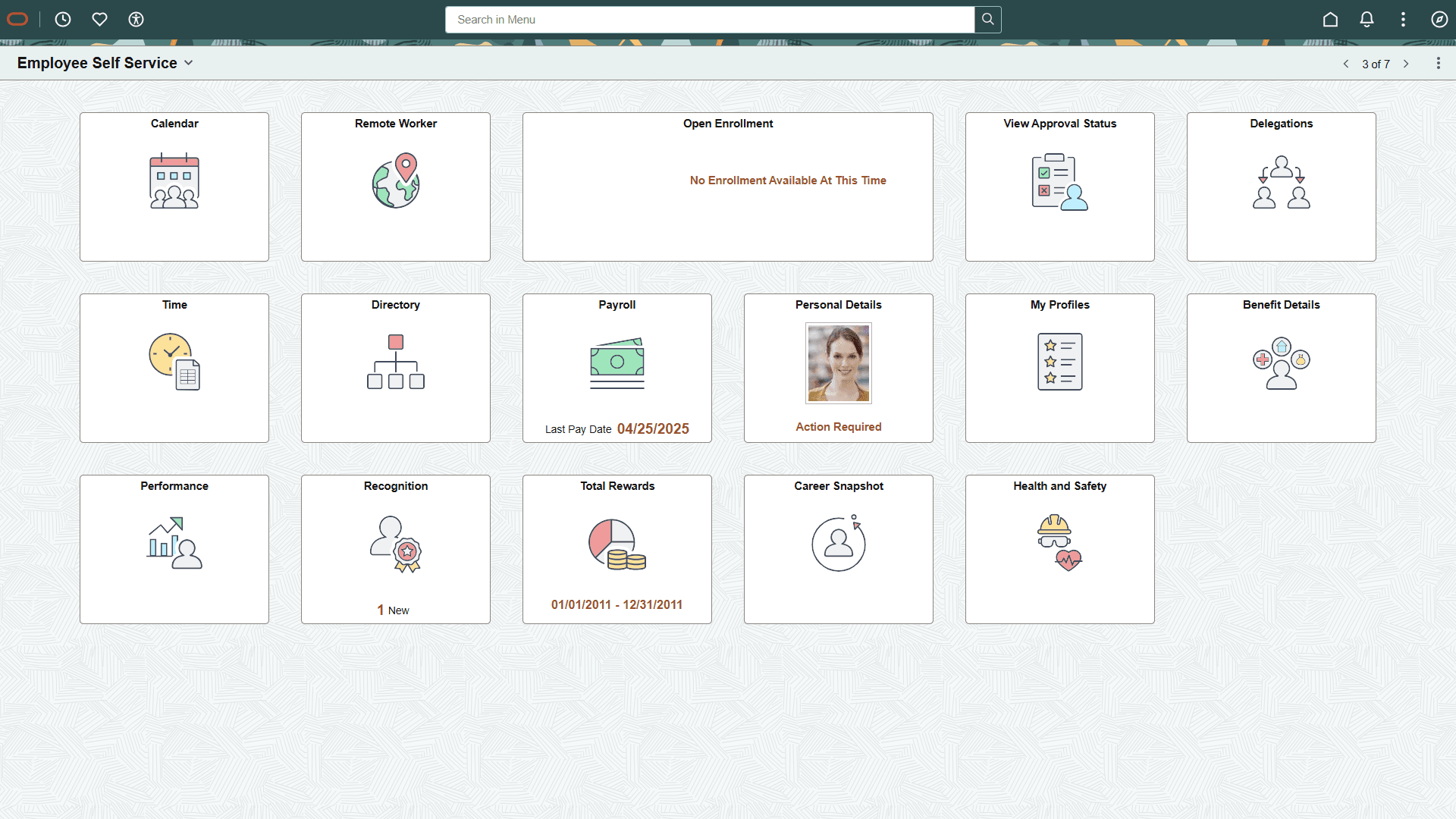
This example illustrates the Employee Self Service homepage.
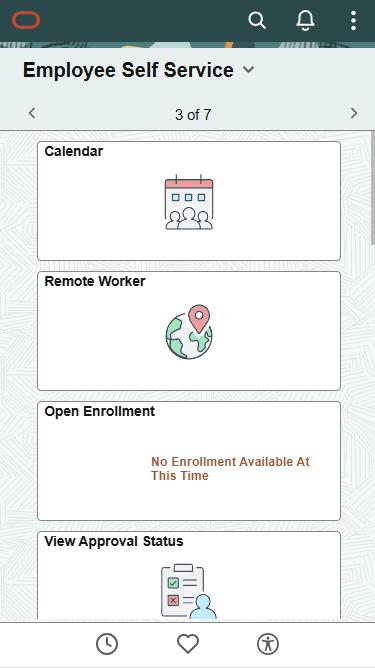
This example illustrates the Employee Self Service homepage for the smartphone. Action buttons, which appear on the page banner when viewed with a laptop or tablet, are available in the actions list when viewed with a smartphone.
PeopleSoft HCM Tiles on the Employee Self Service Homepage
The following table describes the tiles on the delivered Employee Self Service homepage. The table also identifies navigation paths to equivalent classic pages. These are the menu paths that are replaced by fluid navigation paths due to Fluid Transactions and Conditional Navigation when the user is in fluid mode.
Tiles are listed in alphabetical order. On the homepage, users can personalize the tile order.
Use the links in the table to access complete documentation for each transaction.
| Tile Name | Description | Navigation to Equivalent Classic Pages |
|---|---|---|
|
Access the Banking page, where you can review and manage bank account and payment distribution information. |
Pages found under the menu:
|
|
|
View a current benefits summary, enter life event information, (during open enrollment) enroll for benefits, and view and perform Affordable Care Act-related actions. |
Multiple pages found under the menu, including:
|
|
|
Access a group of dashboards and tiles to see a comprehensive view of your talent data as an employee. |
None |
|
|
PeopleSoft Human Resources Administer Workforce: Directory Tile |
Access the Company Directory pages, where you can view employee personal and job data within the context of your organization's various hierarchical reporting structures. |
Using the classic menu path, select Company Directory or the Org Chart Viewer menu. |
|
View peer events at one place. |
None |
|
|
Access a collection of frequently-used Global Payroll employee self service components. |
None |
|
|
PeopleSoft Human Resources Monitor Health and Safety: Health and Safety Tile |
Access health and safety activities for employees. |
None |
|
PeopleSoft Human Resources Administer Workforce: Manage Matrix Teams Tile |
Create and manage your matrix teams through the PeopleSoft Fluid User Interface pages. Note: This tile is not delivered to appear on the Employee Self Service homepage but can be added through personalizations. |
|
|
Access the PeopleSoft eDevelopment: My Profiles Dashboard, where employees can view and maintain various profile transactions for themselves. |
|
|
|
PeopleSoft Human Resources Administer Workforce: OnBoarding Tile |
Access intuitive tiles and pages for employees and contingent workers to complete actions or tasks that are required for a new job. Note: This tile is available when an employee has been assigned access to the OnBoarding pages due to a job event such as hire, rehire, or additional assignment. |
None |
|
Launch the Open Enrollment activity guide from where employees can view and update their benefit plan choices every year during the open enrollment period. |
None |
|
|
Provide payroll-related transactions for employees, such as view paychecks, manage direct deposit accounts, manage consent for electronic delivery of year-end tax forms, view year-end tax forms, update tax withholding forms, and more. Before the delivery of the Payroll tile (PeopleTools 8.55 or above required), the Pay tile was available to provide employees the ability to view paychecks. |
Multiple pages found under the menu:
|
|
|
View your PeopleSoft Global Payroll payslips. |
|
|
|
Access tiles and pages to manage your performance documents and peer reviews, and view your business objectives. |
|
|
|
View and update the personal information such as your name and address, contact details, marital status, and so forth. |
Multiple pages found under the menu, including:
|
|
|
Access pages to create, view, and interact with recognitions as employees. |
None |
|
|
Enter and review your remote worker requests using fluid pages. |
None |
|
|
Perform self-service actions related to time reporting and absences. |
|
|
|
PeopleSoft Human Resources Administer Compensation: Total Rewards Tile |
View your earnings, benefits, and other compensation information in the form of a statement. |
|
|
Access the Tuition Reimbursement pages to create or review a tuition pre-approval or reimbursement request. |
None |
Additional Tiles
If you set up a PeopleSoft cluster, the Employee Self Service homepage can also display tiles from other content provider systems (for example, PeopleSoft Enterprise Learning Management) that are federated by the portal system (PeopleSoft HCM) into the cluster.
On the cluster, homepages with the same name are automatically merged. Therefore, the following tiles from other Employee Self Service homepages can automatically appear on the PeopleSoft HCM Employee Self Service homepage if the associated content provider system is part of the cluster. For example:
-
Company News (PeopleSoft Interaction Hub)
-
Learning (PeopleSoft Enterprise Learning Management)