Event Processing
Event processing enables the automatic awarding of digital badges based on specific system events.
When a configured event occurs—such as the addition or update of a person profile item—the system evaluates the event data against the criteria defined for badges that utilize event processing. If the event data meets the set conditions, the badge is awarded automatically.
Example: Automatic Badge Award Using Event Processing
This example illustrates a digital badge configuration that uses event processing, including the required setup and the expected behavior when the event is triggered.
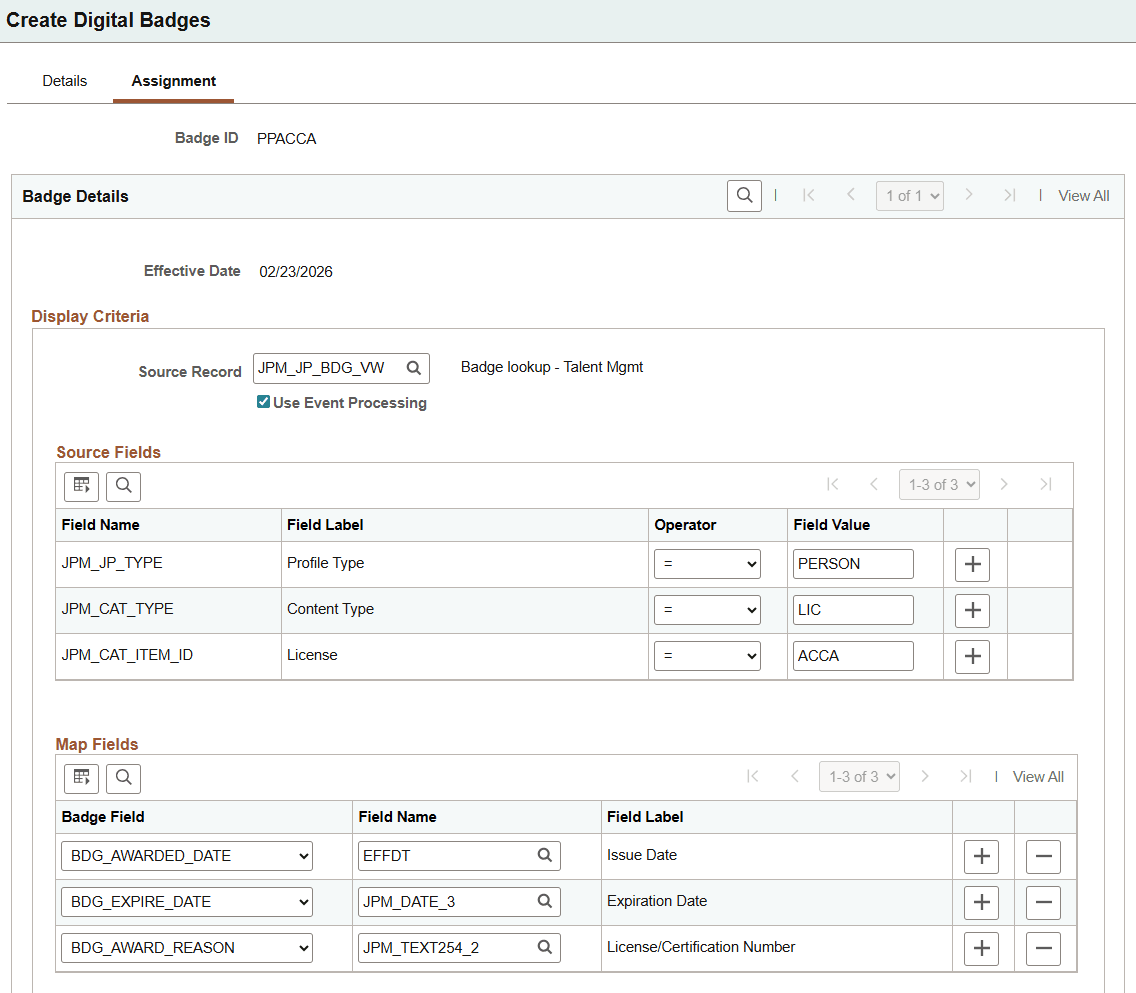
In this scenario, a badge is defined for the Person Profile category in the system to be awarded automatically when a qualifying item (the Assoc Chartered Certified Accountant license in this example) is added or updated in an employee's talent profile.
This screenshot shows the event processing setup for the badge example.
When you create or update badges that use event processing for the Person Profile category, follow these guidelines:
- For Person Profile badges, the system delivers the JPM_JP_BDG_VW source record for badge assignment setup as demo data.
- Use the Source Fields section to define the criteria (in other words, identify the profile item) for awarding the badge. For the JPM_JP_BDG_VW source record (or any other source record that you use), the following fields must be present and have valid values:
- JPM_JP_TYPE
- JPM_CAT_TYPE
- JPM_CAT_ITEM_ID
- Use the Map Fields section to map source record fields in Talent Profile to badge fields. During event processing, the system copies the mapped source values into the badge record. In the badge setup example, the Reason for Badge field (BDG_AWARD_REASON) on the Badge History page will display the value that was copied from the profile item's License/Certification Number field (JPM_TEXT254_2).
Note:
Badges can be set up to inherit the expiration date from an associated license or certification in the Map Fields section. When configured this way, a badge will not be displayed if the linked license or certification expires, and will reappear if the license or certification is renewed or extended with a new expiration date. Expired badges remain hidden until the related item becomes valid again.
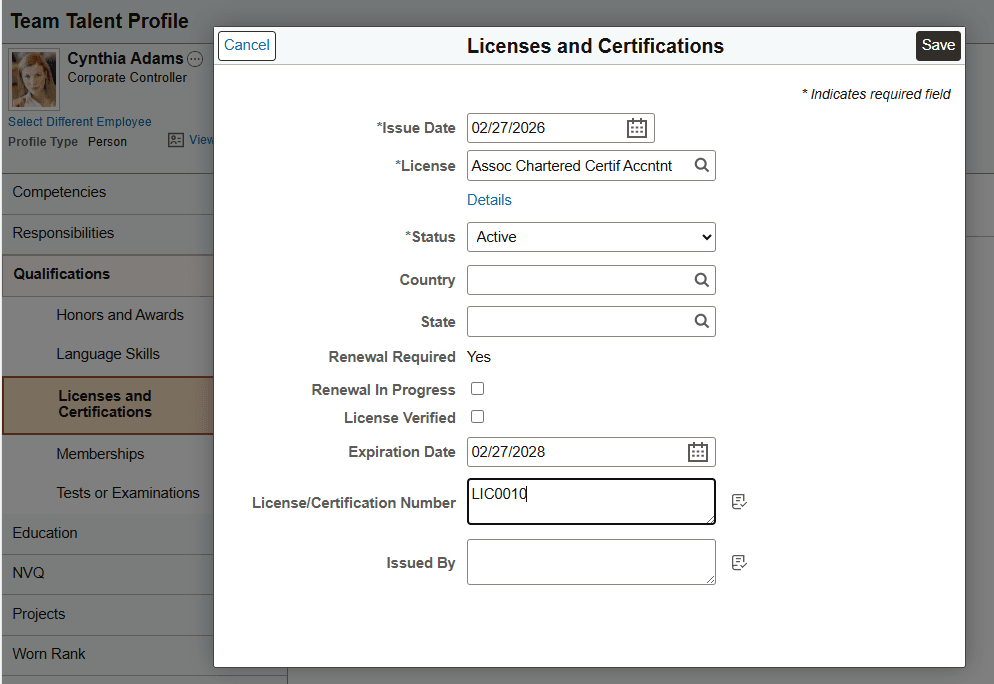
In Team Talent Profile or Talent Profile, when a user adds or updates the qualifying item (Assoc Chartered Certified Accountant license) on the License and Certifications page of the employee's profile, the save action triggers event processing.
This screenshot shows the License and Certifications page where a license is added or updated.
If the saved data matches the badge's configuration in the Source Fields section, the badge is awarded automatically after event processing completes.
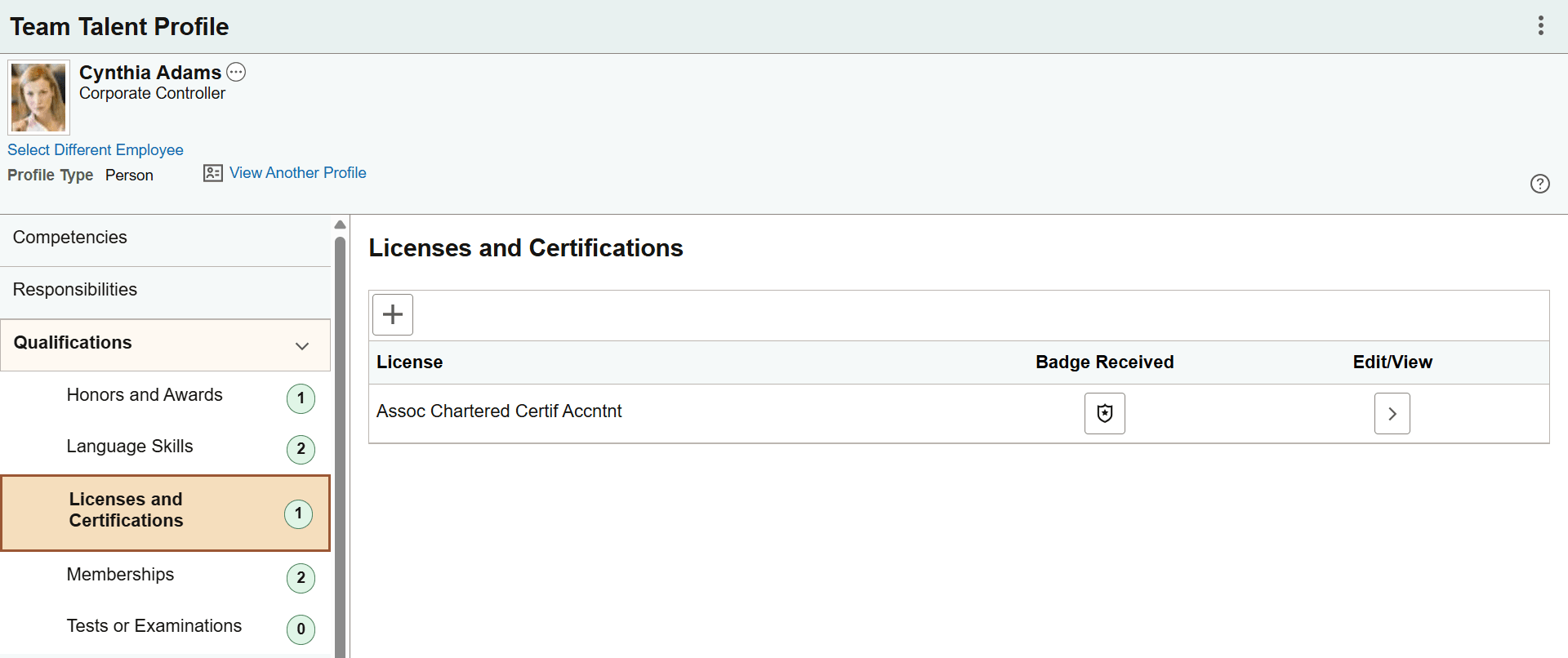
A badge is displayed for the added item in the Badge Received column of the page grid. If the badge does not appear immediately, allow time for event processing to finish and then revisit the page.
This screenshot displays the badge awarded for the added or updated license on the Licenses and Certifications page.
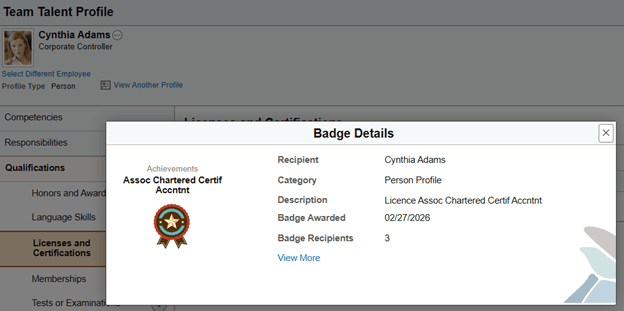
Select the badge to review its details on the Badge Details page. As configured in the badge event processing setup, the badge awarded date is set as the issue date of the Assoc Chartered Certified Accountant license.
This screenshot shows the badge award date populated with the license issue date on the Badge Details page, based on the setup.
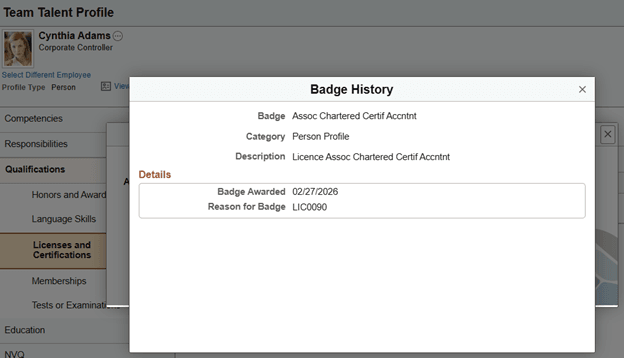
Later, when a user updates the item (for example, changes the license number from LIC0010 to LIC0090), the badge history displays the updated value in the mapped Reason for Badge field after event processing completes.
This screenshot shows the updated license number populated in the Reason for Badge field on the Badge Details page, based on the setup.