Integrated Search Results Page
Use the Integrated Search Results page (SCC_SM_RESULTS) to view Search/Match results of an external system search and investigate potential duplicate IDs.
Navigation:
Enter criteria on the Search Criteria page and click Search or click one of the search by order number Selective Search buttons to launch a manual search.
If the External Search/Match is triggered and the system has found matching candidates on a search rule number lower or equal to the Search/Match, the Integrated Search Results page appears.
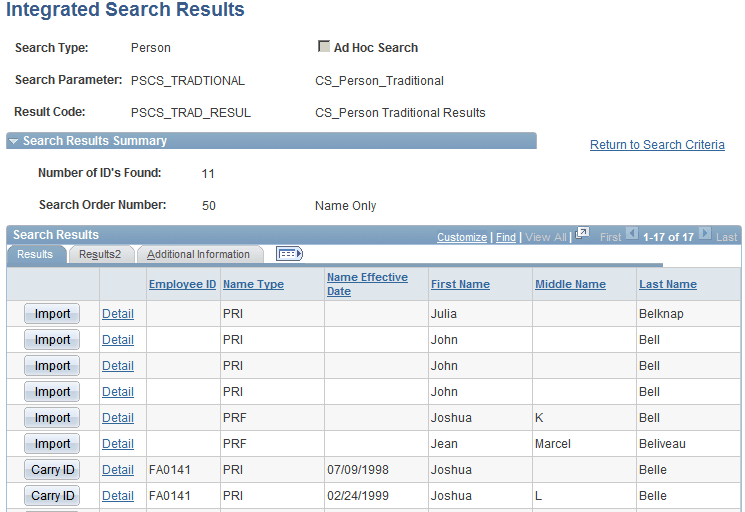
This example illustrates the fields and controls on the Integrated Search Results page: Results tab. You can find definitions for the fields and controls later on this page.
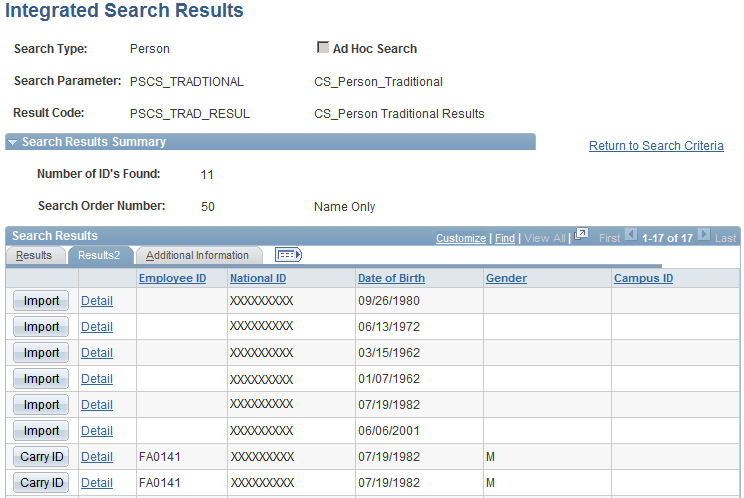
This example illustrates the fields and controls on the Integrated Search Results: Results2 tab. You can find definitions for the fields and controls later on this page.
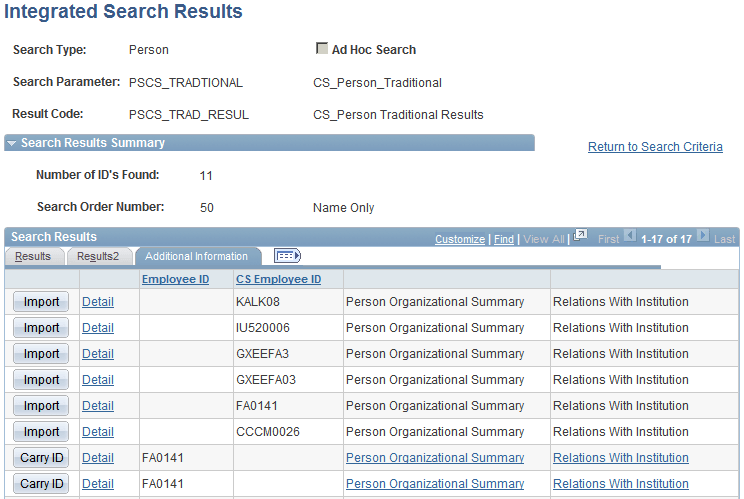
This example illustrates the fields and controls on the Integrated Search Results page: Additional Information tab. You can find definitions for the fields and controls later on this page.
Many fields on this page are the same as those on the Search Results page. However, there are some important distinctions:
-
Records with no HCM employee IDs appear first in the Search Results group box.
-
Records with no HCM employee IDs are assigned an External Sys ID..
-
Where an HCM employee ID exists, the Detail link accesses a page where you can view details of the ID record from the HCM system.
-
Where no HCM employee ID exists, the Detail link accesses a page where you can view details of the data from the external system.
-
The Import button appears when a person meets the criteria in the external system.
-
The external system ID column appears based on the settings defined on the Search Match Options for External Systems page. The column heading depends on the Display Name that is defined for the Universal ID column, in this case CS Employee ID.
-
Masking configuration is in effect for all matching individuals, even those with no employee ID.
-
For matching person records found by External Search/Match, this page displays information that is not necessarily stored inside the external system (for example, Campus SolutionsAid Year).
| Field or Control | Description |
|---|---|
|
Number of ID's Found |
The system displays the total number of distinct IDs returned by both Search/Match and External Search/Match, just Search/Match, or just External Search/Match. |
|
Search Order Number |
The system shows the Search Order Number where results were found. When the internal and external searches find results under different search rules, the Results Engine evaluates the Search Order Number returned by both searches and displays the results for the search that found results under the smallest search order number (the most restrictive search). When the internal and external searches find results under the same search rule, the Results Engine displays them both. |
Search Results
The fields in this group box are similar to those on the Search Results page. The system displays the results returned from both the HCM database and the external system, along with additional data to describe the IDs that are retuned. However, the columns are dynamic and they can refer to personal data information or transaction data information. You define static columns to appear here on the Search Match Options for External Systems page.
| Field or Control | Description |
|---|---|
|
Import or Carry ID |
The Carry ID button appears when an employee ID exists; otherwise the system displays the Import button. Security access to the Add/Update Person component controls whether users can use the Import button. Click the Import button to import external system data when the person does not exist in the HCM system. When you click the button, the system displays a message asking if you want to create the new ID in the system. If you click Yes, the system performs a Fetch Request to request the complete constituent record from the external system. When the system receives the Fetch Response from the external system, it uses the personal data in it to create a new employee. After successfully importing the data, the Search Results group box refreshes and the newly created employee appears; the Import button for the person row changes to Carry ID. Notice that no other import can be performed (all the Import buttons are then unavailable). This is to prevent the user from importing multiple matching candidates. If you click No, the system does not import any data and returns to the Integrated Search Results page. |
|
Detail |
If an HCM employee ID exists, click this link to access the page that is set up inside the Search Results Code to view more information about the person. The default page for HCM is Biographical Details (PERSONAL_DATA1). If no HCM employee ID exists for the person, click this link to invoke a Fetch Request to retrieve the complete constituent record from the external system. When the system receives the Fetch Response from the external system, it displays the personal data in the response on the Biographical Details (SCC_SM_RESP_DTL) page. Note: Both the Import button and the Detail link (when no employee ID exists) trigger the same Fetch Request. The data received inside the Fetch Response will only be saved to your database when the Fetch request is triggered from the Import button. It is therefore good practice to always review the detailed information prior to importing. |
Additional Information
A column with the external system IDs appears on the Additional Information tab when a Universal ID static column to display is selected on the Search Match Options for External Systems page. The column heading depends on the Display Name defined, in this case CS Employee ID.