Absence Management WorkCenter Page (Work Management Enabled)
Use the Absence Management WorkCenter page when Work Management is enabled to access and manage the outstanding transactions in various views.
Navigation:
Select the Absence WorkCenter tile from the My Work section of the Application Fundamentals: PeopleSoft (My Home) Landing Page.
This example illustrates the Absence Management WorkCenter for Absence Requests Not Yet Processed Page when Work Management is enabled. Both Absence-related and work management actions are available in the Actions drop-down list for each row.
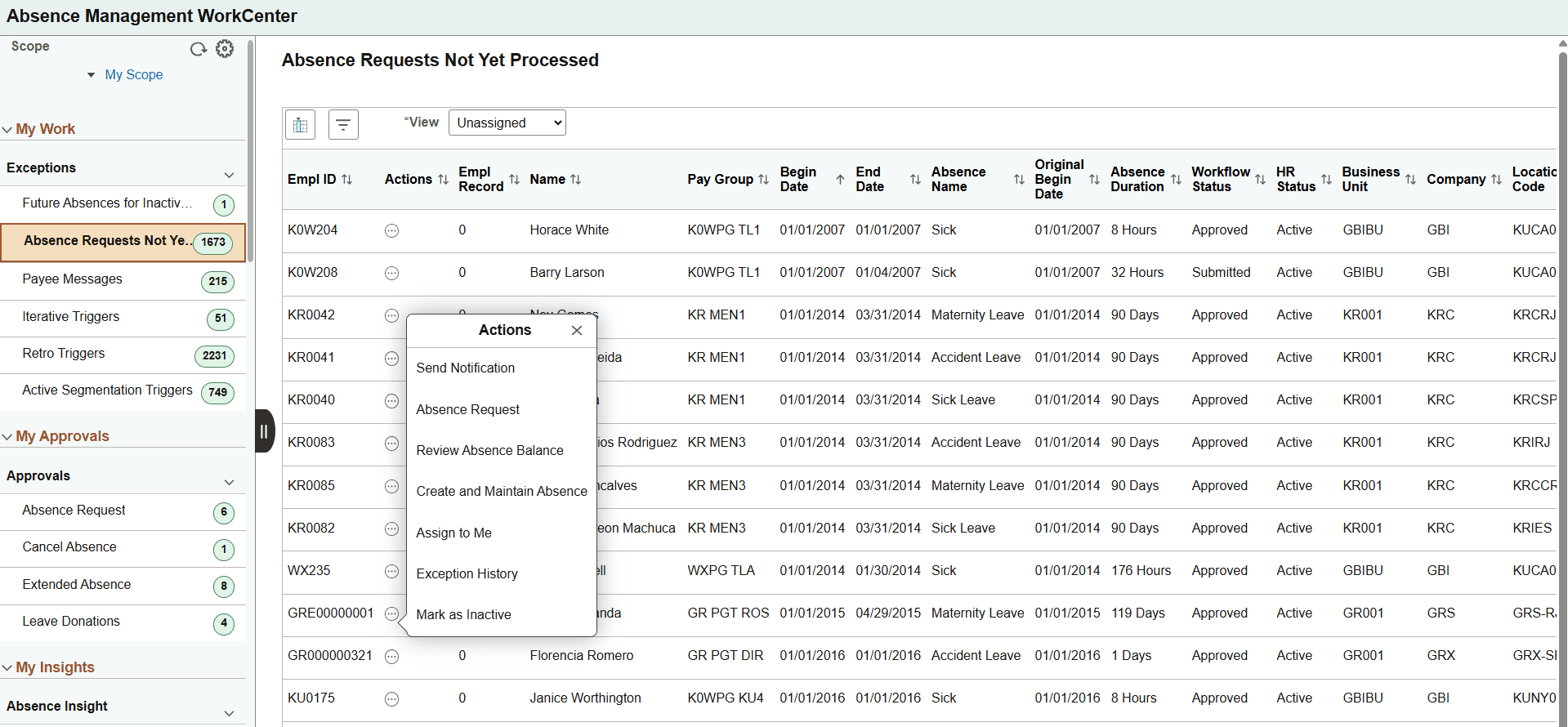
In this example, the actions Absence Request, Review Absence Balance, and Create and Maintain Absence are Absence-related actions. The rest are Work Management actions.
When Work Management is enabled for a My Work – Absence Management WorkCenter, several changes appear on the corresponding page:
-
The Enable Bulk Action button appears above the grid. Select the button to enable multi-row selection in the grid for performing bulk actions.
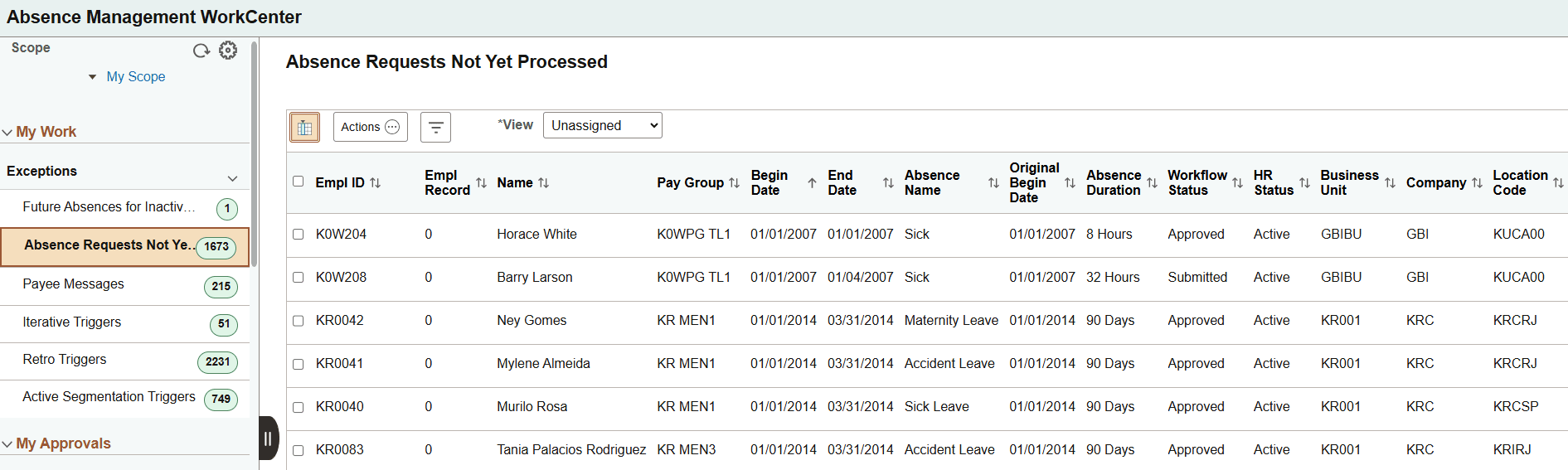
When selected, the Actions button is displayed above the grid, rather than alongside each row within the grid. Work Management actions are available for selection.
This example illustrates the Actions button above the grid when Toggle button is selected.
-
The View drop-down box appears above the grid.
One or more people can work on Work Management transactions. If another user acts on a transaction, you can view the transactions assigned to that person by changing your view to All Assigned. This view displays all transactions regardless of who it is assigned to. Select the Exception History action and view the name in the User Name column to discover who is working on a transaction.
-
Additional action options are added to the Actions button.
The existing Absence-related actions remain available. When Work Management is enabled, additional actions such as Send Notification, Assign to Me, Mark as Inactive, and Exception History become available, depending on the option selected in the View field. For more information, see Enterprise Components: Understanding the Work Management Framework, Actions by View section.
Note:
The Send Notification does not assign the work item to the user.