Absence Request History Page
Use the Absence Request History page (GP_ABS_SS_REQHIST) to view processed or pending absence events based on the specified date range.
Navigation:
This example illustrates the fields and controls on the Absence Request History page.
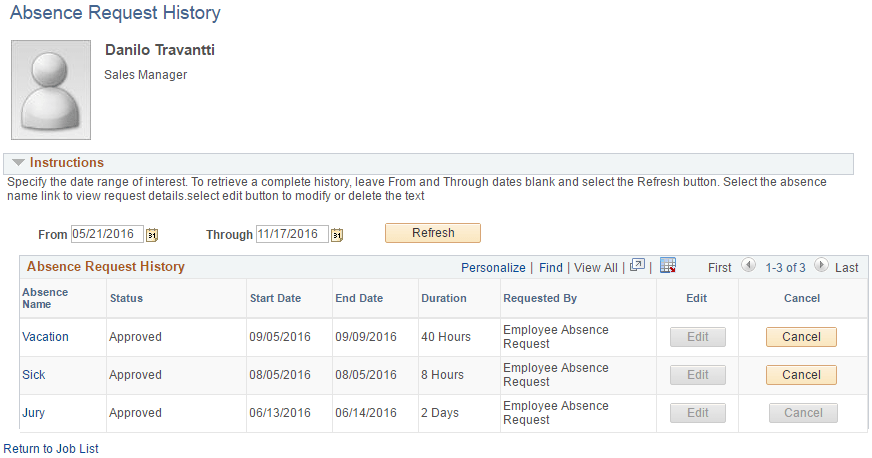
This page displays all absence requests for the employee. Absence requests entered by the employee contain a link in the Absence Name column. Absences that are entered by the Absence Administrator through the Absence Event Entry component do not have a link in the Absence Name column, nor a Status and Duration value. The employee can edit absences requests that are saved, but not yet submitted, by clicking the Edit button in the Edit column. The employee also can edit absence requests that have been, cancelled or denied by clicking the Edit button.
Absence requests or any absence entered or modified via Timesheets or by the Absence Administrator using the Absence Event Entry component can not be edited in Absence self-service.
Note:
If the absence was requested by the manager as an employee, the Requested By column will display Manager.
| Field or Control | Description |
|---|---|
|
From and Through |
The user can display absence request that fall within a specified date range by entering dates in the From: and Through: fields. If the employee enters a date in only the From field, the system displays absence requests that have a Start Date equal to or after the specified date. Alternatively, if the employee enters a date only in the Through: field, the system displays absence requests that have an End Date equal to or prior to the specified date. If no date is entered in either field, the system displays all absence requests for the employee. The From and Through date range is determined by the Default History Date Range values entered on the History Grid page of the Country component. If the Default History Date Range has not been set up, the system will use the defaults of current date – 90 days for the From date field and current date + 90 days for the Through date field. |
See Defining Self Service Absence Rules by Country.
| Field or Control | Description |
|---|---|
|
Refresh |
Click the Refresh button after entering, changing, or removing dates in the From: and Through: fields. |
| Field or Control | Description |
|---|---|
|
Edit |
This button is available for absence requests with a status of saved, cancelled, or denied. When you click this button the Request Absence page is opened. Note: This button is not available on the modal version of this page. |
|
Cancel |
Click to access the Cancel Absence page where you can submit an absence cancellation request. |
See Request Absence Page.
The Absence Request History group box contains Absence Name, Status, Start Date, End Date, Duration, and Requested by. You can sort the rows by any of these criteria by clicking the column heading.
Note:
The system calculates and stores duration values for absence requests entered through Absence self-service or Timesheets only. The system does not calculate or store absence duration for absences entered or modified through other online pages such Absence Event Entry or through Component Interface.
Related Topics