Request Absence Page
Use the Request Absence page (GP_ABS_SS_REQUEST) to request absence based on the start date of the absence event.
Navigation:
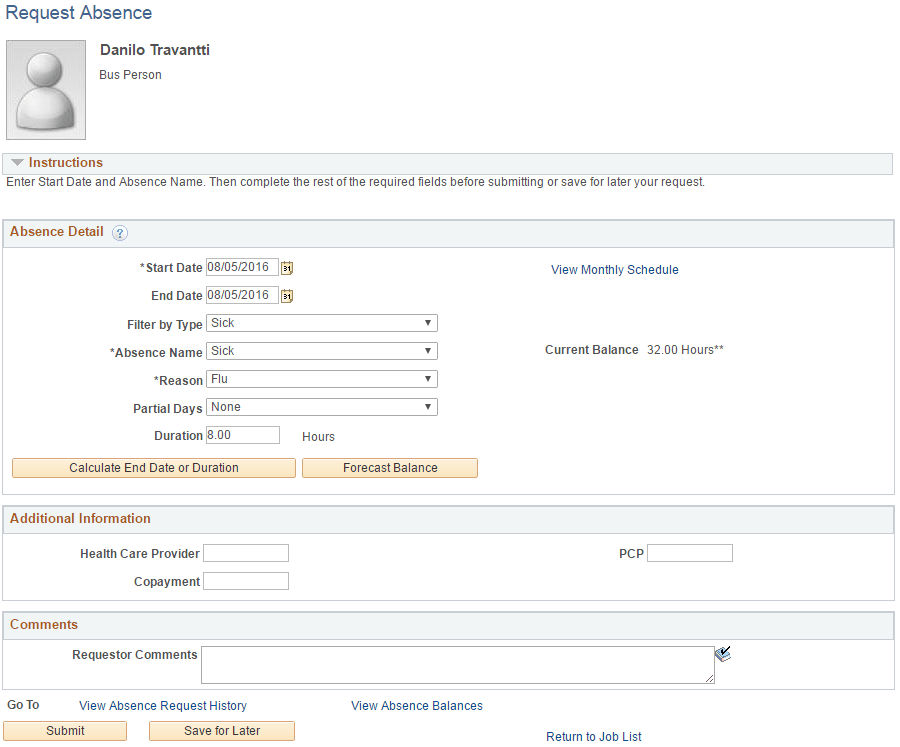
This example illustrates the fields and controls on the Request Absence page.
Note:
When you access this page and you have multiple jobs, the system displays the Select Job page so you can select the job for which you are requesting absence.
The Request Absence page consists of three group boxes: Absence Detail, Additional Information, and Comments. The available fields in the Additional Information group box depend on how your organization sets up self service for Absence Management.
Absence Detail
| Field or Control | Description |
|---|---|
|
Start Date |
Select the first day of the absence event. The field option defaults to the current date. If there's a break in the absence, enter each event separately. For example, if you're out sick for two days, return to work for three days, and are out sick again, enter two absence events. If the absence includes a weekend (say, Thursday to Monday), enter one absence event. |
|
End Date |
Select the last day of the absence event. If you leave this field empty and the Calculate End Date option on the Configure Country Take Setup - Date Rules Page is selected, the system automatically determines the end date based on the begin date, duration, and partial days options. |
|
Original Start Date |
Select the original start date of the absence event. Enter a date if the absence has legal or payment implications based on the original start date of the absence. This field is visible when Display Original Begin Date is selected on the Configure Country Take Setup - Absences Page. For example, an employee has a leg injury. He reports an absence from January 3, 2005 to January 7, 2005. The employee starts to feel better and returns to work. Later, he has a relapse and has to take two more days of absence starting on January 17, 2005 to January 18, 2005. The original begin date for the second absence should be January 3, 2005. The system can link the two events and treat the event as a single one in terms of eligibility or a minimum waiting period. Note: Careful consideration is needed when enabling this field in self-service. Incorrect data entered in this field might lead to incorrect eligibility calculations and payment for one or more events. |
|
Filter by Type |
Select the absence type. The selection you make in this field will limit or filter the selections available in the Absence Name field. |
|
Absence Name |
Select the absence name from the available options. The options available depend on the selection in the Filter by Type field, the absence takes that are enabled in the Country Take setup, and the elements for which the employee is eligible. After you select entries in the above fields, the system refreshes the page with additional fields. Note: If you decide to change the Absence Name previously selected, the system will display a warning that all your existing absence data will be lost. |
|
Reason |
Select a reason from the available options. The reasons available depend on your selections in the previous fields. Absence reasons are linked to the Absence Name (Take) through the Absence Take Type. |
|
Partial Days |
Specify which days of the absence event are partial days. If the Calculate End Date or Duration option is enabled on the Absence (setup) page, and the Unit Type is Hours, the system does consider any partial hours or half-day entries that are entered in this group box when it calculates the end date or duration. For example, an employee has a work schedule of 8 hours per day from Monday through Friday. The employee reports an absence from Monday, January 8, 2007 through Wednesday, January 10, 2007. Then employee takes a half day off on Monday and full days off for the rest of the absence. Example 1: The Country Take set up is defined as follows:
With these settings, to correctly enter the absence data the employee should report:
Example 2: The Country Take set up is defined as follows:
With these settings, to correctly enter the absence data the employee should report:
Note: Data that you enter in the following fields is used in the absence calculation process only if the data is referenced by your absence formulas. The available options in the Partial Days field when the absence is calculated in days include:
|
|
Start Day Hours, End Day Hours, and All Day Hours |
Enter the number of hours the payee was absent for the first day of the absence, the last day of the absence, or all days of the absence, respectively. |
|
All Days are Half Days, Start Day is Half Day, and End Day is Half Day |
Select to specify which days of the absence event are half days. Note: These fields are not available unless the Country Take enables you to specify partial days on the Request Absence page. |
|
Duration |
Enter Duration by days or hours. You do not have to enter Duration if the Calculate Duration is enabled on the Absence (setup) page). The system calculates the duration of the absence in hours or days when you click the Calculate Duration button. The behavior of this field depends on the settings on the Absence (setup) page. The value is automatically calculated if the Calculate End Date option is selected.
|
|
Calculate End Date or Duration |
Click this button to have the system calculate the end date of an absence event based on the entries in the Start Date and Duration fields, or to calculate the Duration based on entries in the Start Date and End Date fields. Note: If you selected to calculate end date and duration in the Country Take — Date Rules page, then you had to indicate which field to recalculate when both fields contain values. Hence if the user entered values for duration and end date and clicks Calculate End Date or Duration button, one of the fields will be recalculated. |
|
Forecast Balance |
Click this button to run the online absence forecasting process for the type of absence take selected for this absence request. This button will appear only for those absence names that require forecasting. After the forecasting process is completed, the page will display the Forecast Returned Value and Status and a link View Forecast Details to access the list of the forecast balance details. Note: The system does not automatically save your absence request before initiating the Forecasting process. Although the system prompts you to save before leaving the page, it is not necessary to save your forecast information before or after the Forecasting process. |
|
Save for Later |
This option allows the employee to save the absence event information for later review and editing, and does not generate workflow for the approvals process. |
|
Submit |
This option saves the information and generates the workflow approval process that routes the request to one or more managers whose roles are defined in workflow to enable them to approve, deny, or push back the absence request to the previous approval level with comments. The push back is often used by approvers to suggest absence request revision or to obtain additional information. |
|
Cancel |
This option is available only for requests that have been saved for later or that were pushed back from the approver. Depending on the Country Take setup, when you click Cancel the application either physically deletes the request from request and workflow records, or sets the status of the request to cancelled. |
|
View Absence Request History |
Click to access a modal version of the Absence Request History Page. Note: You cannot edit absences through the modal version of the Absence Request History page. To edit an absence from the Absence History page, you must navigate to it directly (). |
|
View Absence Balances |
Click to access a modal version of the View Absence Balances Page. |
|
Return to Job List |
Click to go back to the Select Job page so you can enter an absence request for a different job. |
Additional Information
The fields that appear in this group box depend on how Absence Management is configured during the implementation process.
Comments
The Requestor Comments field enables the employee to enter free form text related to the absence request that becomes part of the record and is visible throughout the approval process. Comments display on the Absence Details page.