Configure Calendar Page
The administrator can add custom events and manage general event using the Configure Calendar page.
Use the Configure Calendar page ( HCSC_CAL_SETUP_FL) to add and manage events.
Navigation:
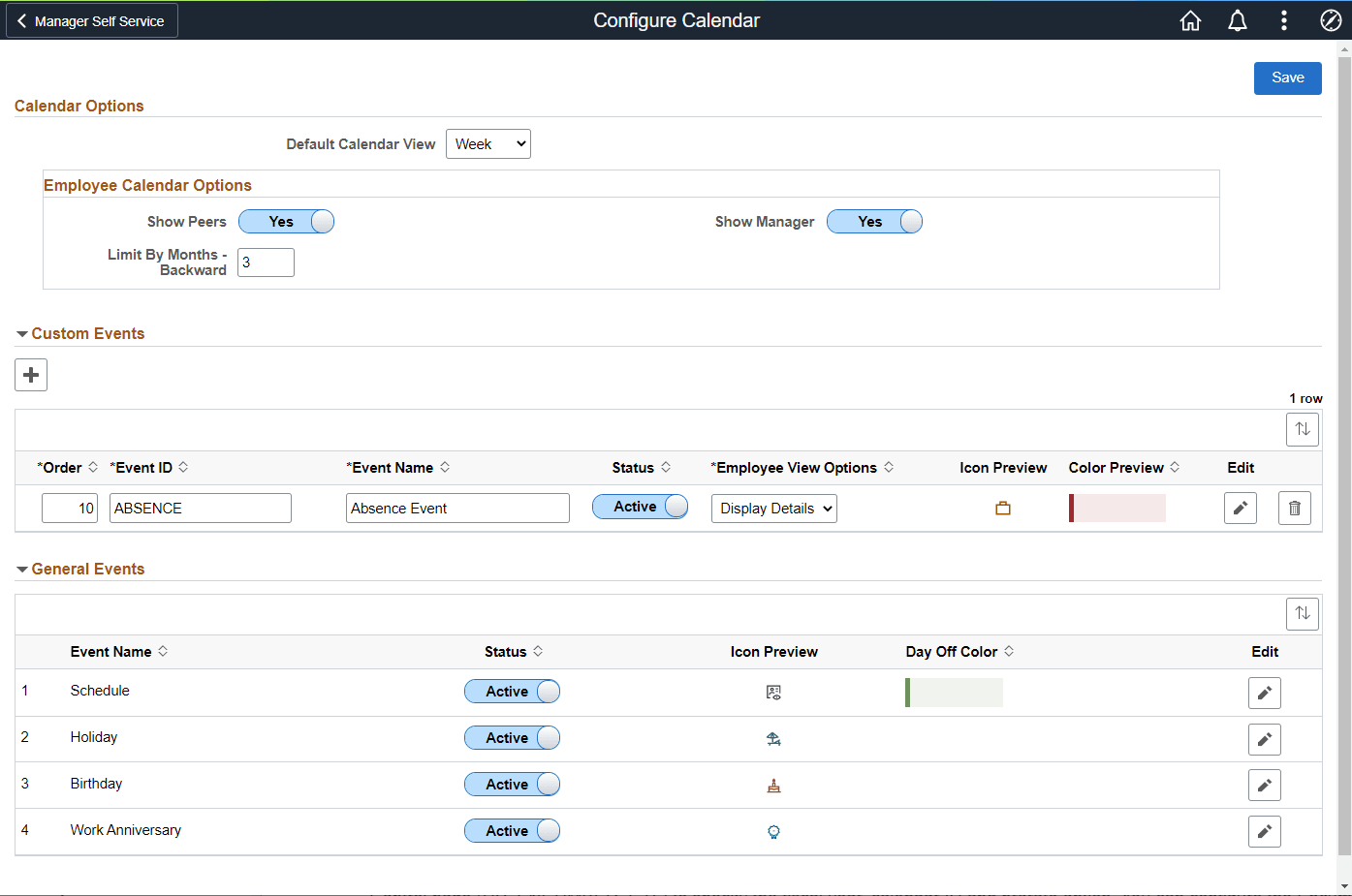
This example illustrates the fields and controls on the Configure Calendar page.
Note:
The default calendar view is Week whereas the administrator can select the Bi-Week view from the drop-down list.
Employee Calendar Options
Employee Calendar Options are for employee calendar view setup.
| Field or Control | Description |
|---|---|
|
Show Peers |
Select Yesor No to show or hide peer information in the employee calendar. Note: This information comes from the direct reports set-up. |
|
Show Manager |
Select Yes or No to show or hide manager information in the employee calendar. |
|
Limit By Months - Backward |
Enter the number of months limit backwards that the employee can view. Note: 0 means no history. 0 means no history. Even after this set-up, grace days outside this limit show on the calendar depending on the view. |
Custom Events
Custom Events are events that can be added to the Team Calendar through the use Application Packages. The order, icon, and color can be specified by an organization.
| Field or Control | Description |
|---|---|
|
Order |
Controls the order in which the custom events are displayed on the Team Calendar page. The custom events are displayed on the calendar and the corresponding day details modal. |
|
Event ID |
The ID defined for an event. |
|
Event Name |
Define the name for an event. This name appears as section names in the day detail modal of the Team Calendar page. This name helps the managers and employees to manage the events on the User Preferences page. |
|
Status |
Set the status of the defined event. The status can either be active or inactive. The status controls if the event is made available for managers and employees to view and configure the event details, such as color. If you select the status as active, it shows on the calendar page. |
|
Employee View Options |
There are three options available:
|
|
Icon Preview |
Previews the uploaded icons. You can customize the icon by uploading a new icon on the Edit page. |
|
Color Preview |
Shows a preview of the color chosen for the event. The color can be changed on the Edit page. |
|
Edit |
Select to edit the custom event on the Calendar Configuration Page. |
|
Delete |
Select to delete the custom event. |
General Events
General Events are delivered events by PeopleSoft. These are the default events, such as Schedule, Holiday, Birthday and Work Anniversary.
Note:
If your organization needs to make changes to general events, then it's recommended to disable the delivered general event and create a new custom event.
General events are displayed in-line on the day boxes. Hence they do not have any colored background. Thus, there is no color configuration in the schedule, the Day Off color can be specified.