Calendar Configuration Page
Use the Calendar Configuration Page (HCSC_CAL_SETUP_SCF)
Select the Edit icon from the Custom Events section of the Configure Calendar page.
This example illustrates the Fields or controls and description for the Calendar Configuration modal page.
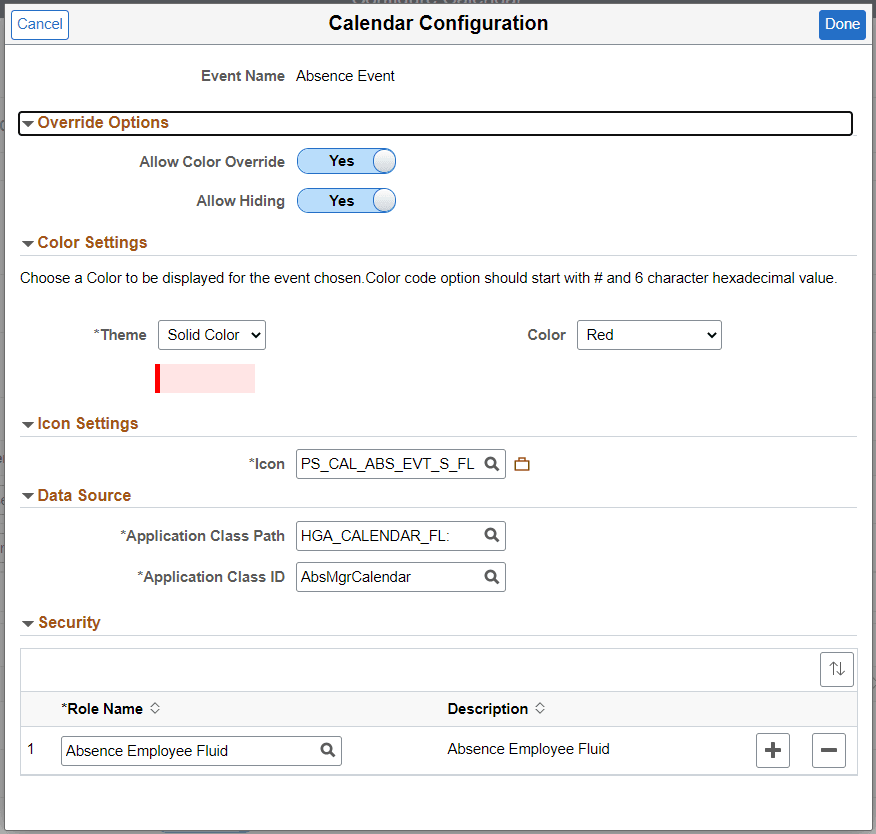
| Field or Control | Description |
|---|---|
|
Allow Color Override |
Select Yes or No to show or hide color override in the employee calendar. Set the Allow color Override to Yes to allow the managers and employees to select the Preferences from the Team Calendar page and change the color using the Calendar Preferences page. |
|
Allow Hiding |
Select Yes or No to show or hide override options in the employee calendar. |
|
Theme |
Select Color Code or Solid Code to select the solid color or enter the hexadecimal code as required. |
|
Hexadecimal/ Color |
Color allows you to select the color from the drop down list. Hexadecimal to enter a hexadecimal code which start with # and 6 character hexadecimal value. This is used if Color code is selected as the Theme. |
|
Preview |
Previews the color selected. |
|
Application Class Path |
The data source is given as an application class path and ID, that specifies what has to be displayed on the Team Calendar grids. Note: Refer to the Configuration and Implementation of Custom Events in Team Calendar technical brief (Doc ID 2837207.1) on My Oracle Support for more details on creating the application path and ID. |
|
Application Class ID |
Select the application Class ID that is connected with the Application Class Path. |
|
Role Name |
Defines which roles will have access to see the event on the calendar. |