Request Absence Page
Use the Request Absence page (HR_DR_DIRECTREPORT) to enter a date to use to generate a list of direct reports in which to request absences.
Navigation:
This example illustrates the fields and controls on the Request Absence page.
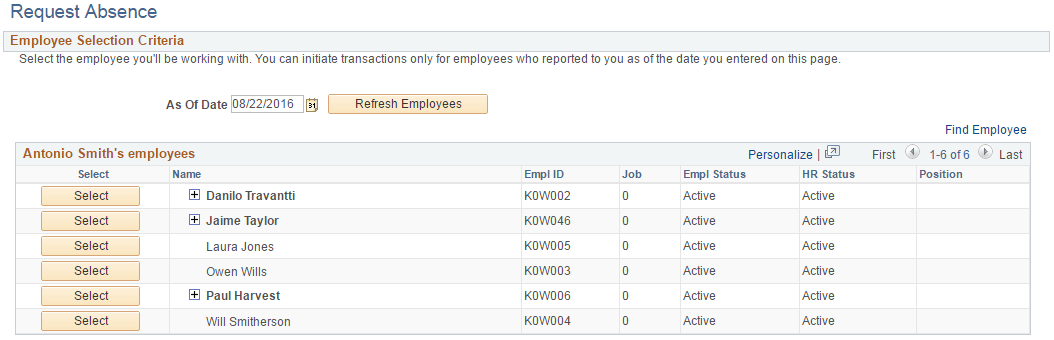
The system displays the Request Absence page for a manager's direct report when the manager clicks the link with that person's name. The system displays a page that is similar to the employee self service Request Absence page.
Access the Request Absence page (click Select next to a direct report on the Request Absence (HR_DR_DIRECTREPORT) page).
This example illustrates the fields and controls on the Request Absence.
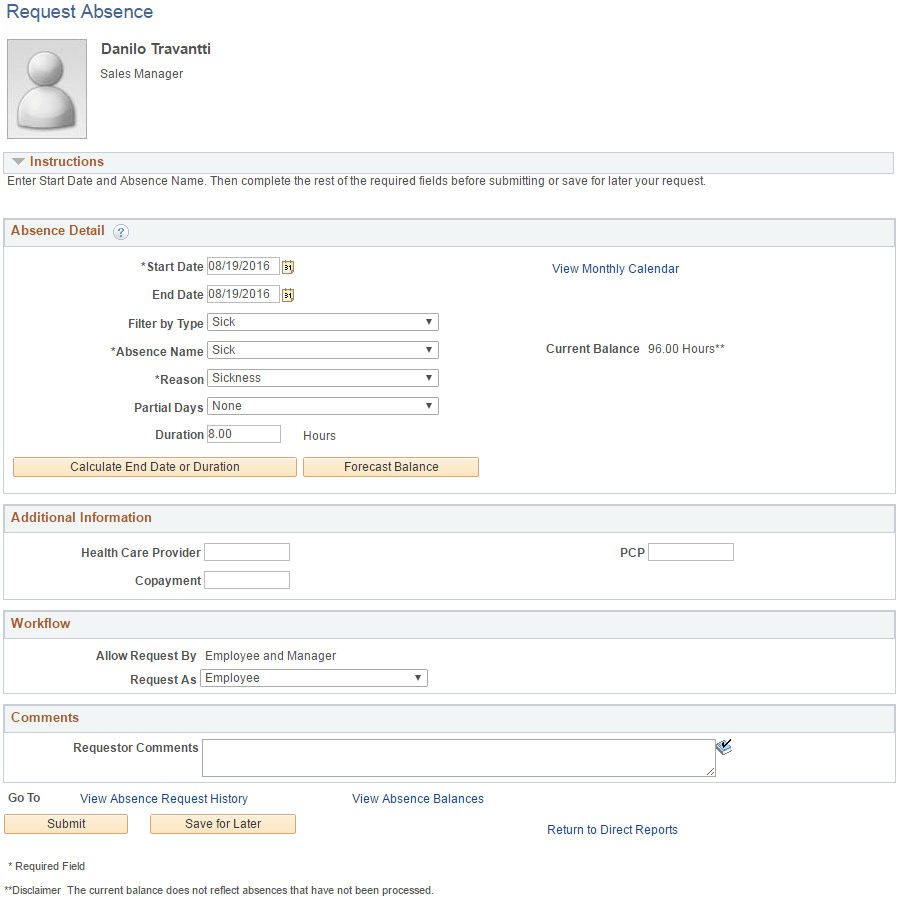
The system displays a page that is similar to the employee self service PeopleSoft Absence Management: Request Absence Page, with the exception that it contains a Workflow section and a Return to Direct Reports link to return to the View Employee Absence Requests page.
Note:
When you click on the View Monthly Calendar link, you may receive a Time and Labor calendar error if your installed Time and Labor template does not include the End Date value specified on the Request Absence page.
Workflow
| Field or Control | Description |
|---|---|
|
Allow Request By |
Indicates that the Manager or the Employee and Manager can enter the take. |
|
Request As |
Determines whether the request is entered as an Employee or as a Manager. When the manager requests absences for an employee they can request the time as the employee or the manager. If the manager selects to request the time as the Employee the request will be automatically approved, if there are no other approvers in the approval path. The manager will receive an approval confirmation page when clicking Submit. If the manager selects to request the time as the Manager the request will be sent to the manager’s next level of approval, and therefore the manager will receive a regular Submit confirmation page after clicking Submit. The Request As available options will be editable if the Country Take setup field Override Request As on the Absences page is selected. Otherwise this field will be grayed out and defaulted from the setup. |
Related Topics