Understanding Attachments in Extended Absences
The attachment feature enables you to attach files to a PeopleSoft application. An administrator can add URLs or common files to a component or page. Attachments include PDF files, spreadsheet files, document files, URLs, and so on. You can also define the types of attachments that users can add to a specific row of application data, such as medical or adoption certificates, fitness for duty forms, and so on.
Although the types of attachments you can add to a page are essentially unlimited, attachments are categorized as one of the following:
-
Attachments are any previously created electronic file that the administrator wants users to be able to download.
-
URLs are links to dynamic files or web sites.
-
Notes are free-form text that the user can enter through the attachment framework page in the PeopleSoft application.
Note:
Only attachments and URLS are defined on the Define Attachments page. Notes are created by the user through the attachment pages of the PeopleSoft application.
Note:
The Define Attachments page enables an administrator to create document definitions, as well as attachments and URLs. Document definitions are types of files that users can upload to the system. For example various medical certificates or evidence of class completion.
Adding Attachments to Extended Absences Process Flow
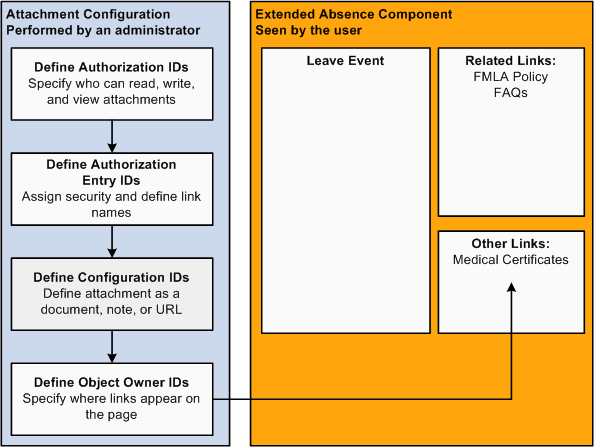
Here are the steps for defining attachments within the attachment framework for PeopleSoft Absence Management:
-
Define Authorization ID
These IDs provide users with security authorizations for accessing attachments, such as the ability to create, update and delete attachments.
-
Define Authorization Entry ID
The Authorization Entry IDs enable you to attach Authorization IDs to planned attachments, notes, or URLs.
Note:
The description you enter in for an Authorization Entry ID defines the name of the link as it appears to users on the Extended Absence Request page.
-
Define Configuration ID
The Configuration ID links Authorization Entry IDs and defines whether an attachment is a downloadable file, a document the user uploads, or a link to a URL.
-
Define Object Owner ID
Object Owner IDs define where links appear on the Extended Absence component. For extended absences, use the HGA Object Owner ID for Absence Management, and associate your Configuration ID's with the Absence Element Context Key.
This graphic shows the process flow for adding attachments to extended absences.
Example: Defining Authorization IDs
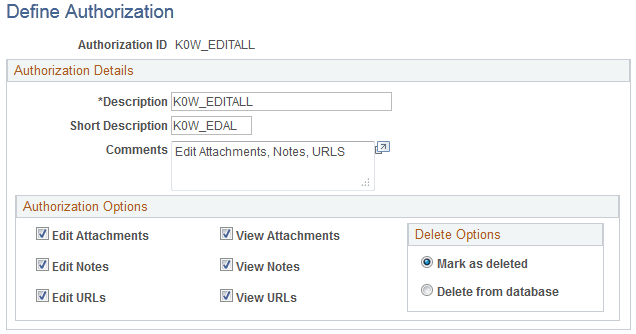
Use the Authorization ID to provide a variety of security authorizations to users regarding the ability to read, write, or view attachments.
For example, the authorization ID K0W_EDITALL has the Edit Attachments, Edit Notes, and Edit URLs check boxes selected. This means that roles with the K0W_EDITALL authorization ID can edit all attachments, notes, and URLS.
The following graphic displays the Define Authorization page with the K0W_EDITALL Authorization ID.
This example illustrates the fields and controls on the Define Authorization page - displaying the K0W_EDITALL Authorization ID.
Example: Defining Authorization Entry IDs
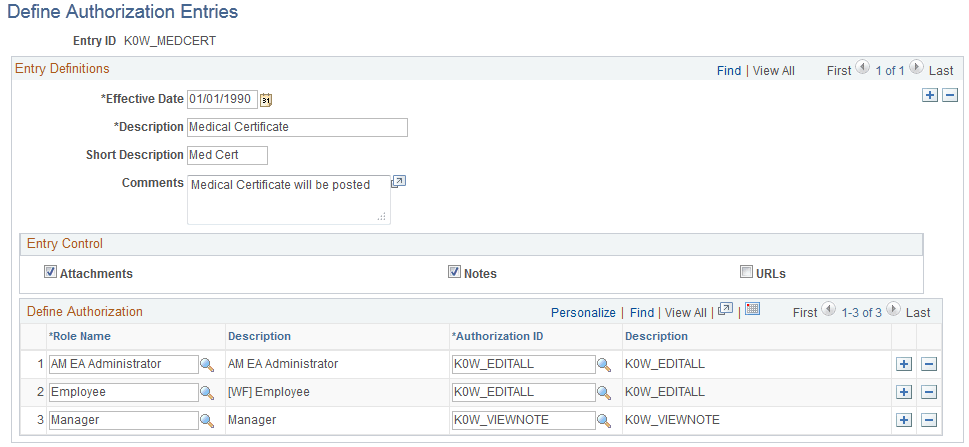
Use the Authorization Entry IDs to attach Authorization IDs to each of the planned types of attachments, notes, and URLs.
For example, in the following graphic, the K0W_MEDCERT Entry ID on the Define Authorization Entries page is associated with two or more roles in the Medical Certificate Authorization Entry ID. This allows the manager to view attachments or notes, and the AM EA Administrator and the employee can add, edit, or delete attachments or notes related to the medical certificate.
This example illustrates the fields and controls on the Define Authorization Entries page - displaying the K0W_MEDCERT Entry ID associated with two or more roles.
See Application Fundamentals: Define Authorization Entries Page.
Example: Defining Configuration IDs
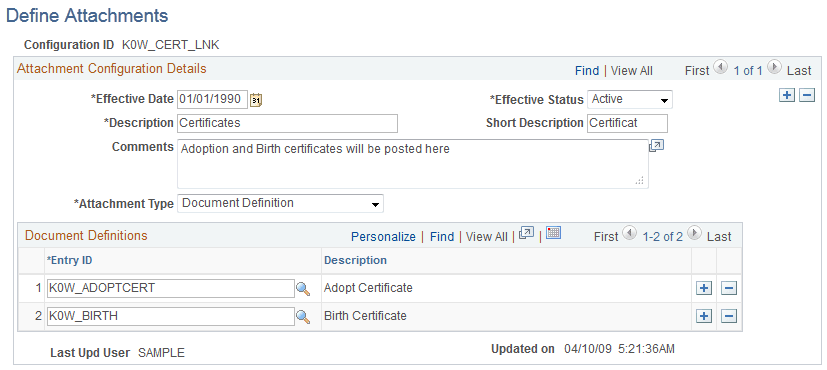
The Configuration ID defines whether an attachment is a downloadable file, a document the user uploads, or a link to a URL.
For example, in the following example of the, Define Attachments page the K0W_CERT_LNK Configuration ID describes the Medical Certificate attachment. This attachment uses the Document Definition attachment type, which enables the user to upload word processing documents, PDF files, spreadsheets, and so on.
This example illustrates the fields and controls on the Define Attachments page - displaying the Document Definition attachment type for the selected attachment.
Note:
The contents of the Description field define the title of the link that appears in the Extended Absence component.
Example: Defining Object Owner IDs
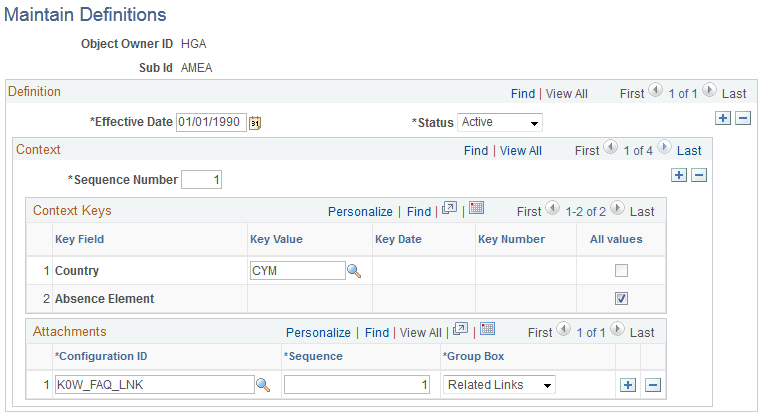
The Maintain Definitions page defines where the links to attachments appear in the Extended Absence component. In the following graphic, the Attachments region of the page indicates that the K0W_MEDCERT_LNK Configuration ID is set up to appear in the Other Links region of the Extended Absence component.
This example illustrates the fields and controls on the Maintain Definitions page - displaying the location of the attachment link in the Extended Absence component.
Example: Reviewing Extended Absence History
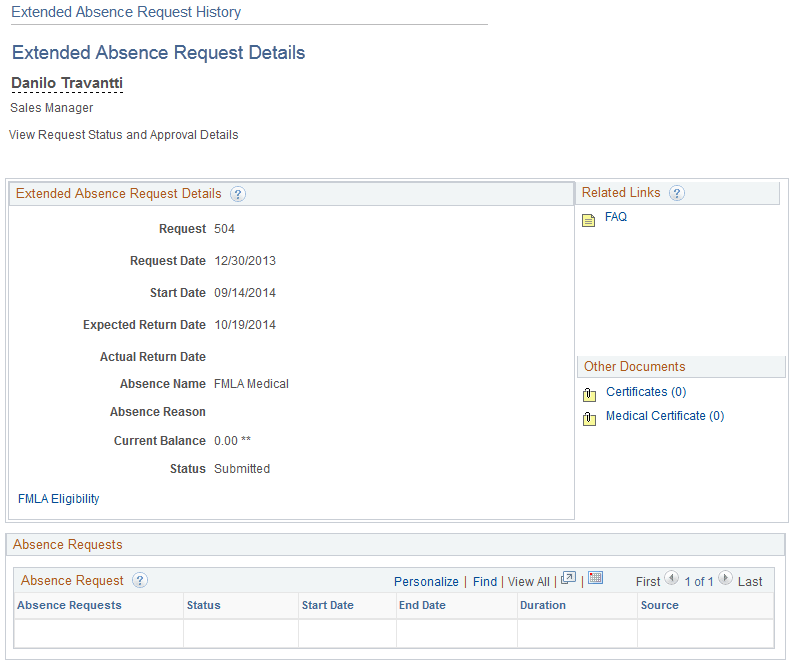
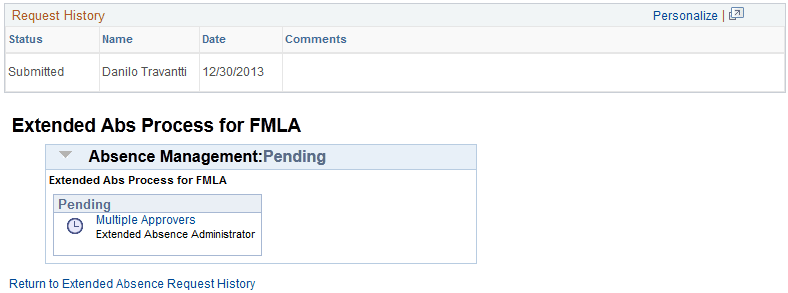
The Extended Absence Request Details page (click the link in Absence Name field on the Extended Absence Request History page) shows the user details about an extended absence request. Any defined attachments appear in the Related Links or the Other Documents regions. The bottom of the Extended Absence Request Details region displays any links to configurable sections.
This example illustrates the fields and controls on the Extended Absence Request Details page (1 of 2).
This example illustrates the fields and controls on the Extended Absence Request Details page (2 of 2).
See Managing Extended Absences.
See the product documentation for PeopleTools: PeopleCode Developer's Guide and PeopleTools: PeopleCode API Reference.