Understanding Configurable Sections in Extended Absences
The configurable sections functionality in extended absences is a template-based process. The templates are created and configured by a template administrator. The template administrator determines the sections, or logical groupings of fields, that are included in the template and the sequence of sections and fields within sections. The administrator also sets default values for fields, determine which fields can be edited, and which fields are hidden or display-only.
A configurable section is a set of additional fields and controls that enables you to customize data tracking. You can create your own customized pages and link those pages to the core self service pages. You can create your own customized code using the Absence Management Event Handler technology. Configurable Sections enable you to associate user defined records to an extended absence.
For extended family leave absences, using effective dated rows enables you to track legislative rule changes for both federal and state agencies. In addition, you can keep track of medical certification progress. During an extended absence, your employee or the extended absence administrator may have to make multiple medical certification entries for the same day in order to track multiple medical conditions, or other necessary documentation pertaining to an extended leave request.
Note:
The record should have the same key-structure as the main record GP_ABS_EA having EMPLID, EMPL_RCD and TRANSACTION_NBR as key.
Process Flow for Setting up Configurable Sections
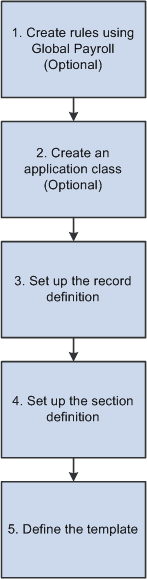
Setting up configurable sections in extended absences consists of the following steps:
-
(Optional) Create rules using Global Payroll to store elements that involve extended absence eligibility.
For example, brackets store information for Federal and State rules, such as the number of weeks allowed for FMLA, or a rollover transaction method versus a fixed transaction method.
-
(Optional) Create an application class.
The application class must contain the necessary PeopleCode, SQL, and so on, to check for extended absence eligibility. For example, balance and availability is calculated using SQL.
-
Set up the record definition.
Record definitions identify the necessary records and fields.
-
Set up the section definition.
The identified records and fields are combined into a section.
-
Define the template.
The template combines each of the previously defined components into the configurable section seen by the user.
Important:
The sample rules, the configurable sections setup, and the processing logic for the Validate Sections button (application class GP_ABS_FMLA) that PeopleSoft Absence Management delivers for extended absences should be used as a model only. Customers need to create new rules, configurable section data, and validation logic of their own to meet their individual business needs.
This graphic illustrates the process flow for setting up configurable sections in extended absences.
Example: Setting Up a Record Definition
The following examples guide you through the process of setting up a configurable section. The examples demonstrate the set up using the delivered FMLA eligibility configurable section.
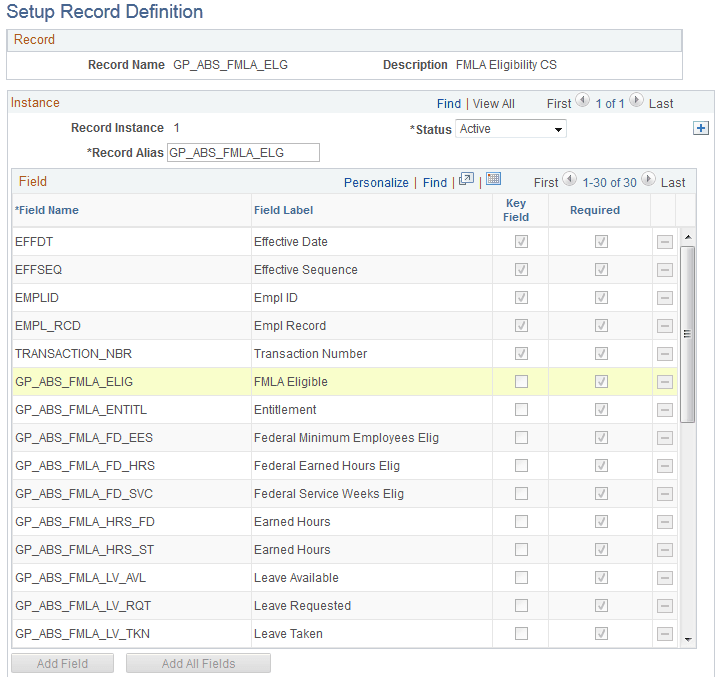
The configurable section in this example is based on the GP_ABS_FMLA_ELG Setup Record Definition. The Setup Record Definition page enables you to specify the necessary record and fields in your configurable section.
This example illustrates the fields and controls on the Setup Record Definition page.
Example: Setting Up Section Definitions
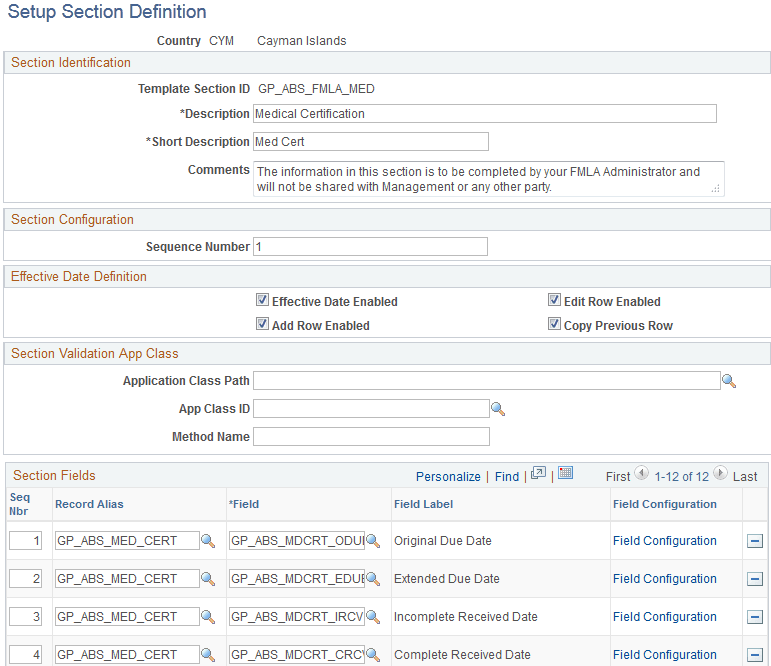
Records and fields are combined into the section using Setup Section Definition page.
Note:
In order for the application class code to work, the value in the Method Name field must be checkEligibility
This example illustrates the fields and controls on the Setup Section Definition page.
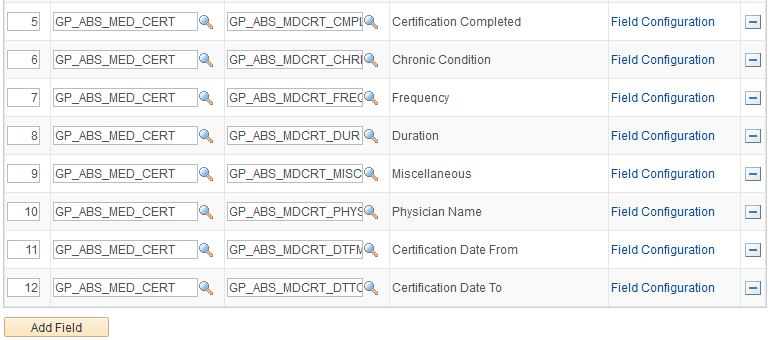
This example illustrates the fields and controls on the Setup Section Definition page.
Example: Defining the Template
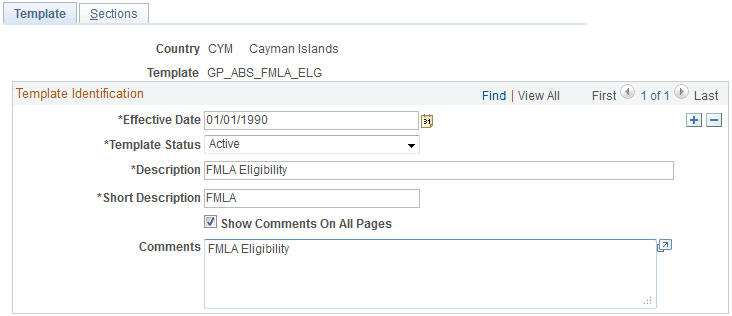
The template combines each of the previously defined components into the configurable section seen by the user.
This example illustrates the fields and controls on the Configurable Section Setup - Template page.
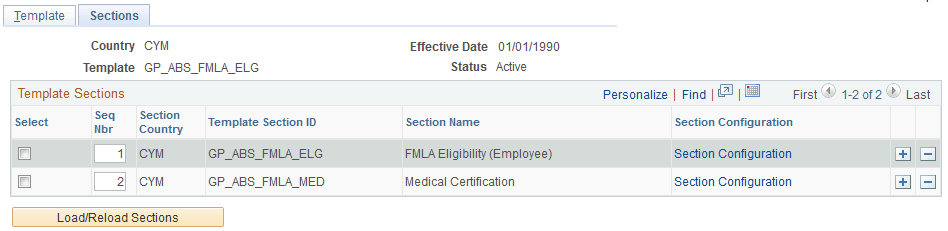
The Configurable Section Setup - Sections page enables you to combine the defined sections into an application page that users can access.
WARNING:
Clicking the Load/Reload Sections button after the section has already been loaded wipes out any existing section fields. You must then manually reenter the section field information.
This example illustrates the fields and controls on the Configurable Section Setup - Sections page.
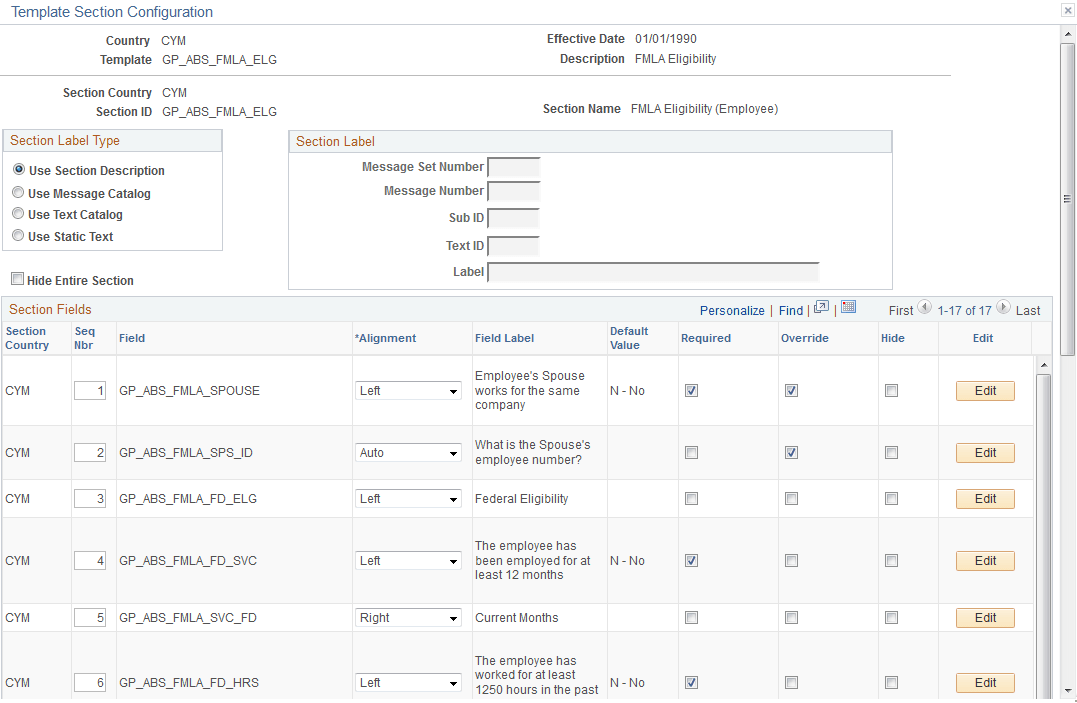
The Template Section Configuration page enables you to specify the section label, the alignment of field labels, and the default value of each field in the configurable section.
This example illustrates the fields and controls on the Template Section Configuration page (partial page only).
Example: Viewing the Configurable Section
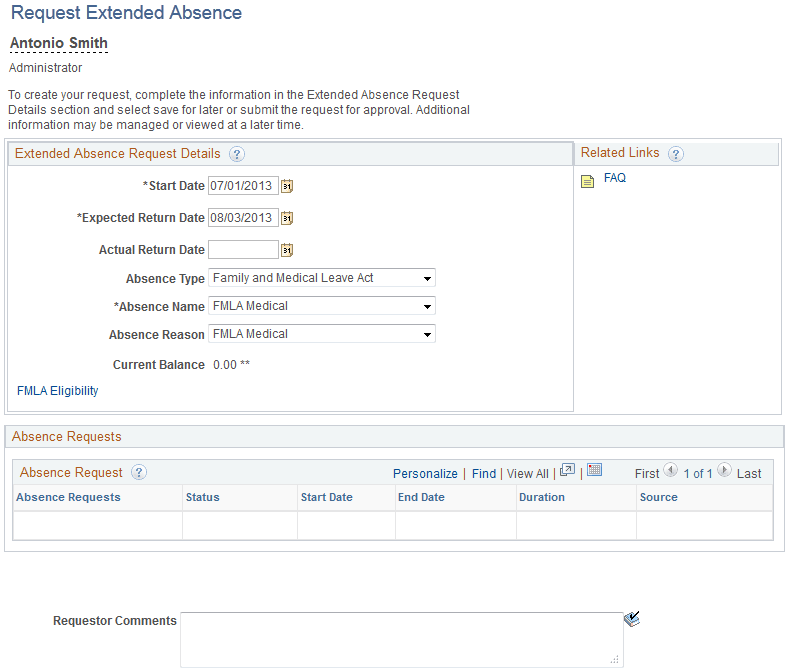
Access the Request Extended Absence page and locate the link to the configurable section, which is labeled as FMLA Eligibility in the following example.
This example illustrates the fields and controls on the Request Extended Absence page.
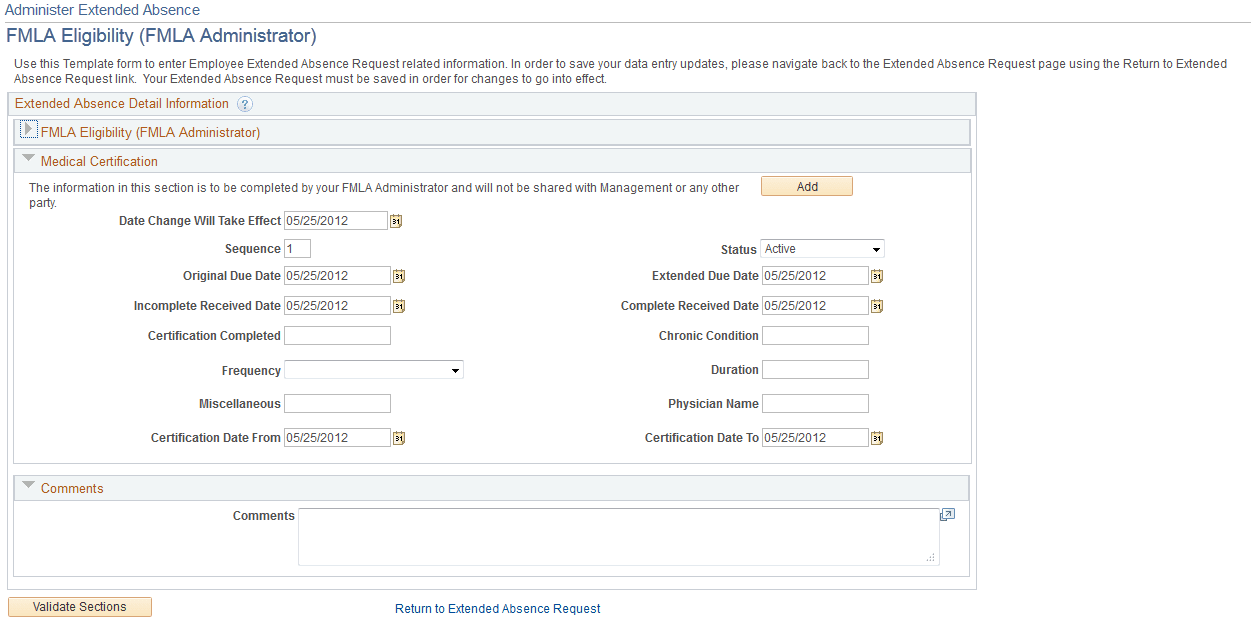
The configurable section page displays the fields and information specified on the pages specified in the configurable section set up process flow.
This example illustrates the fields and controls on the Request Extended Absence FMLA Eligibility page (example of configurable section page).
Related Topics