Using Fluid Employee Calendar View
The Employee Self Service Team Calendar helps employees to view peer events like leave and schedule details. The ESS Employee Calendar feature enables employees to view events for Absence, Schedule, Training, Holidays, Work Anniversaries and Birthdays out of the box. The framework enables administrators to set up and manage custom events along with options to fine tune the level of access and preferences. Organizations can add their own events by creating application classes and adding the configuration to the framework.
Page Used to for Employee Calendar View
| Page Name | Definition Name | Usage |
|---|---|---|
|
HC_HCSC_CAL_EMP_FLU (this is the cref for the tile) |
Access the Employee Calendar page to view peer events. |
|
|
HCSC_CAL_EMP_FL |
View peer events at one place. |
|
|
Team Calendar Bi-Weekly View |
HCSC_CALENDAR_FLU |
Select the tab to view biweekly employee calendar. |
Calendar Tile
Use the Calendar Tile to navigate to the Employee Team Calendar page to view peer events.
Navigation
As an employee, you can add the tile, through personalization, to a system-delivered home page or a home page that you create.
This example illustrates the Calendar tile.
The role that needs to be assigned for employees is HCSC Calendar Employee.
While using a smartphone, you can view the Employee Team Calendars in Daily and Weekly mode and not in Weekly and Bi-Weekly mode as in other devices.
Employee Calendar Views
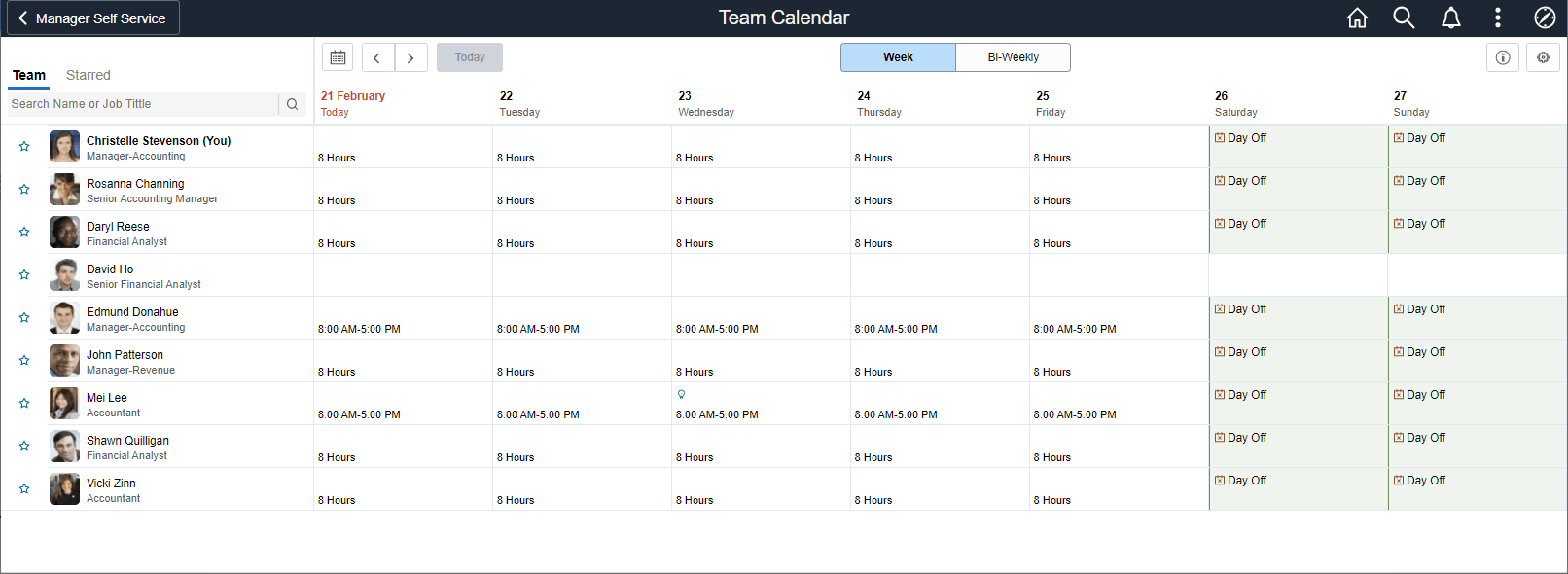
The employee can use the Team Calendar page to view peer events at one place.
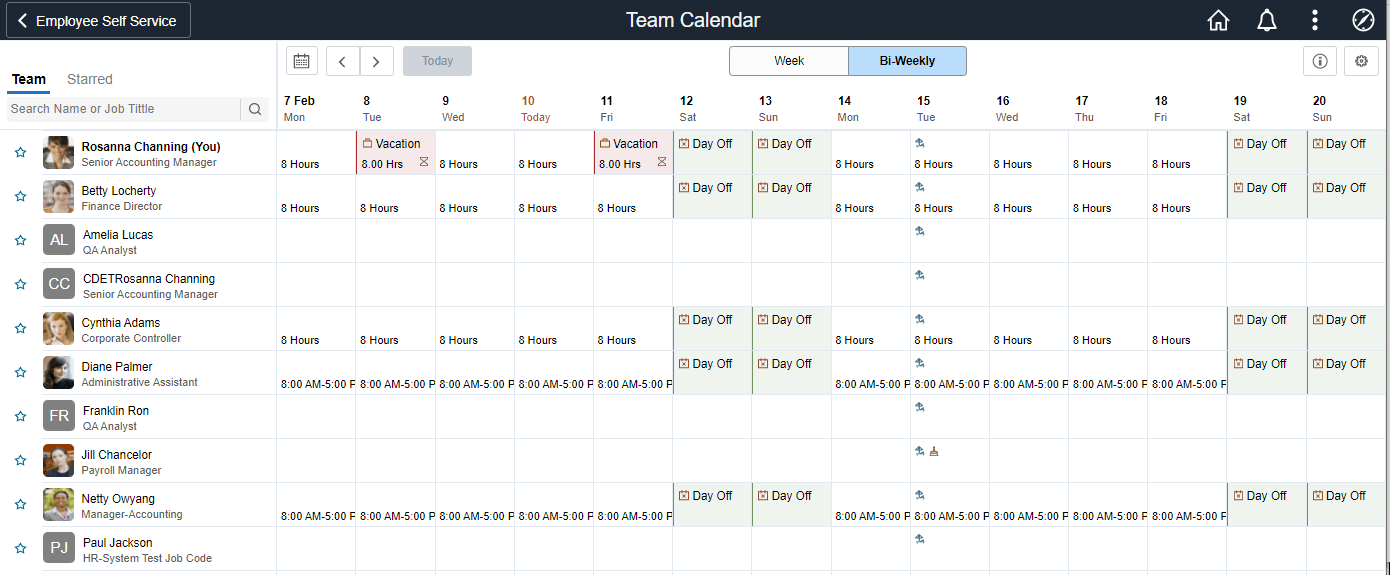
By default, the Team Calendar page displays week view. Toggle between the tabs to view the biweekly reports period.
This example illustrates the fields and controls of Team Calendar page weekly view.
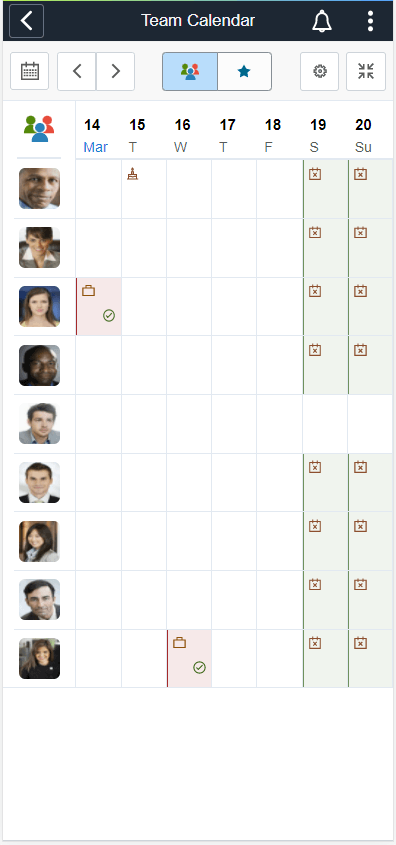
This example illustrates the daily view of Team Calendar page in smartphone.
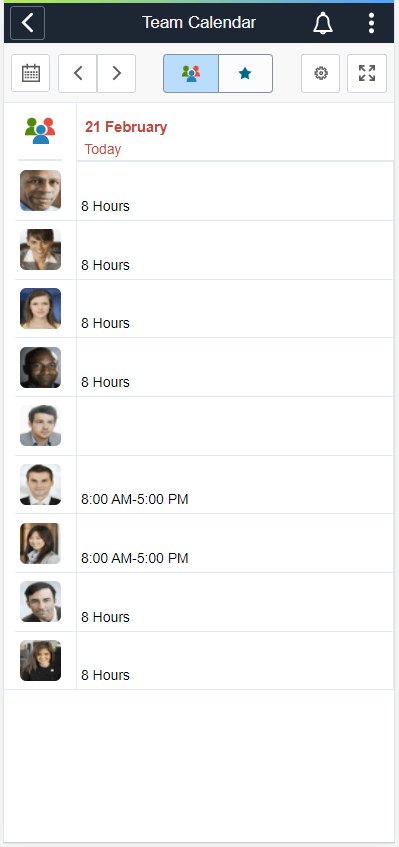
The smartphone supports only Daily and Weekly modes.
Select the Bi-Weekly tab to view the calendar for two weeks.
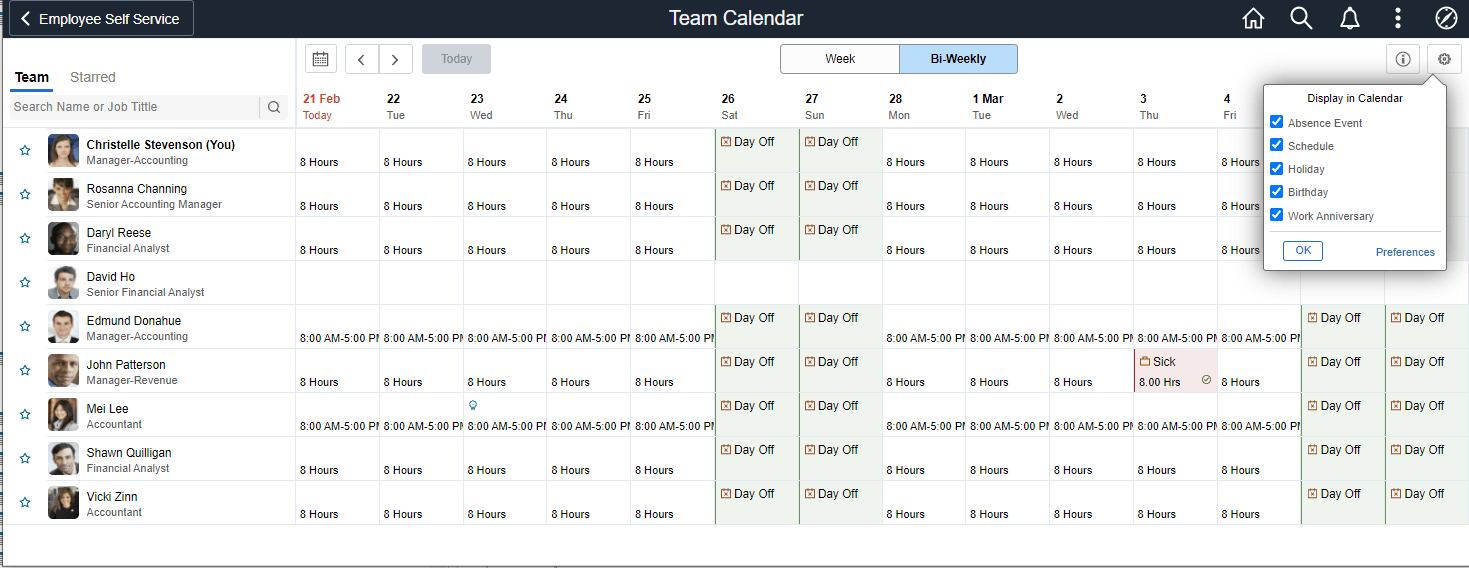
This example illustrates the fields and controls of Team Calendar page Bi Weekly page.
This example illustrates the fields and controls of Team Calendar page Weekly page in smartphone.
| Field or Control | Description |
|---|---|
|
Search Name or Job Title |
Field to search by name or job title. |
|
|
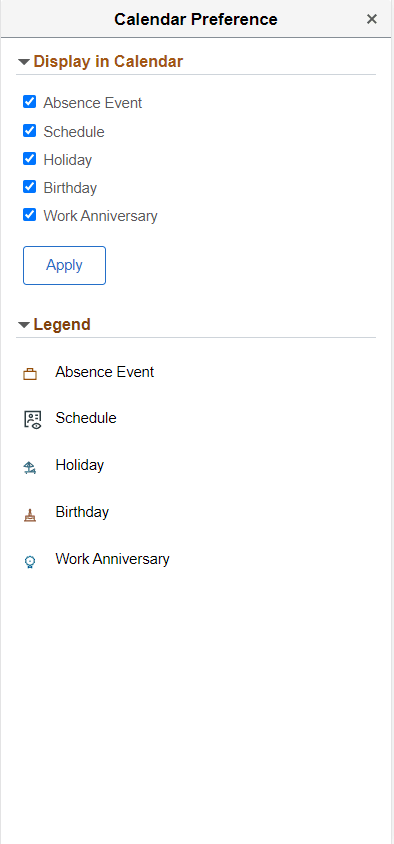
Show legends and their description. |
|
|
Select to open a modal page from where you can select to display in Calendar and Preferences. |
|
|
Select to star an employee for comparison. This icon highlights when the starred employee is selected. |
|
|
Select to view calendar. You can select a date from here. |
|
|
Select to navigate to previous or next day in calendar. |
|
|
Toggle between team and star view while using smartphone. |
|
|
Toggle between daily and weekly view in smartphone. |
|
|
Main menu to go to Team Calendar page with team and starred view. |


Note:
While using a smartphone, you can view the Team Calendars in Daily and Weekly mode and not in Weekly and Bi-Weekly mode as in other devices.
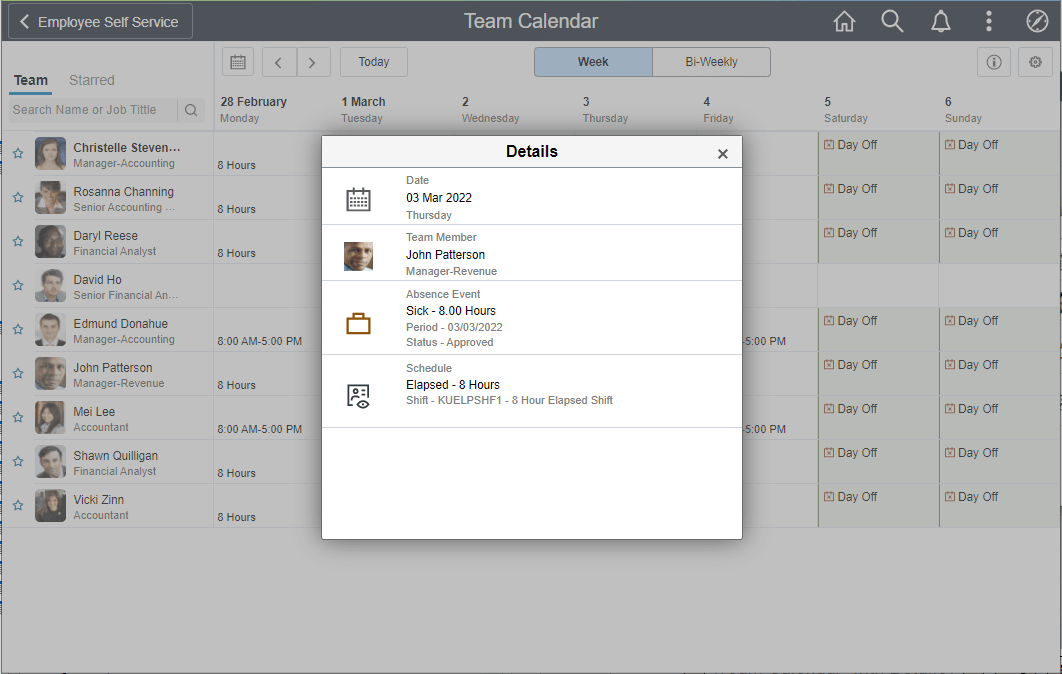
Select the day box for an employee to view the Details modal, from where the manager can select the related actions and do the necessary operations.
While using a smartphone, to view the team and
starred employees in a single page, select the  menu icon.
Select the button to view the comparison report. You can view the report in daily or weekly
view by selecting the the
button to view the comparison report. You can view the report in daily or weekly
view by selecting the the  button.
This example illustrates the fields and controls of Team Calendar with details.
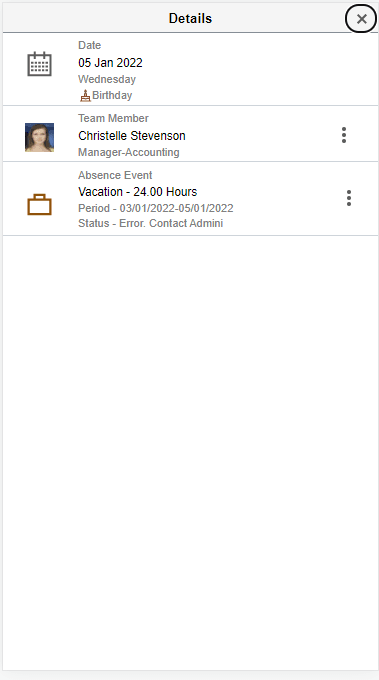
This example illustrates the Team Calendar with details in smartphone.
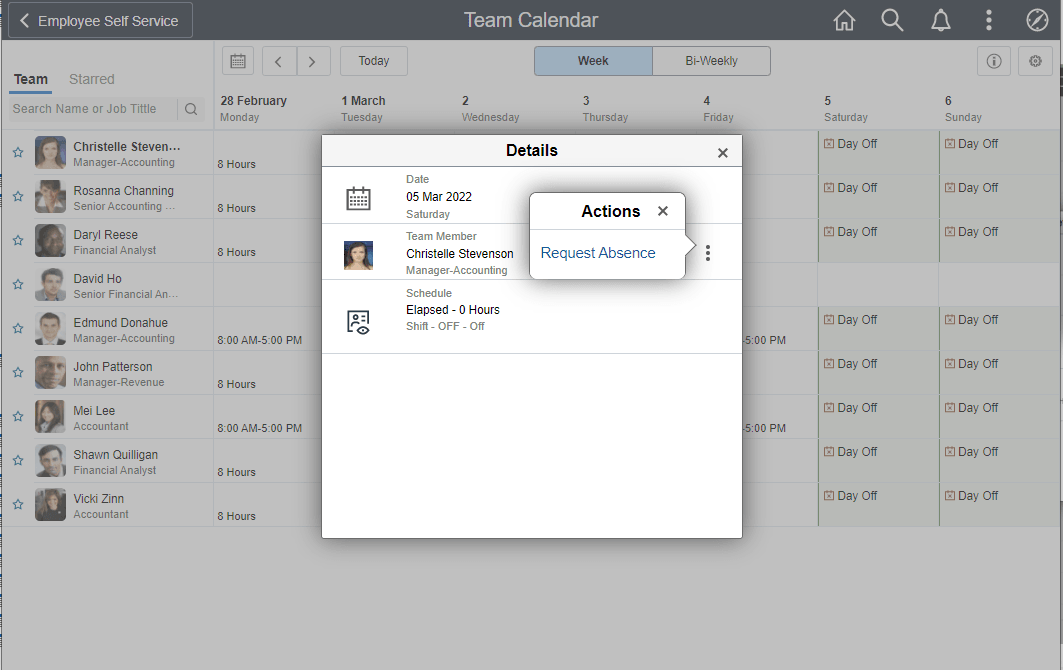
Select  on the Details modal to open the related actions. From here, the employees can
perform the actions. The Related Actions are derived from App Class definition for the
event.
on the Details modal to open the related actions. From here, the employees can
perform the actions. The Related Actions are derived from App Class definition for the
event.
The Request Absence option will open up Manage Absences Page to provide absence details for the chosen date.
This example illustrates the fields and controls of Team Calendar with related actions.
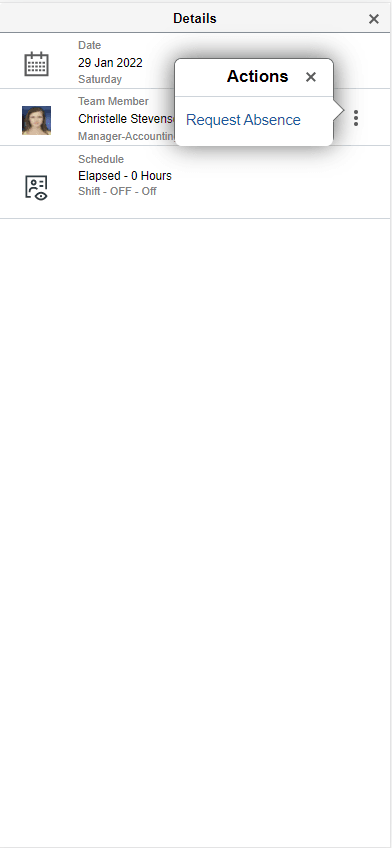
This example illustrates the related actions in smartphone.
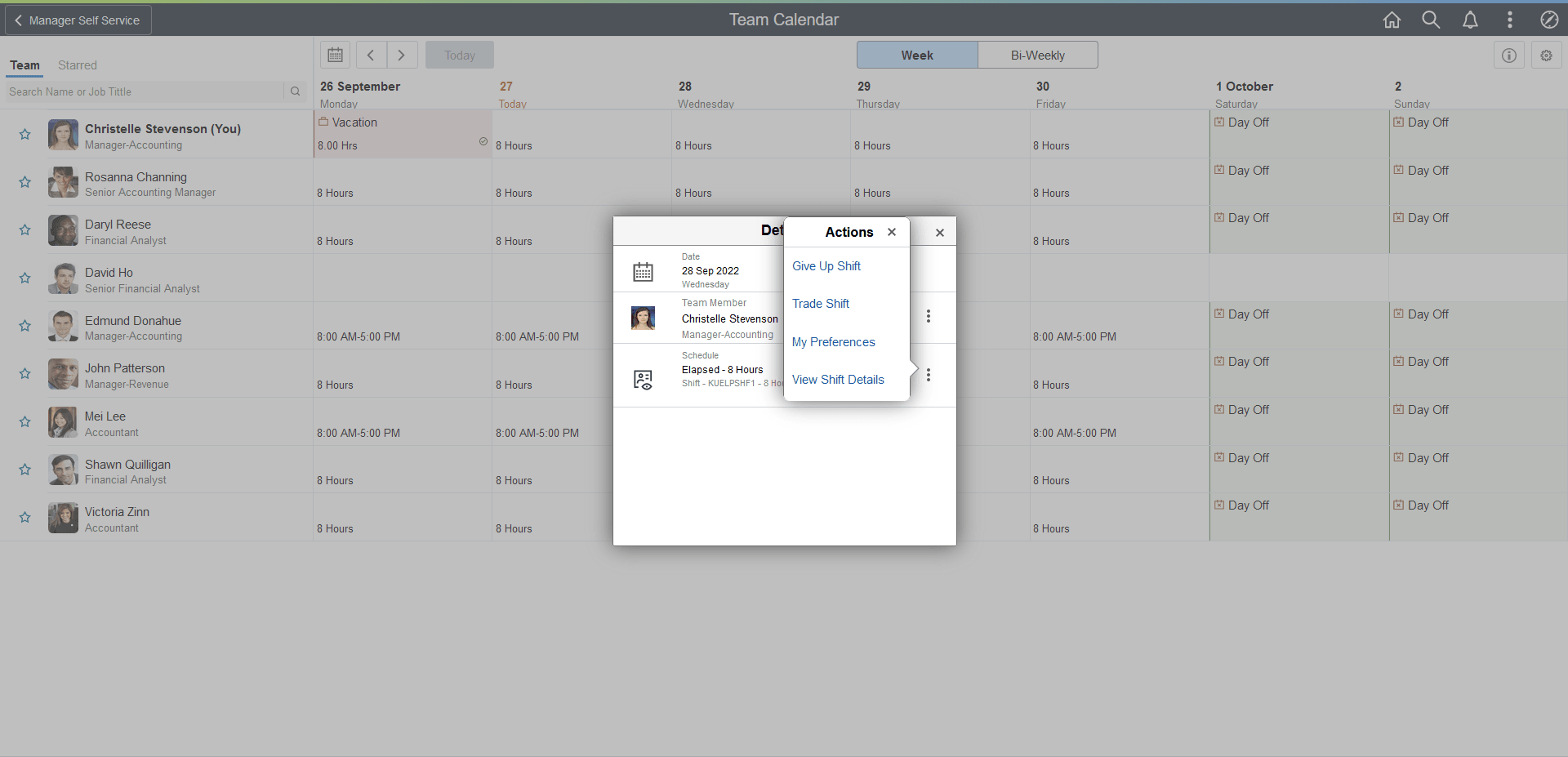
The employees who has access to schedule change request in ESS, will have related actions to give up or trade shift displayed in the calendar. Selecting any of these options will open up the PeopleSoft Time and Labor: Give up your Shift Page or PeopleSoft Time and Labor: Trade your Shift Page to provide the details for the chosen date.
This example illustrates the related actions for Give up, Trade and View Shift details.
Note:
The organizations can configure which related actions to show.
By selecting the star next to select employees you can do a quick comparison of them.
This example illustrates the fields and controls of Team Calendar with starred employees.
This example illustrates the fields and controls of the Display in Calendar modal.
This example illustrates the legends and Display in Calendar in smartphone