Delivered Intents
Job Search
Users can search jobs using Recruiting Digital Assistant. On entering the key word to identify a job, the chatbot fetches all the jobs that match with the word.
This example illustrates a job search query
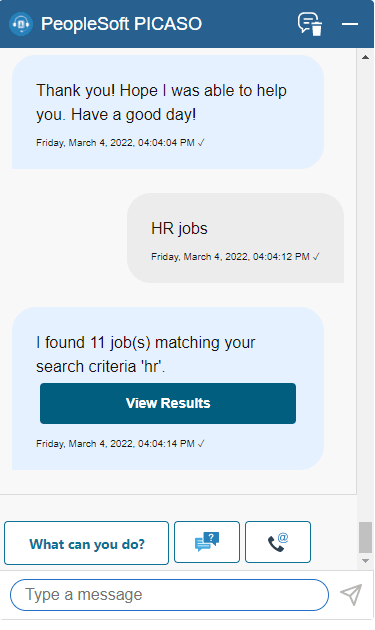
Click the View Results button to navigate to the Job Search page.
Note:
If users want to apply for job, they can do a key word search and get the list of matching jobs. Registered users can also use the Saved Searches option to narrow down the list of jobs that match the criteria. Then, navigate to the Job Description page and apply for the required job.
Saved Search
If users have already saved the search, they can view their search results by asking the chatbot. If there are no saved searches, users can search for jobs and create a new saved search from the job search page.
This example illustrates Saved Searches query
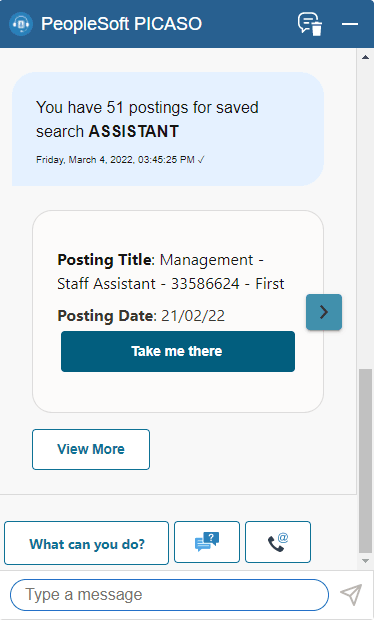
Click ‘Take me there’ to navigate to the Job Description page.
Track Job Applications
Users can ask the Recruiting Digital Assistant about the status of their job applications. If applications are present, the chatbot displays the Job title, the date on which the application is submitted and the status of the job application. Click the Take me there button to navigate to the My Job Applications page of Candidate Gateway which contains all job applications.
This example illustrates a query to chatbot on tracking job application.
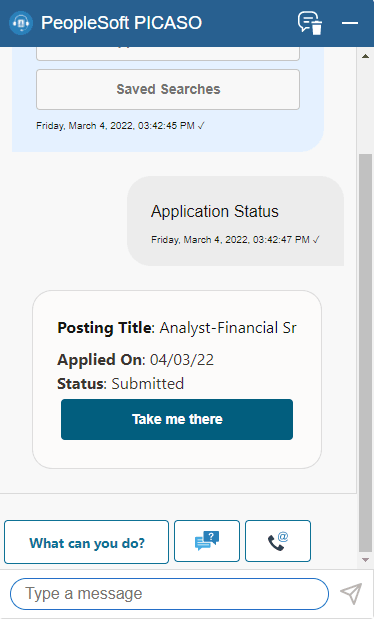
A chevron appears at the right side of the information box when there are multiple applications available. Click the chevron to find the required application.
View Notifications
Using Recruiting Digital Assistant, an applicant can review and act on notifications. Applicant can also ask the chatbot to show notifications based on notification type (registration notification, interview notification, etc) and status (read or unread).
Note:
This feature is applicable only for signed in users.
This example illustrates the Recruiting Digital Assistant displaying a notification.
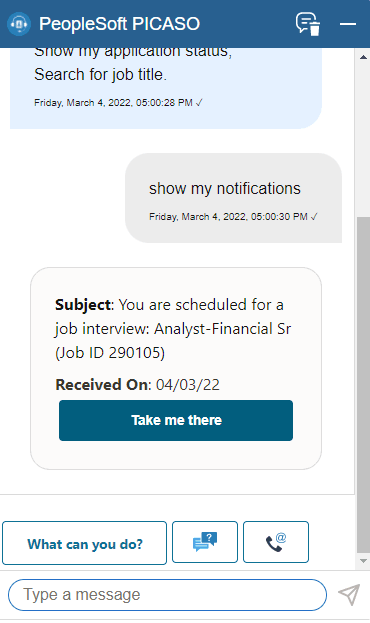
Click Take me there button to open the My Job Notifications page.
Unread Notifications
This button appears only for registered users with unread notification(s).
On Clicking the What can you do? button, the Recruiting Digital Assistant displays Unread Notifications as a menu option. Select the option to view the unread notification.
This example illustrates the Recruiting Digital Assistant displaying an unread notification.
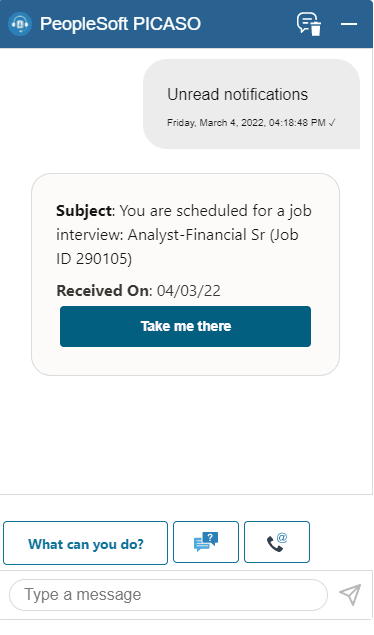
Click ‘Take me there’ to navigate to the My job Notifications page.
Note:
Notification remains as Unread with no change in notification status if the applicant view the notification in the chatbot. Only when the applicant accesses the notification details, using the My Job Notifications page, the status changes to Viewed.
Alerts and Announcements
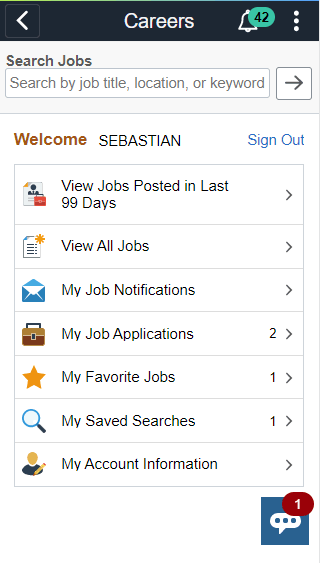
This example illustrates the Recruiting Digital Assistant button displaying an alert when an applicant visits the Fluid Candidate Gateway.
Note:
FAQs configured with “Announcement” category will also show up along with the announcement. Click View Answer to see the response. If not, click the navigation button to move to the next question.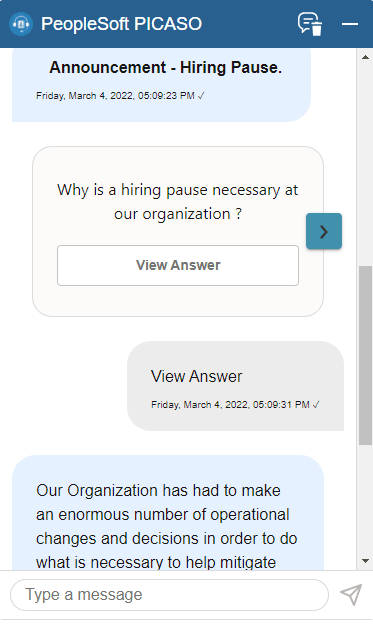
Note:
An alert can be an announcement or a welcome message.