Recruiting Digital Assistant
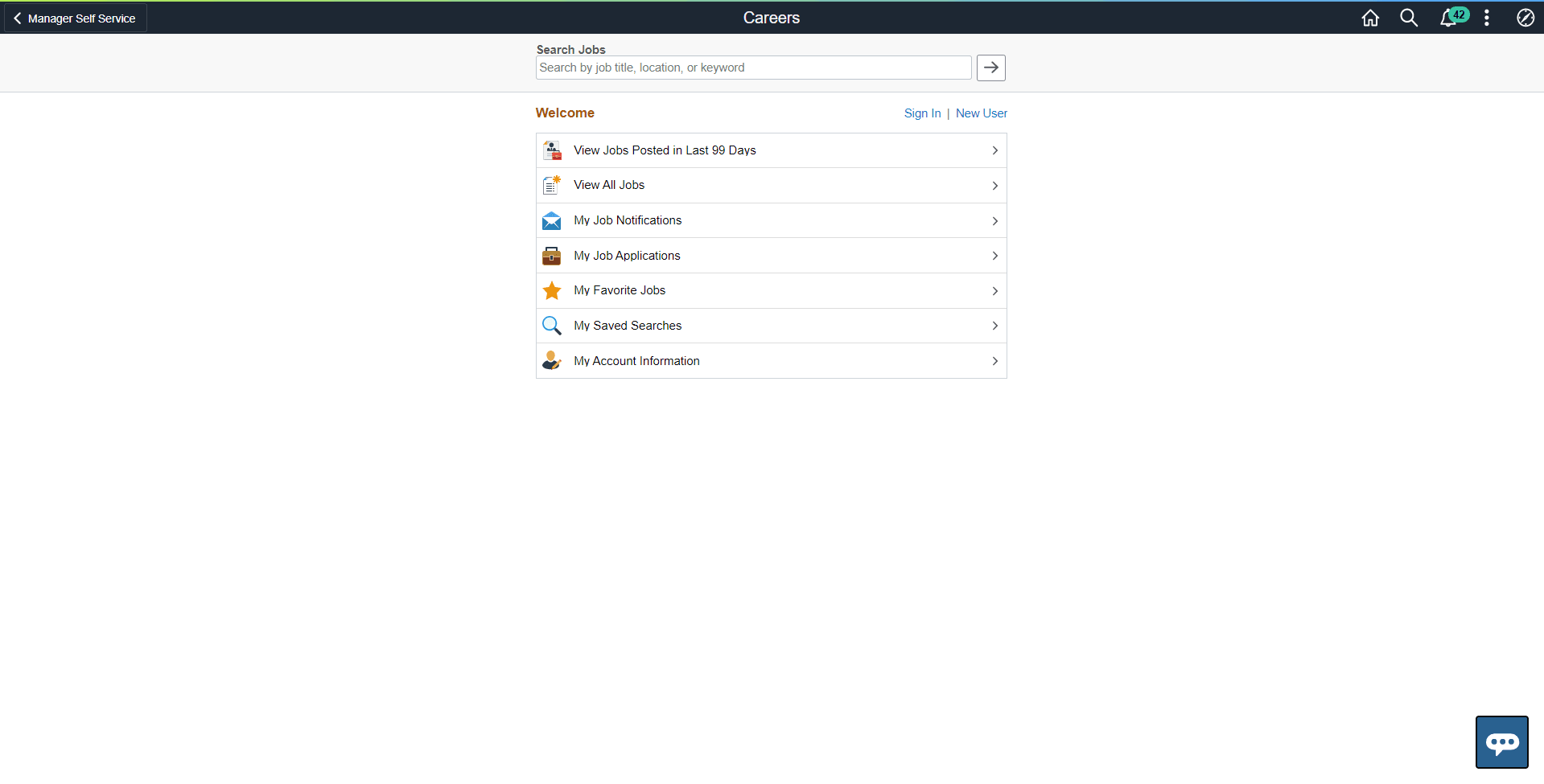
Use the floating button in the Explore Jobs homepage to launch the Recruiting Digital Assistant in External Fluid Candidate Gateway. Using this chatbot, you can get quick responses to your recruitment related queries and can perform simple transactions with your inputs.
Note:
The Recruiting Digital Assistant is available only for users with the HRS External Chatbot User role.
Important:
From PUM Image 53, the existing Careers page has been renamed to Explore Jobs. If you are looking for the Careers page, please navigate to the Explore Jobs Page instead.
This example illustrates the Recruiting Digital Assistant button as seen on a laptop device.
Note:
Anonymous users can search for jobs using keywords and browse the list of FAQs or get answers to their questions. For registered users, in addition to the above they will be able to run their saved searches, view application status and view all notifications.
The following video provides an overview of Recruiting Digital Assistant:
Video: PeopleSoft Recruiting Chatbot and Text Messages
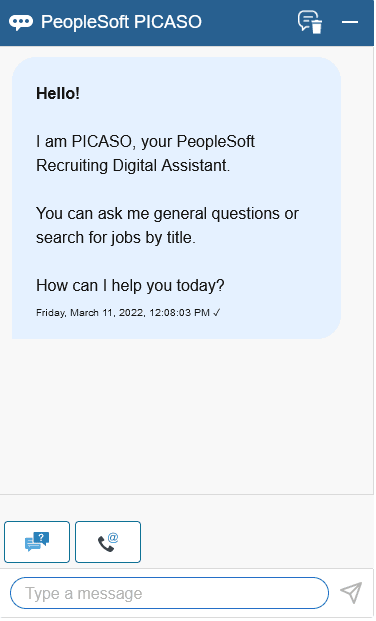
This example illustrates the Recruiting Digital Assistant when an anonymous user opens the chat window.
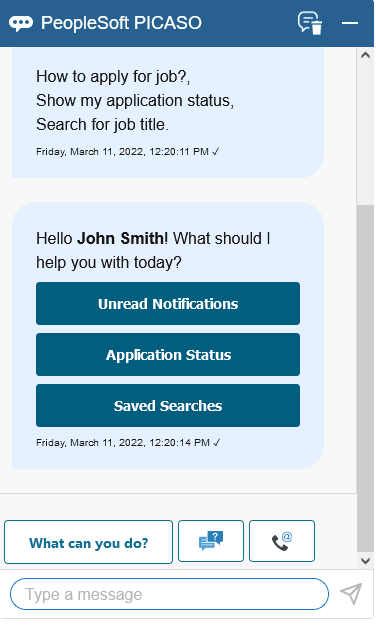
This example illustrates the Recruiting Digital Assistant when a registered user opens the chat window.
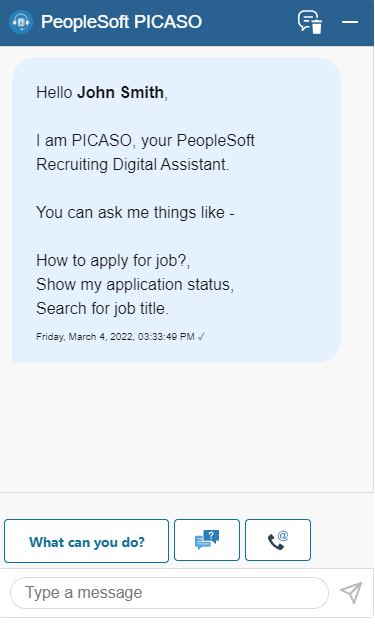
You can type in your question or you can use the action buttons to tell the chatbot what you need help with.
PeopleSoft Recruiting Digital Assistant has three buttons at the footer.
-
What can you do?
-
FAQs
-
Contact Us
Administrator can control the display of these buttons through Site Set Up Page. For more information, see Setting Up Recruiting Digital Assistant
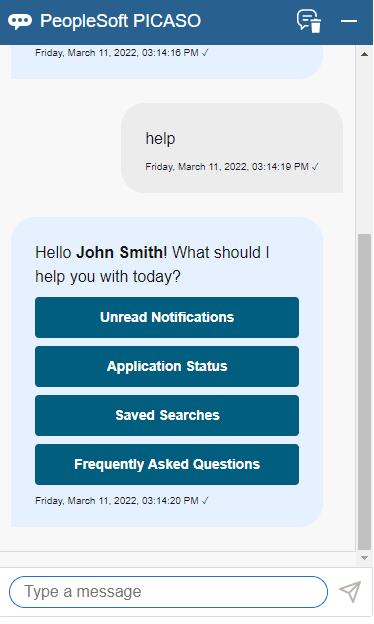
User can type in for help when action buttons are not displayed.
This example illustrates the Recruiting Digital Assistant when a registered user types help.
What can you do?
This button appears only for registered users. On clicking What can you do? button, the Recruiting Digital Assistant displays the following options:
-
Application Status
-
Saved Searches
-
Unread Notifications
Note:
Unread Notifications option appears only if the applicant has unread notifications.
This example illustrates the Recruiting Digital Assistant when a user clicks ‘What can you do?’ button.
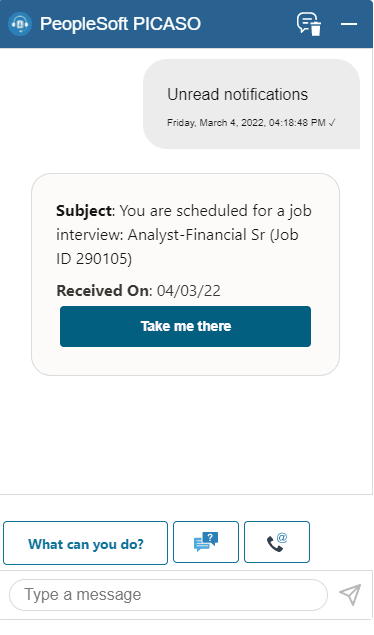
This example illustrates the Recruiting Digital Assistant when Unread Notifications is selected.
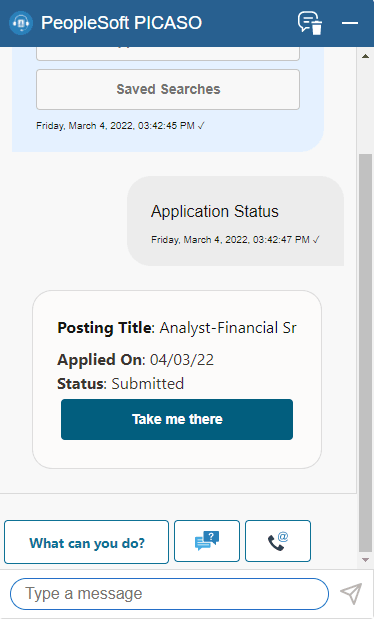
This example illustrates the Recruiting Digital Assistant when Application Status is selected.
This example illustrates the Recruiting Digital Assistant when Saved Searches is selected.
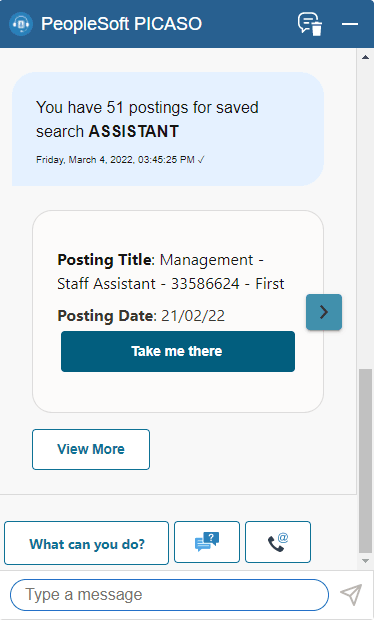
If you want to go ahead with the chatbot response and open the corresponding page, click Take me there. If not, click the navigation button to move to the next option. You can view only five responses or options using the navigation button. Use the View More button to list the next set of responses.
Note:
View More button is displayed when there are more options regarding the query.
FAQs
This button appears for anonymous and registered users. The frequently asked questions are categorized under each option for easy access.
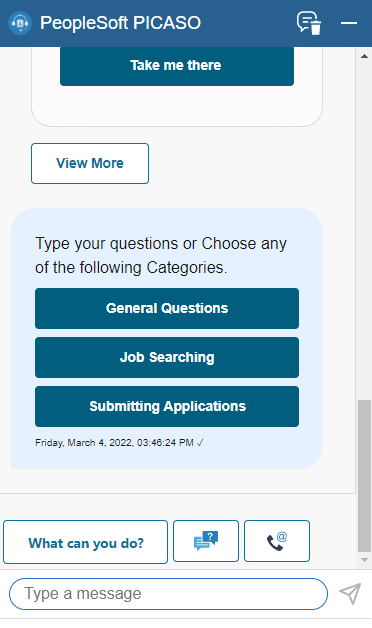
On clicking the FAQs button, the Recruiting Digital Assistant displays the following options.
-
General Questions
-
Job Searching
-
Submitting Applications
This example illustrates the Recruiting Digital Assistant when FAQs button is selected.
Note:
Currently, few questions and categories are provided as part of demo data. Administrators can add or modify the list provided. Before enabling this option, validate the delivered demo data and verify if it suits your organization or modify them accordingly.
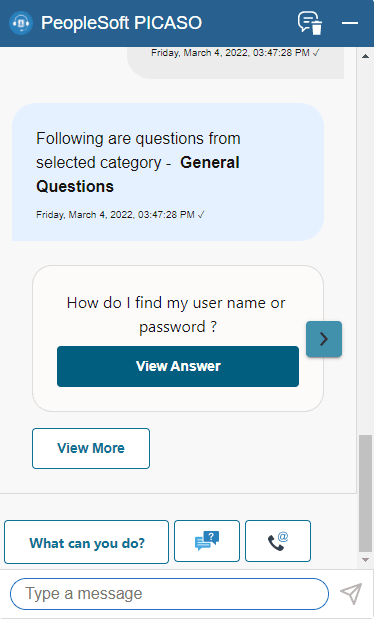
This example illustrates the Recruiting Digital Assistant when General Questions is selected.
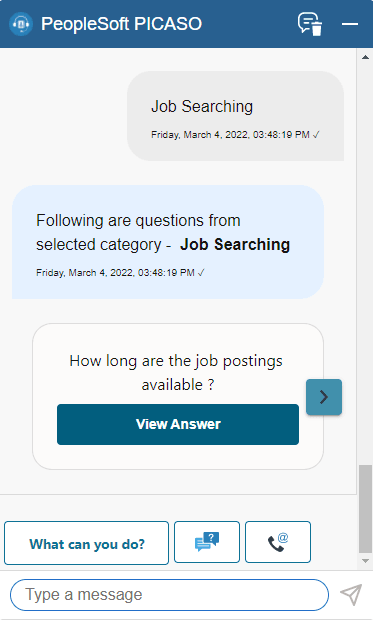
This example illustrates the Recruiting Digital Assistant when Job Searching is selected.
This example illustrates the Recruiting Digital Assistant when Submitting Applications is selected.
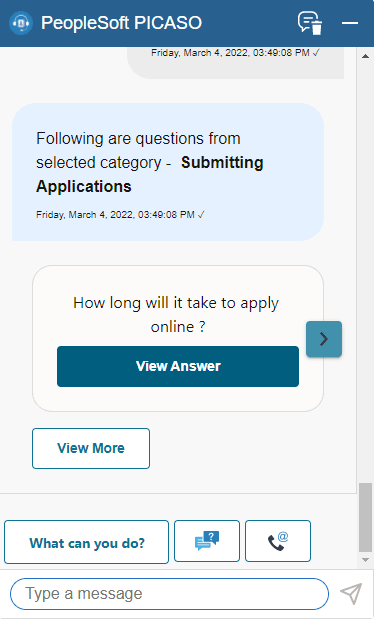
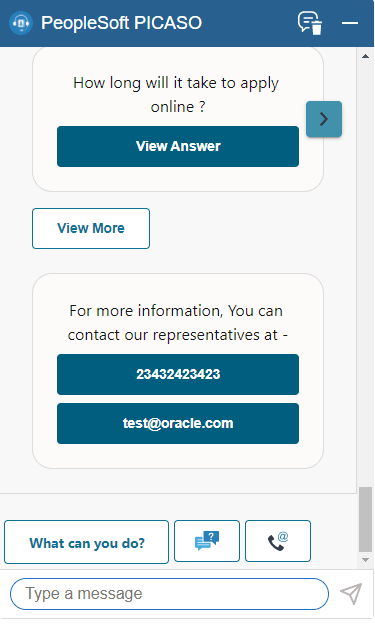
If you want to go ahead with the question or response, click View Answer. If not, click the navigation button to move to the next question. You can view only five responses or options using the navigation button. Use the View More button to list the next set of responses.
Note:
If you can’t find the question you want to ask, type in your question for responses.
Contact Us
This button appears for anonymous and registered users. On clicking the Contact Us button, the Recruiting Digital Assistant displays the email address and phone number of the customer representative as defined in the Site Setup page.
This example illustrates the Recruiting Digital Assistant when Contact Us button is selected.