Explore Jobs Page
Applicants use the Explore Jobs page (HRS_CAREERS_FL) to search for jobs, view counts of items such as applications and notifications, and access other areas of Candidate Gateway. The Explore Jobs page is the first page applicants see when they access Fluid Candidate Gateway.
Navigation:
-
Internal applicants select click the Explore Jobs tile on the Employee Self Service homepage.
The Employee Self Service home page is delivered without the Explore Jobs tile, but the installation instructions for Fluid Candidate Gateway include steps for adding it to this homepage. For more information, see Internal Applicant Access to Candidate Gateway.
-
External applicants click a Candidate Gateway link that your organization places on a public website.
For more information about creating this link, see External Applicant Access to Candidate Gateway
-
Implementers and testers who want to access Fluid Candidate Gateway in external applicant mode can select Explore Jobs under the main Navigator menu.
This menu item exists only for implementation and testing purposes, as external applicants do not have access to the Navigator menu.
-
From other Fluid Candidate Gateway pages, applicants can click the Explore Jobs item in the Actions List.
Important:
From PUM Image 53, the existing Careers page has been renamed to Explore Jobs. If you are looking for the Careers page, please navigate to the Explore Jobs page instead.
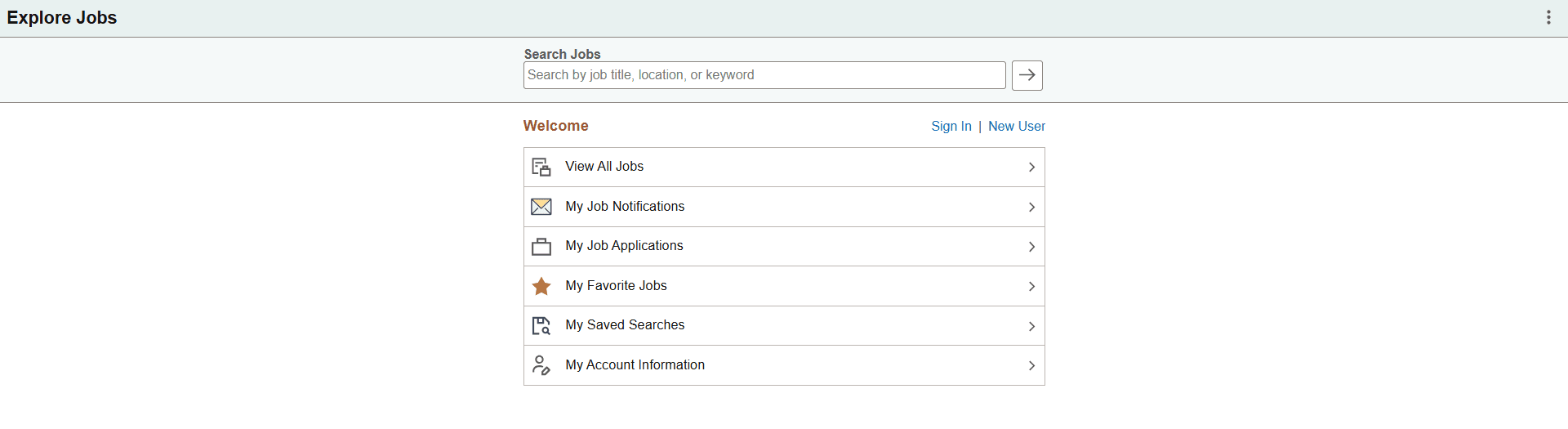
This example illustrates the Explore Jobs page as it appears to an external applicant who has not signed in.
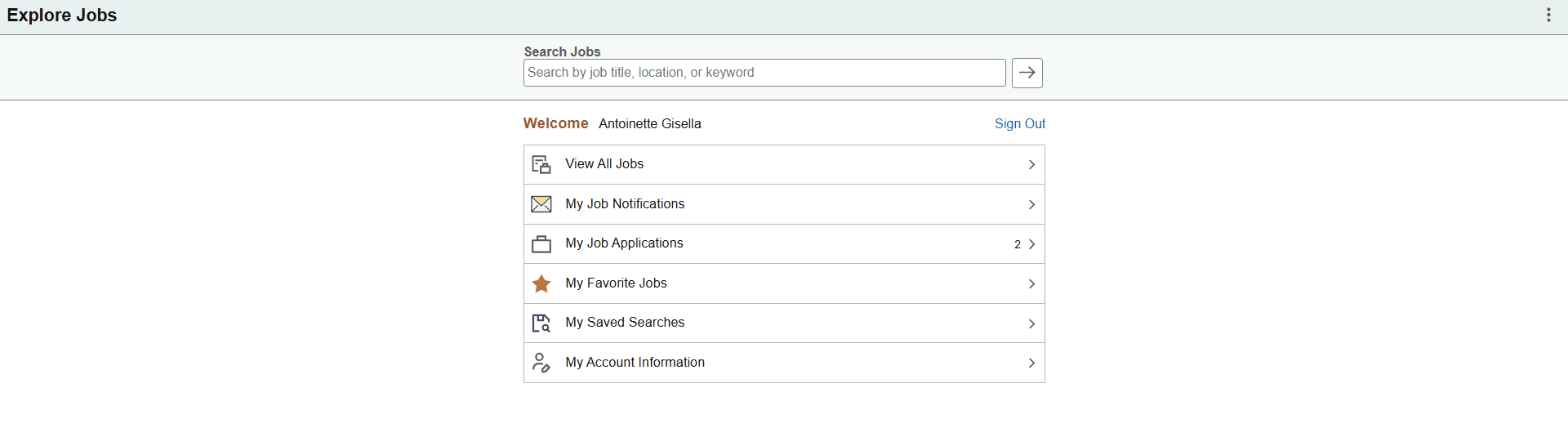
This example illustrates the Explore Jobs page as it appears to an external applicant who has signed in.
Internal and External Versions of the Explore Jobs Page
The page appearance varies depending if the applicant is internal or external and, for external applicants, whether the applicant has signed in. Here is a summary of how the page changes depending on who is using it:
-
Internal applicants do not see the links for registering, signing in, or signing out.
-
External applicants see an option to access My Account Information, but internal applicants (who do not have Candidate Gateway accounts) see an option to access My Contact Information.
-
Internal applicants see more options in the banner across the top of the page. This topic does not discuss those additional options, which provide generic PeopleSoft functionality.
Banner options are controlled through stylesheets that are attached to PeopleTools themes. The installation documentation for Fluid Candidate Gateway includes instructions for applying the theme for external applicants. Refer to the Fluid Candidate Gateway installation documentation for detailed instructions.
Page Elements for Searching Jobs
| Field or Control | Description |
|---|---|
|
Search Jobs |
Applicants can perform a keyword search by entering search keywords and then clicking the adjacent Search icon. The instructional text that appears in the Search Jobs field before the applicant enters keywords comes from the Text Catalog. To modify or remove the text, update the Text Catalog entry with Text ID HRAM_FL_PLCHLDR_01. |
|
|
Applicants click this icon to search for jobs. The system displays the search results on the Search Jobs Page. It is not necessary for the applicant to enter search keywords before clicking this icon. If no keywords were entered, the search results show the latest job openings. |

Page Elements for Registering and Signing In
| Field or Control | Description |
|---|---|
|
Welcome |
The applicant’s name appears next to the word “Welcome” when the applicant has signed in. Internal applicants always see their name because they always sign in before accessing this page. |
|
Sign In |
This link is visible only to external applicants who are not currently signed in. Clicking the link opens the Sign In Page, where applicants sign in to Candidate Gateway. |
|
New User |
This link is visible only to external applicants who are not currently signed in. Clicking the link opens the New User Registration Page. |
|
Sign Out |
This link is visible only to external applicants who are currently signed in. Clicking the link signs the applicant out. |
|
Accessibility Help |
Click to display the Accessibility Help modal window with instructions on keyboard navigations and to set screen reader mode as preference.This link is visible only to external applicants. To control the display of this link, see Site Setup Page. |
Page Elements for Accessing Other Candidate Gateway Pages
The items under the Welcome text provides access to various Candidate Gateway functions. Clicking these items enables applicants to perform the relevant action. When an external applicant who is not signed in to Candidate Gateway clicks any item other than View Latest Jobs, the system prompts the applicant to sign in.
If the applicant is signed in, certain items in the list also display counts of related activities.
| Field or Control | Description |
|---|---|
|
View Jobs Posted in Last <number> Days |
Applicants click this option to access the Search Jobs Page with the search results limited to jobs that were posted within the specified number of days. The number of days is configured on the Site Setup Page, in the Display Latest Jobs Posted Days field. If the number of days is set to zero, this search option does not appear on the Explore Jobs page |
|
View All Jobs |
Applicants click this option to view all job postings on the Search Jobs page. The number of jobs is constrained by the limits imposed by the search engine and by the Max Jobs Returned from Search field on the PeopleSoft Talent Acquisition Manager: Recruiting Installation – Jobs Page. If there are more job postings than can be listed, the Search Jobs page shows the latest job postings up to the limit. |
|
My Job Notifications |
Applicants click this option to access the My Job Notifications Page. If the applicant is signed in, this item also displays a count of unread notifications. A notification is considered unread until the applicant clicks the notification to view its details. |
|
My Job Applications |
Applicants click this option to access the My Job Applications Page. If the applicant is signed in, this item also displays a count of the applicant’s applications, including submitted and withdrawn applications. Note: If the applicant has submitted multiple job applications, the displayed count of the application varies based on the site set up to split the multiple job application. |
|
My Favorite Jobs |
Applicants click this option to access the My Favorite Jobs Page. If the applicant is signed in, this item also displays a a count of the applicant’s favorite jobs. |
|
My Saved Searches |
Applicants click this option to access the My Saved Searches Page. If the applicant is signed in, this item also displays a a count of the applicant’s saved searches. |
|
My Account Information |
Visible only to external applicants, who click this option to access the My Account Information Page. |
|
My Contact Information |
Visible only to internal applicants, who click this option to access the My Contact Information Page. |