External Applicant Access to Candidate Gateway
To give external users access to a Candidate Gateway site, place a link on a location such as your public website.
The External Link field on the Site Setup Page provides a URL that goes to classic Candidate Gateway for external applicants. To get a direct link to Fluid Candidate Gateway, an implementer signs on as a user with access to Fluid Candidate Gateway and uses the External Link URL or the Explore Jobs menu item under the main menu. Conditional navigation redirects the implementer to Fluid Candidate Gateway. At this point, the browser’s address bar contains a URL for Fluid Candidate Gateway, and the implementer can copy that link to place on your public website.
Note:
Internal and external applicants must use different links because link parameters control whether the site is rendered in external or internal mode.
Public Access User IDs
External applicants, by definition, do not have PeopleSoft user IDs. Therefore, the web profile for the PeopleSoft instance accessed by external applicants needs to be configured to allow public access through a public access user ID that you define.
Using a public access user ID prevents external applicants from being presented with a PeopleSoft signon page. Instead, the user bypasses signon and is taken directly to Candidate Gateway. The public access user ID grants access to applicant Candidate Gateway pages through the External Applicant role or, if you use Fluid Candidate Gateway, the External Applicant Fluid role.
Note:
PeopleTools user IDs have types. Although there is a delivered External Job Applicant type, this is not relevant to how external applicants access Candidate Gateway.
When an external applicant allows a Candidate Gateway session to be idle longer than the inactivity timeout period you establish, the system's default behavior is to provide a link to the PeopleSoft logon page with the public access user ID visible. Depending on your password logic, the public access user ID could be locked if the applicant unsuccessfully attempts to sign in. For greater security and usability, replace the signon page with a page that displays an appropriate message. For example, display a message that the session has timed out, and provide a link to return to Candidate Gateway.
For more information about setting up a public access user ID to bypass signon for external users, refer to My Oracle Support document IDs 652694.1 and 1527506.1
For additional information about user IDs and security, see PeopleTools: Security Administration
Dynamic Screen Reader Layout Configuration
User-specific settings can make PeopleSoft applications more accessible to people with visual impairments and other disabilities. Based on the configuration on the Site Setup Page, the external users can access the Fluid Candidate Gateway in screen reader mode. External users can enable screen reader mode using the 'Enable Screen Reader Mode' option in the Fluid Candidate Gateway menu. The 'Disable Screen Reader Mode' option is present on menu only for applicants who are not signed in. It is not available for signed in applicants.
Note:
From PUM Image 53, the existing Careers page has been renamed to Explore Jobs. If you are looking for the Careers page, please navigate to the Explore Jobs Page instead.
This example illustrates the Fluid Candidate Gateway Menu Items.
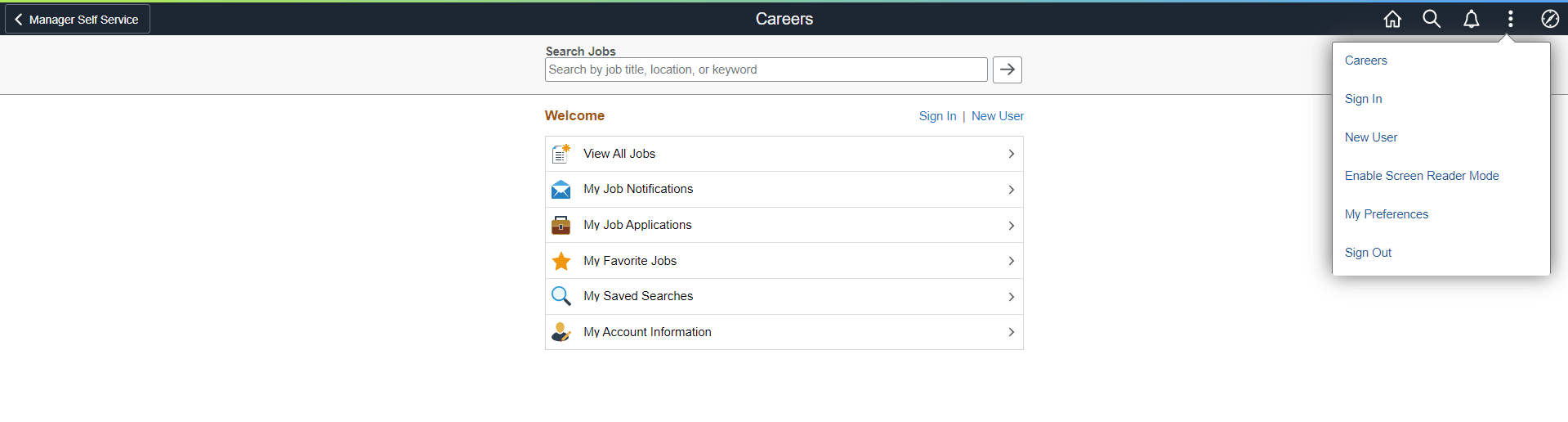
The instruction to switch to screen reader mode is announced by the screen reader as soon as the component loads.
While registering or updating an account, the applicant can specify whether to enable the screen reader mode for the specific user account. Once the applicants select the option, the system defaults it as the Screen Reader Mode preference for subsequent logins.
Language Settings for Sites
Use the Language field on the User Profile - General page to associate the external applicant guest user ID with a specific language.
To support multiple languages, create a guest user ID and web profile for each language and then provide a separate Explore Jobs link for each language.
Access Through the PeopleSoft Menu
Although external applicants do not have access to the PeopleSoft menu, implementers and testers can access Candidate Gateway as an external applicant by selecting Explore Jobs under the main menu.
This menu navigation accesses the default site that is defined on the PeopleSoft Talent Acquisition Manager: Recruiting Installation – Applicants Page.
Banner Options for External Applicants
When external applicants use Fluid Candidate Gateway, the banner across the top of the page does not display options that the external applicants should not see. This is controlled through a theme that is specifically for external applicants. The theme uses the HRS_CG_GUEST_SS style sheet to control the visibility of the banner icons.
Oracle delivers the theme for external applicants, but you must apply the theme manually during the Fluid Candidate Gateway installation process. Refer to the Fluid Candidate Gateway installation documentation for detailed instructions.