Entering References
This topic provides an overview of reference notifications and discusses how to add and review references.
Note:
This feature has been replaced by Applicant References on in Fluid. For more information, see Using Fluid Candidate Gateway to Enter References.
Note:
Applicants must sign in before they can enter references.
Pages Used to Enter References
| Page Name | Definition Name | Usage |
|---|---|---|
|
HRS_CE_APP_REF |
Review and update professional and personal references. |
|
|
HRS_CE_D_REFERENCE |
Enter detailed information for a reference. |
Understanding Reference Notifications
If a recruiter clicks the Request References button on the References section of thePeopleSoft Talent Acquisition Manager: Manage Applicant page: Applicant Data Tab, the system sends an email notification (HRS_UPDATE_REFERENCES) asking the applicant to provide updated references. The email notification contains a link to Candidate Gateway. The system also posts a Candidate Gateway notification, which appears on the My Notifications page.
Applicants can click the notification link to access the Applicant References page, where they can submit references.
Note:
If a recruiter sends a reference request to an applicant who is not a registered user of Candidate Gateway, the email notification includes an auto-generated user name and password that enables the applicant to sign in, see the notification, and submit references. By using these system-generated logon credentials, the applicant ensures that the Candidate Gateway account is properly associated with the existing applicant record.
Applicant References Page
Applicants use the Applicant References page (HRS_CE_APP_REF) to review and update their professional and personal references.
Navigation:
Click a reference request notification on the My Notifications page.
This example illustrates the Applicant References page.

| Field or Control | Description |
|---|---|
|
|
An applicant clicks this icon to view or modify reference details on the Reference page. |
|
Add Reference |
An applicant clicks this button to open the Reference page and enter detailed information for a new reference. |

Reference Page
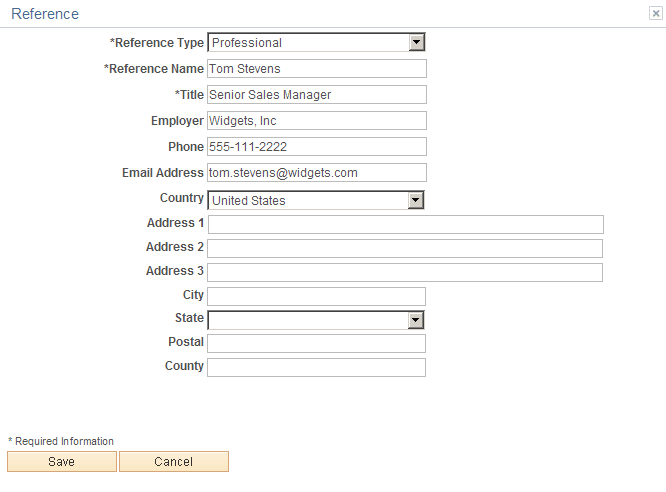
Applicants use the Reference page (HRS_CE_D_REFERENCE) to enter information for a reference.
Navigation:
-
Click the Add Reference button on the Applicant References page.
-
Click the Edit icon for an existing reference.
This example illustrates the Reference page. When adding new references, the page title is Add Reference.
This is the same Reference Page that applicants use to enter references from within a job application.