Allocate Compensation - Select a Compensation Activity Page
Use the Allocate Compensation - Select a Compensation Activity page (WCS_ECM_MSS_HOME) to review the status of the compensation cycles for which you have a role.
Navigation:
This example illustrates the fields and controls on the Allocate Compensation - Select a Compensation Activity page.

My Compensation Alerts
This section displays compensation alerts and notifications, if any, for the manager.
See unresolvable-reference.html#GUID-B60A0E41-32A6-4EB8-BB2E-029B12F41067.
My Compensation Activities
This section displays the compensation cycle, a description of the group associated with the cycle, the role of the manager who accessed the page, and the status of the compensation cycle.
Click the link under the Cycle Name column to access the Allocate Compensation page.
Pages Used to Set Up Personal Bank Account Information
| Page Name | Definition Name | Usage |
|---|---|---|
|
Bank Table Page |
BANK_EC |
Set up general bank information that is needed to enable employee self-service transactions. |
|
Branch Table Page |
BANK_BRANCH_EC |
Set up general bank branch information that is needed to enable employee self-service transactions. |
|
GP_SS_NPD_CNF_INST |
Create instructions that you want employees to see on pages in the Personal Bank Accounts component. These instructions override any default messages in the Message Catalog. |
Understanding How to Define Personal Bank Account Information
The steps for setting up and entering personal account data are:
-
Before employees can use the self-service pages to enter personal bank information, the payroll administrator must set up general bank and bank branch information by using the Bank Table and Branch Table pages in PeopleSoft HCM.
-
If you want to replace default instructions that appear in the Personal Bank Accounts component (GP_SS_EE_BANK) with instructions that are specific to your company, define these instructions on the Banking Instructions page.
The new instructions appear in place of default messages from the Message Catalog.
Note:
(GBR) If you are a United Kingdom user, specify additional instructions on the Banking Instructions page for employees that belong to building societies.
After general bank and bank branch information is set up, Global Payroll employees can enter personal bank information, such as bank locations and account types, bank and branch names, account names, account numbers, and currency codes. Employees enter this information by using the Personal Bank Accounts component.
Note:
Any information that an employee enters in the Personal Bank Accounts component automatically updates the Maintain Bank Accounts page in the Global Payroll core application.
Banking Instructions Page
Use the Banking Instructions page (GP_SS_NPD_CNF_IN) to create instructions that you want employees to see on pages in the Personal Bank Accounts component. These instructions override any default messages in the Message Catalog.
Navigation:
This example illustrates the fields and controls on the Banking Instructions page.
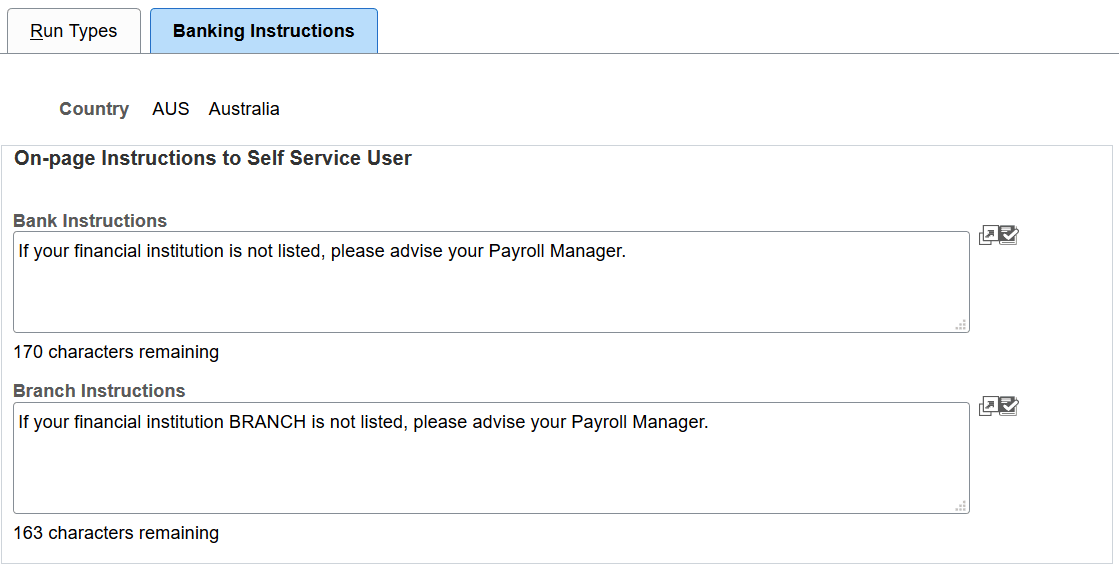
| Field or Control | Description |
|---|---|
|
Bank Instructions |
Enter a message that will appear directly above the list of banks from which a user can select on the self-service Select a Bank page. |
|
Branch Instructions |
If you set up bank branches by using the Branch Table page, when employees select a bank on the Select a Bank page, the system displays a list of available branches. Employees then see any instructions that you define here. Note: This field is not available if the country is GBR or USA. |
|
(GBR) Building Society Instructions |
If an employee specifies GBR (Great Britain) in the Bank Location field and selects Building Society Roll Number in the Account Type field on the Bank Location and Account Type page, the Select a Building Society field appears, and displays the instructions that you define here. Note: This field is available only if the country is GBR. |