Viewing Detailed Calculations of Performance Results
This topic provides an overview of debug/trace logs, lists a prerequisite, and discusses how to view the debug or trace log.
Pages Used to View the Debug/Trace Log
| Page Name | Definition Name | Usage |
|---|---|---|
|
EP_DEBUG |
View the detailed calculations for a document so that you can debug or trace the calculation. |
|
|
EP_DEBUG_PRNT |
Display all calculation information on a single page for convenient printing. |
Understanding Debug/Trace Logs
You can view a log of the steps that the system takes to calculate the results of a selected document. This feature can be helpful when you're trying to debug setup problems that are not easily identified by looking at the results of a document calculation.
The system generates a debug/trace log for a document when the user clicks a calculate button on the Maintain Documents page.
When a user first enters the Evaluation page, the system deletes any existing debug/trace information for the subdocument and begins a new trace. The document does not need to be saved to record the debug/trace results; clicking a calculate button automatically saves the results to the log.
Review the results of the debug/trace process after results are calculated and before accessing the Evaluation page for the same subdocument, since accessing the page again deletes the debug/trace data just created.
Prerequisite
To have the system log calculation entries, you must select the Debug Rating Calculations check box on the ePerformance page (Set Up HCM, Install, Product Specific, ePerformance Installation, ePerformance).
WARNING:
Enabling this feature can have a significant impact on system performance. We recommend that you use the feature only when you are testing and debugging the ePerformance setup.
Related Topics
ePerformance Debug/Trace Log Page
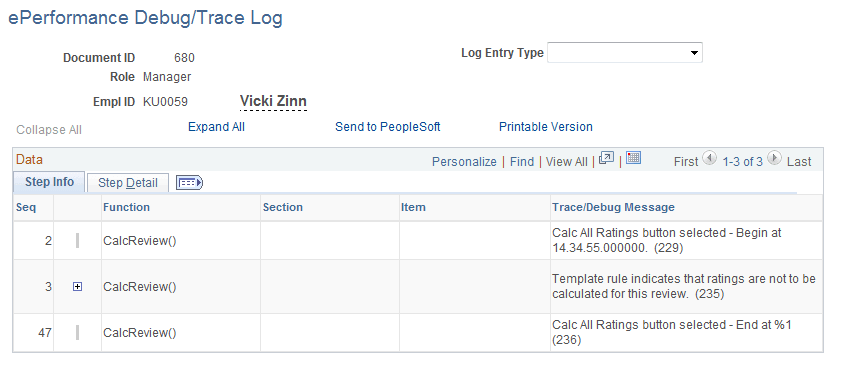
Use the ePerformance Debug/Trace Log page (EP_DEBUG) to view the detailed calculations for a document so that you can debug or trace the calculation.
Navigation:
This example illustrates the fields and controls on the ePerformance Debug/Trace Log page.
Note:
To access this page you must select the Debug Rating Calculations check box on the ePerformance page (Set Up HCM, Install, Product Specific, ePerformance Installation, ePerformance) and then perform a calculation on a Manager Evaluation page.
| Field or Control | Description |
|---|---|
|
Log Entry Type |
Select a log entry type to filter the output. Options are:
|
|
Send to PeopleSoft |
Click to access the Launch Diagnostics page (PT_DIAG_PLUGIN) and send the diagnostics information to Oracle. For more information on the delivered HCM application diagnostic plug-in for ePerformance, seeApplication Fundamentals: ePerformance. |
|
Printable Version |
Click to render a page that presents all trace information, without tabs, so that you can print a copy. Note: When using the browser's File, Print option to print this page, be sure to set the printer layout to landscape mode. |
Step Detail Tab
Click this tab to view the rating model, calculation method, review rating, numeric rating, review points, and the trace/debug messages for the employee.
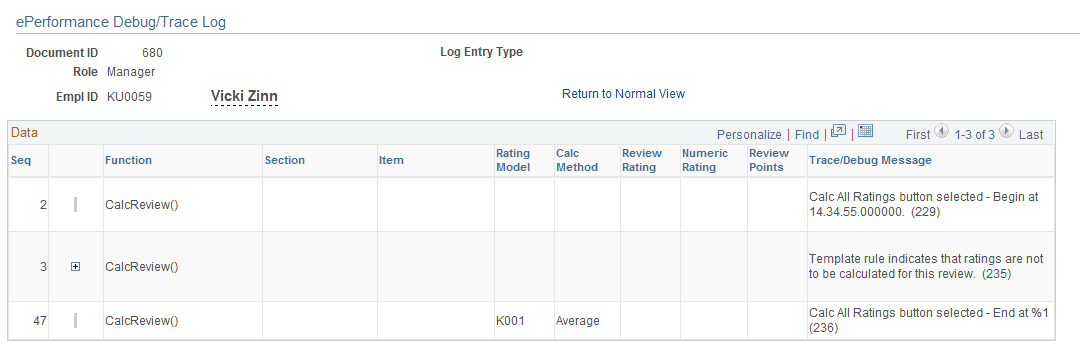
ePerformance Debug/Trace Log Page (printable version)
Use the ePerformance Debug/Trace Log (printable version) page (EP_DEBUG_PRNT) to display all calculation information on a single page for convenient printing.
Navigation:
Click the Printable Version link on the ePerformance Debug/Trace Log page.
This example illustrates the fields and controls on the ePerformance Debug/Trace Log page (printable version).